
Key Takeaways:
Marketing Cloud Account Engagement: Prepare clean data and configure Salesforce integration correctly.
Pardot implementation: Set up field mapping, email authentication, and marketing automation.
Successful implementation: Test workflows, monitor campaign results, and optimize lead conversions.
Marketing Cloud Account Engagement, formerly known as Pardot, is Salesforce’s B2B marketing automation platform for lead generation, lead nurturing, email marketing, and sales alignment. Salesforce renamed Pardot in April 2022 to align its branding with the broader Salesforce Marketing Cloud portfolio, while retaining its core marketing automation capabilities.
The platform has evolved with improvements to its Salesforce Lightning experience, landing page creation, prospect engagement tracking, and CRM integration. Salesforce has also expanded its wider ecosystem with Data Cloud (now Data 360) and Agentforce, opening up new possibilities for connected customer data.
However, getting these capabilities to work effectively depends on proper configuration. Incorrect field mappings, unreliable prospect synchronization, and poorly defined lead qualification rules can undermine campaign performance and disrupt marketing-to-sales handoffs.
A successful Marketing Cloud Account Engagement (Pardot) implementation requires careful planning, accurate CRM integration, and a clear automation strategy.
This guide covers the essential prerequisites, step-by-step Pardot implementation process, first-90-day priorities, and common mistakes to avoid
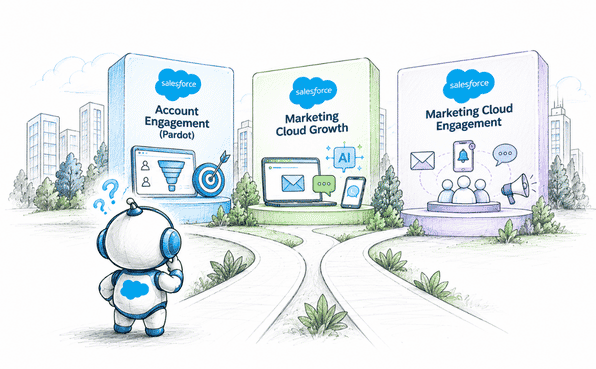
How Do Account Engagement and Marketing Cloud Engagement Differ for B2B and B2C Teams?
Both products carry the “Marketing Cloud” name, which is why they are so often confused. The real difference is who you sell to and how you sell.
The short answer: B2B teams use Account Engagement (Pardot) to turn leads into sales-ready opportunities. B2C teams use Marketing Cloud Engagement to reach and retain large consumer audiences across many channels.
Side-by-Side Comparison
| Criteria | Account Engagement (Pardot): B2B teams | Marketing Cloud Engagement: B2C teams |
|---|---|---|
| Built for | B2B marketing and sales alignment | High-volume, multichannel consumer marketing |
| Audience size | Smaller, high-value prospect lists | Very large consumer databases |
| Core unit | Prospects, tied to Salesforce leads and contacts | Subscribers and contacts in data extensions |
| Salesforce CRM link | Native connector with lead and contact sync | Integration through Marketing Cloud Connect |
| Integration through Marketing Cloud Connect | Email, forms, landing pages | Email, SMS, push notifications, social, advertising |
| Journey tool | Engagement Studio (nurture programs) | Journey Builder (cross-channel journeys) |
| Lead qualification | Scoring, grading, and MQL handoff to sales | Segmentation and behavior-based triggers |
| Sales team involvement | Sales sees prospect activity inside Salesforce | Mainly used by marketing teams |
| Typical sales cycle | Long, with multiple decision-makers | Short, often transactional |
| Typical use case | Nurture a lead until it is sales-ready | Welcome series, promotions, abandoned carts |
What B2B Teams Need (and Why Account Engagement Fits)
Long Sales Cycles: Nurture programs keep prospects engaged over weeks or months.
Multiple Decision-Makers: Prospect activity is tracked and tied back to Salesforce records, so sales sees who is engaging.
Lead Qualification: Scoring and grading tell reps who is engaged and who fits your ideal customer profile.
What B2C Teams Need (and Why Marketing Cloud Engagement Fits)
Massive Scale: Built to message millions of subscribers without slowing down.
Channel Reach: SMS, mobile push, and advertising sit inside the same journeys as email.
Real-Time Personalization: Journeys react instantly to behavior, such as an abandoned cart or a first purchase.
Want the full comparison? Check out our detailed Account Engagement vs. Marketing Cloud Engagement guide for a deeper, feature-by-feature breakdown.
Pardot Implementation Checklist: What to Prepare First
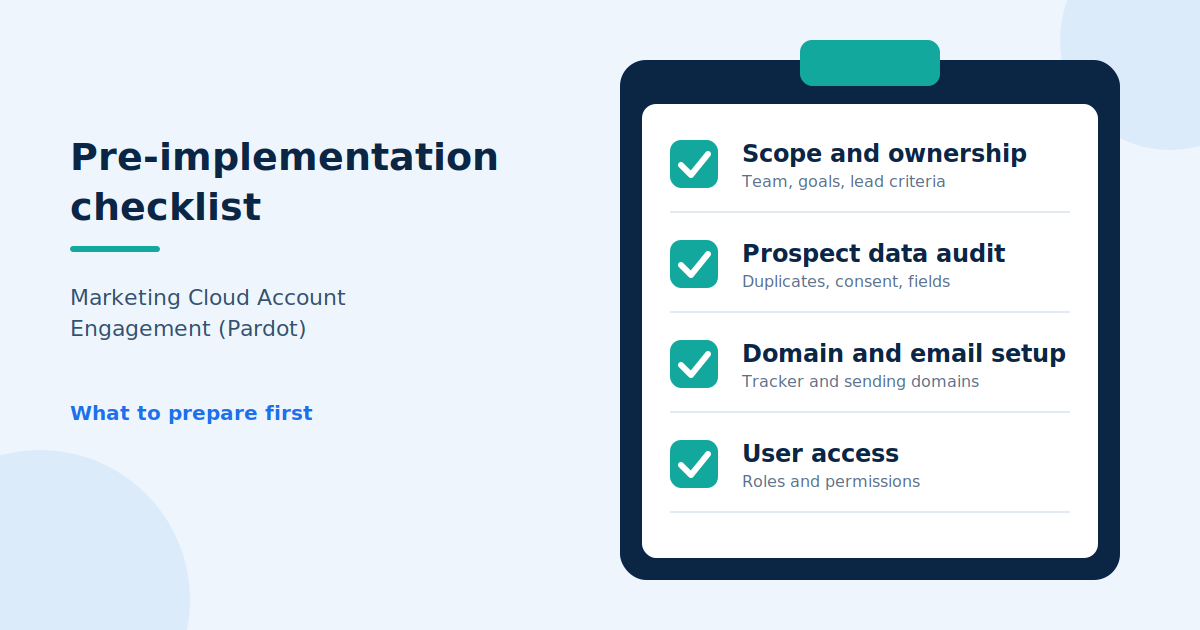
Before starting your Marketing Cloud Account Engagement setup, prepare your Salesforce CRM data, define who needs user access, and align technical requirements with your Salesforce administrator and IT team.
These checks prevent synchronization issues, email authentication problems, and setup delays. A well-planned Pardot implementation also makes sure your marketing automation fits your sales workflows from the start.
1. Define Scope and Ownership
Implementation team: Decide whether to implement internally or work with a Salesforce partner. Assign owners for data preparation, configuration, and approvals.
Marketing and sales alignment: Document campaign objectives, lead qualification criteria, prospect journeys, and lead handoff rules.
CRM requirements: Identify the Salesforce records, fields, and business units relevant to your implementation.
MQL” or “marketing qualified lead”: Document lead qualification criteria, including what counts as a marketing qualified lead (MQL).
2. Prepare and Audit Your Prospect Data
Prospect inventory: Review existing Salesforce leads and contacts, identify duplicates, and clean outdated or incomplete data.
Consent and suppression: Review subscription preferences, consent records, opt-outs, and suppression lists before planning email campaigns.
Field mapping: List the standard and custom fields that need to sync between Salesforce and Account Engagement. Confirm field visibility and synchronization behavior with your Salesforce administrator.
3. Configure Domain and Email Requirements
Tracker domain: Choose a branded tracking subdomain and coordinate the required CNAME and domain-validation records with your IT team.
Email-sending domain: Verify ownership of the sending domain. Salesforce configures SPF authentication by default; also configure DKIM and DMARC as recommended.
Sending IP strategy: Review your expected email volume and edition before deciding between a shared or dedicated sending IP. Salesforce recommends a dedicated IP above 100,000 emails per month and requires one above 250,000 emails per month.
Important: Use separate domains or subdomains for email sending and tracking. Salesforce warns that using the exact same domain for both can cause authentication and deliverability problems.
4. Review Salesforce User Access and Permissions
User access: Identify the administrators, marketers, and sales users who need access to Account Engagement.
User Sync: Review whether Salesforce User Sync is enabled and determine the appropriate setup before making changes. Enabling it transfers user management to Salesforce and cannot simply be reversed.
Permissions: Verify the required Salesforce licenses or permission set licenses, Account Engagement roles, connector-user permissions, and field-level security.
Once these prerequisites are in place, you can proceed to configure Account Engagement, connect Salesforce CRM, and test prospect synchronization.
Marketing Cloud Account Engagement (Pardot) Implementation: Step-by-Step Setup Process
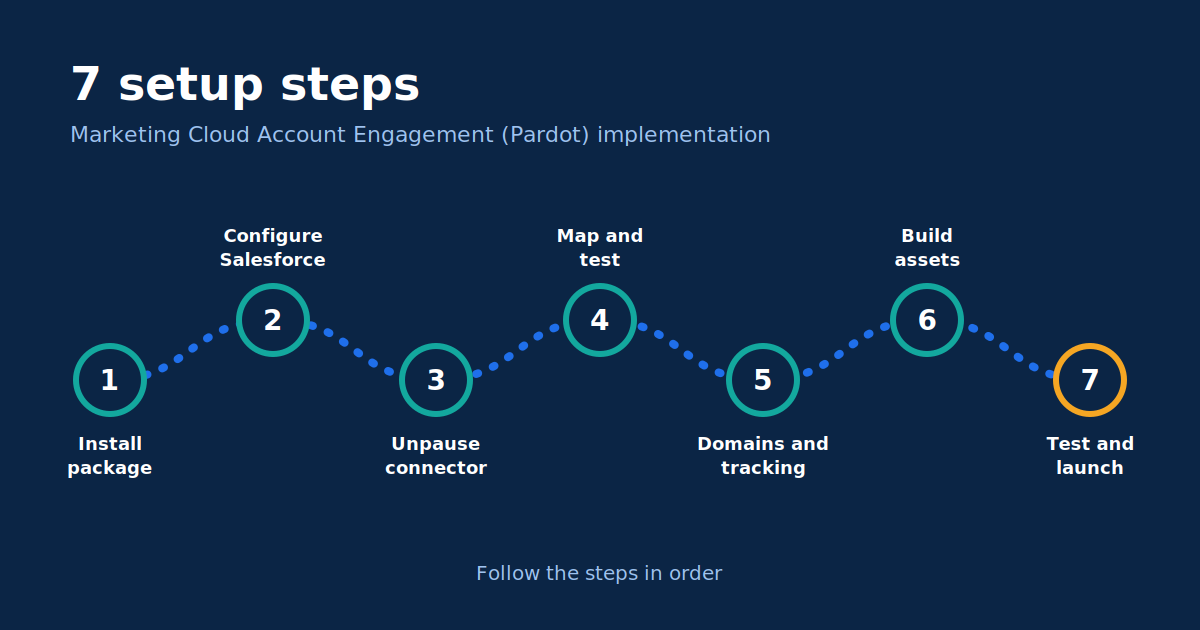
Step 1: Install the Package and Enable Account Engagement
Who does this: Salesforce administrator
For new implementations that require the managed package, install it before configuring the Salesforce connector. Existing customers who already have the package installed can skip the installation step.
Open Salesforce's official package installation instructions.
Use the installation link provided in Salesforce's instructions rather than installing directly from the main AppExchange listing.
Review the installation details and click Install.
On the security screen, select Grant access to admins only, then complete the installation.
In Salesforce, open Marketing Setup → Business Unit Setup and assign an Account Engagement administrator to the relevant Account Engagement business unit.
Open Marketing Setup → Setup Assistant and follow the instructions to enable Account Engagement.
If your organisation has multiple business units, appoint an administrator for each one. The exact enablement process depends on your existing Salesforce setup.
Step 2: Configure Salesforce for the Connector
Who does this: Salesforce administrator
Before enabling data synchronisation, configure the Salesforce fields, page layouts, and permissions required by Account Engagement.
Map lead fields to contact fields
In Salesforce, open Setup → Object Manager.
Select Lead → Fields & Relationships → Map Lead Fields.
Open the Contact tab.
Map the relevant custom lead fields to their corresponding contact fields.
Click Save.
This mapping helps preserve lead field values when a Salesforce lead is converted into a contact.
Step 3: Configure and Unpause the Salesforce Connector
Who does this: Account Engagement administrator
The Salesforce connector (v2, sometimes still called the Pardot connector) starts in a paused state. Review the configuration before allowing records to synchronize.
Open the Account Engagement Lightning app.
Go to Account Engagement Settings → Connectors.
Locate the Salesforce connector.
Click the gear icon beside the connector and select Edit Settings.
Review the connector user and configuration.
Before unpausing, configure Marketing Data Sharing if you need to restrict which Salesforce records synchronize. Complete other required connector prerequisites, including Connected Campaigns if applicable.
Return to the connector's settings menu, click the gear icon, and select Unpause.
Unpausing allows synchronization to begin. Check the connector status and resolve any configuration or permission errors before proceeding.
Step 4: Map Fields and Users, Test the Connector, and Sync Prospects
Who does this: Account Engagement administrator, with Salesforce administrator support
Complete field mapping for your Account Engagement prospect fields, then connect users and test the sync.
Map custom fields
Open the Account Engagement Lightning app.
Go to Account Engagement Settings → Object and Field Configuration → Prospect Fields.
Create the corresponding custom field in Account Engagement if it doesn't already exist.
Open the field for editing.
Select the matching Salesforce field from the Salesforce Field Name dropdown.
Review the sync behavior and save your changes.
Repeat for each field that needs to synchronize.
Make sure the connector user can access the Salesforce fields you want to map. Mapping a field does not, by itself, force all existing prospect records to synchronize.
Connect Salesforce and Account Engagement users
Choose the appropriate method for your organization:
Salesforce User Sync: Salesforce manages synchronized Account Engagement user records. Review the consequences before enabling it because the synchronized user records become read-only in Account Engagement.
Manual user mapping: Map Salesforce and Account Engagement users and configure Salesforce single sign-on as required.
Follow Salesforce's official user and field configuration guide.
Test the connector
Open Account Engagement Settings → Connectors.
Locate the Salesforce connector and open its available settings.
Use the connector testing option documented for your connector version.
Review the result and resolve any permission or synchronization errors.
Trigger the initial prospect sync
Clean the Salesforce leads and contacts you plan to import.
In Account Engagement, open Prospects → Account Engagement Prospects → Import Prospects.
Follow the import workflow and choose the appropriate matching method.
Review the imported records and their Salesforce associations.
Confirm that subsequent record updates synchronize as expected.
The connector does not automatically create Account Engagement prospects for every existing Salesforce lead and contact. Salesforce documents the initial import as a separate step.
See Trigger the Initial Prospect Sync.
Step 5: Configure Tracking Domains and Email Authentication
Before launching campaigns, configure the domains used for website tracking and email delivery.
Set up a tracker domain
Open Account Engagement Settings → Domain Management.
Add a tracker domain using the branded subdomain you want to use.
Create the required CNAME record in your DNS provider.
Complete domain validation in Account Engagement.
Select a default campaign for the tracker domain.
Install website tracking code
Open the tracking-code generator in Domain Management.
Select the appropriate tracker domain and copy the generated code.
Add the code to the relevant website pages before the closing </body> tag, or deploy it through your tag-management system.
Verify that tracking works on the pages you intend to measure.
Prioritize meaningful pages such as product pages, forms, and landing pages rather than assuming every page must be tracked.
Authenticate your email-sending domain
Open the domain authentication settings in Account Engagement.
Add and verify the email-sending domain using the DNS records Salesforce provides.
Configure DKIM and DMARC in coordination with your IT or DNS administrator.
Verify the domain status before sending marketing emails.
Keep the email-sending domain separate from the tracker domain to protect email deliverability.
Use Salesforce's official email authentication documentation for the exact DNS requirements.
Step 6: Build Your Core Marketing Assets and Automation
Once the connector and tracking foundation are working, prepare the assets needed for your first campaigns.
Create forms and landing pages to capture prospect information.
Build and test email templates.
Define prospect segmentation and lead qualification criteria.
Configure lead scoring and grading rules that align with sales requirements.
Create automation rules and build your first nurture program in Engagement Studio for your intended prospect journeys.
Check that campaign attribution and reporting requirements are met.
Test each asset with sample records before activating automation. The exact setup paths depend on the Account Engagement edition and features available in your business unit.
Step 7: Test, Launch, and Monitor Performance
Before going live, validate your Marketing Cloud Account Engagement setup as a complete workflow rather than checking each configuration in isolation.
Submit a test form and verify that the prospect record is created correctly.
Confirm that the prospect is associated with the expected Salesforce lead or contact.
Test the relevant field mappings and synchronization behavior.
Check email rendering, links, subscription preferences, and deliverability.
Verify scoring, automation rules, lead assignment, and campaign reporting.
Train marketing and sales users on the processes they will use.
Launch your first campaign and monitor sync errors, prospect engagement, conversion rates, and lead handoffs.
Use the first 90 days to review campaign performance, resolve configuration issues, and refine scoring and nurturing rules based on actual results.
Common Mistakes in a Marketing Cloud Account Engagement (Pardot) Implementation
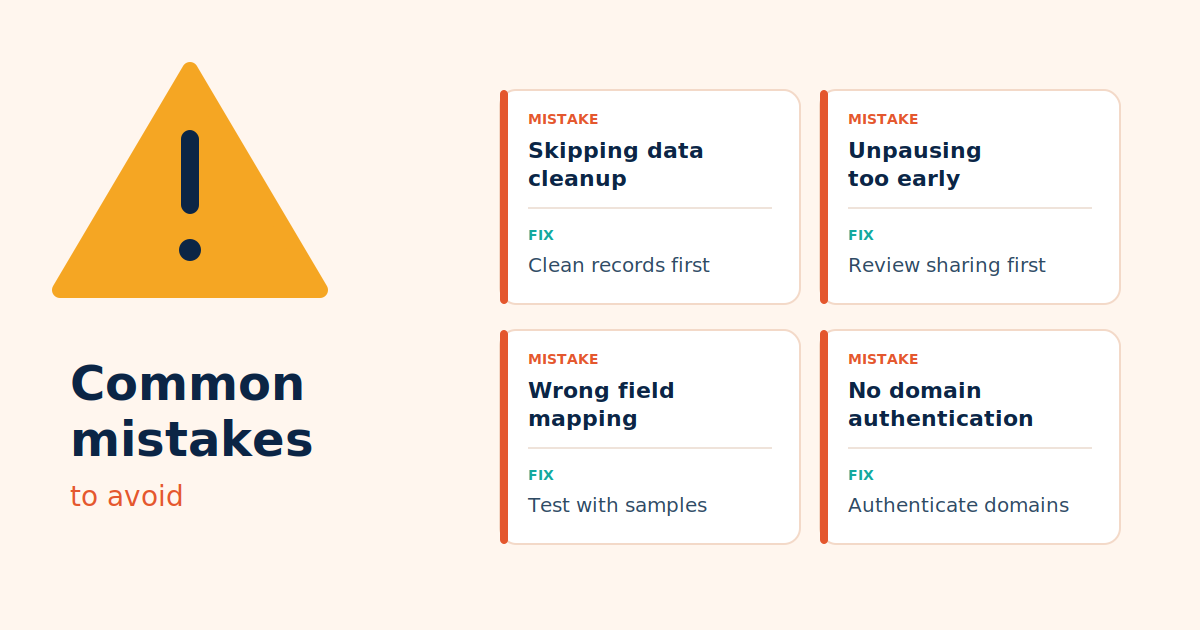
Small setup mistakes can lead to big problems, from broken syncs to missed leads. Here’s what to watch out for during your Pardot implementation.
| Common mistake | Why it matters | How to avoid it |
|---|---|---|
| Skipping prospect data cleanup | Duplicate or incomplete records can affect segmentation and CRM matching. | Clean existing leads and contacts before importing prospects. |
| Incorrect field mapping | Wrong sync settings can overwrite valuable field data. | Review field mappings and sync behavior, then test with sample records. |
| Unpausing the connector too early | Records may synchronize before sharing rules and permissions are reviewed. | Check connector settings and Marketing Data Sharing, if applicable, before unpausing. |
| Overlooking user permissions | The connector may not have access to the records or fields it needs. | Verify connector access, object permissions, field permissions, and user mappings. |
| Skipping domain authentication | Tracking may not work as expected, and unauthenticated email can face deliverability issues. | Validate your tracker domain and configure the required email authentication records. |
| Launching automation without testing | Incorrect rules can trigger unwanted emails or misroute prospects. | Test forms, scoring, automation, consent preferences, and sales handoffs before launch. |
| Ignoring sync errors after launch | Records may stop updating correctly without being noticed. | Review connector status and synchronization errors regularly. |
How Concretio Implements Account Engagement to Align Marketing and Sales
Most Account Engagement projects don’t fail because of the tool. They fail because marketing and sales never agreed on what a qualified lead is, or because the Salesforce sync can’t be trusted.
Concretio builds the setup around that alignment. We are a Salesforce Partner since 2013 and a Salesforce Select Partner, with Marketing Cloud Administrator, Platform Data Architect, and Data Cloud Implementation Expert credentials on our team.
Discovery & Alignment: A workshop with your marketing team, sales team, and Salesforce admin comes first. Goals, MQL criteria, prospect journeys, and lead handoff rules are agreed before any configuration begins.
Data Audit & Preparation: Salesforce leads and contacts are reviewed for duplicates and gaps, and field mappings are defined, so both teams work from the same clean data.
Salesforce Connector Setup: Account Engagement is installed and enabled, with user access and permissions configured. The connector stays paused until sharing rules and field mappings are verified.
Domain & Email Authentication: Tracker domains, DKIM, DMARC, and tracking-code deployment are set up alongside your IT team, protecting deliverability from the start.
Marketing Asset & Automation Build: Forms, landing pages, email templates, scoring and grading rules, automation rules, and your first Engagement Studio nurture programs are built around the criteria sales agreed to.
End-to-End Testing: The full workflow is tested, from form submission to prospect creation, Salesforce sync, and sales alert. Nothing goes live until the whole chain works.
Launch, Training & Optimization: Both teams are trained, and sync errors, engagement, and lead handoffs are monitored through the first 90 days, with scoring and nurture logic refined based on real results.
Align first, configure second, launch only when it is tested. Start your Account Engagement implementation with Concretio.
Conclusion
A successful Marketing Cloud Account Engagement implementation starts with clean prospect data, reliable Salesforce integration, and well-defined marketing automation workflows. From configuring field mappings and email authentication to testing prospect synchronization, every step builds a stronger base for lead generation and sales alignment.
With the right strategy, Marketing Cloud Account Engagement helps you nurture prospects, improve lead qualification, and align marketing efforts with sales outcomes, turning your Pardot implementation into a foundation for measurable growth.
Unsure where to focus first? A Salesforce consultant can review your setup and tell you what to fix first.
Frequently Asked Questions
-
Yes. Salesforce renamed Pardot to Marketing Cloud Account Engagement in 2022. It is the same B2B marketing automation product, and most practitioners still use both names. So a Pardot implementation and a Marketing Cloud Account Engagement implementation are the same project
-
Account Engagement is built for B2B. Marketing Cloud Engagement suits B2C marketing where real-time, multichannel communication is critical, while Pardot integrates tightly with Salesforce CRM and supports email marketing, scoring, grading, and automation rules. Choose based on whether you nurture leads through a sales team or run high-volume consumer campaigns.
-
It varies a lot by scope. One vendor says an initial implementation may take from 10 hours to two weeks, while another says implementations typically take 4 to 8 weeks depending on complexity. The number of users, customizations, data cleanup, and campaigns all affect the timeline.
-
The main steps include preparing prospect data, enabling Account Engagement, configuring the Salesforce connector, mapping fields and users, setting up tracking and email authentication, building marketing assets, and testing the complete workflow before launch.
-
Pricing depends on the selected edition, licensing requirements, and any additional Salesforce products or services needed. Check the official Salesforce pricing page for current pricing and edition details.
Related Readings

Let's Talk

Drop us a note, we’re happy to take the conversation forward 👇🏻