
HubSpot Salesforce Integration - Dev and Admin Guide
Key Takeaways:
Data Synchronization: Integration operates a bidirectional sync engine using unique identifiers to prevent duplicates.
Permissions & Governance: Precise object- and field-level & API permissions, along with SF integration user, are crucial.
Testing & Troubleshooting: Sync rules, field mapping, & inclusion filters in sandbox.
The administrators, developers, RevOps, sales, and marketing teams face major data synchronization and governance challenges at the time of HubSpot Salesforce integration. Without a properly configured integration, teams may have to deal with data synchronization & integration failures, data quality, governance issues, reporting, attribution discrepancies, ownership silos, and more.
The problem goes beyond simply connecting two platforms. Field mappings, sync rules, record matching, user permissions, and Application Programming Interface (API) limitations affect whether the data flows between HubSpot and Salesforce accurately, as well as create more data quality and operational issues. It requires more than completing the initial setup for developers and administrators to get the integration right.
In this Salesforce HubSpot integration guide, we will walk you through how to set up and configure data synchronization, manage field mappings and permissions, troubleshoot common sync issues, and maintain the integration in production.
Let’s get the ball rolling.
What Is HubSpot Salesforce Integration?
HubSpot CRM Salesforce integration is a built-in or custom native connector. It allows organizations to sync customer data, leads, contacts, and deals between HubSpot and Salesforce automatically. Both platforms play a significant role: HubSpot for marketing & engagement, and SF for sales pipelines and Customer Relationship Management (CRM).
How the HubSpot-Salesforce Integration Works
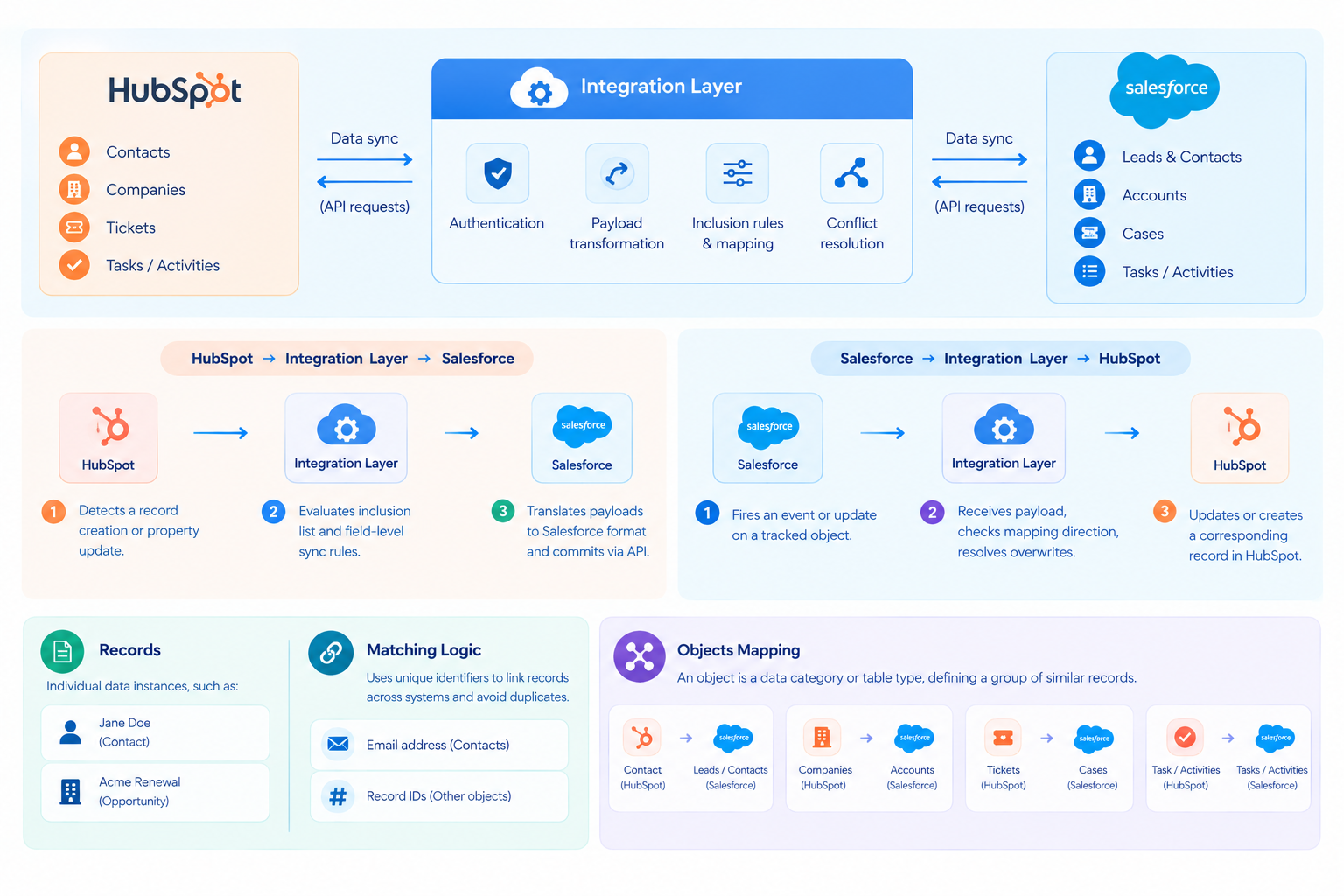
The Salesforce-HubSpot integration setup functions as a bidirectional synchronization engine. This maps data entities, applies rules, and executes API requests via a managed middleware integration layer.
The Integration Architecture:
Data continues to flow across both platforms via an intermediary synchronization layer. It further handles authentication, payload transformation, and conflict resolution.
HubSpot -> Integration Layer -> Salesforce
HubSpot detects a record creation or property update.
The integration layer works to evaluate the inclusion list, including field-level sync rules.
The system translates HubSpot object payloads into Salesforce-compatible formats and commits them via the Salesforce API.
Salesforce -> Integration Layer -> HubSpot:
Salesforce fires an event or update on a tracked object.
In the second step, the integration layer receives the payload, checks mapping direction, and resolves overwrites.
This SF process updates or creates a corresponding record in HubSpot.
Technical Core Components
Records: The individual data instances, such as a specific contact like Jane Doe or an opportunity like Acme Renewal.
Function: The integration matches unique identifiers such as email addresses for contacts or the record IDs in order to link the specific records across the systems instead of creating duplicate records.
Objects
An object is a data category or table type; it plays a role in defining a group of similar records.
Contact (HubSpot) to Leads/Contacts (Salesforce): HubSpot uses a single Contact Object, and SF on the other side splits people into Leads (unqualified) and Contacts (associated with an account).
Companies (HubSpot) to Accounts (Salesforce)
Tickets (HubSpot) to Cases (Salesforce)
Task/Activities to Tasks or Activities.
What data can be synchronized?
Successful HubSpot Salesforce integration solutions rely on establishing a reliable flow of information across your core organizational objectives. As you map all the records correctly, it will allow you to create a single source of truth that further breaks down operational silos.
Here is a clear breakdown of the primary data that can be synchronized between the Salesforce-to-HubSpot integration system.
1. Contacts (HubSpot) to the Leads & Contacts (Salesforce): It allows you to automate the handoff of nurtured prospects from marketing to sales.
2. Companies to Accounts: This aligns the firmographic data to power account-based marketing.
3. Deals to Opportunities: Connecting the revenue-focused objects, you link the marketing campaigns directly to the closed-won revenue. It will prove the marketing ROI and allow sales teams to see exactly which campaigns are currently influencing the active pipeline.
4. Activities (Tasks, Meetings, Emails): Syncing activities will help you unify the customer interaction timeline. This way, the sales team can easily view the marketing engagement, and marketing can pause emails at the time of active sales outreach.
5. Custom Objects: Syncs will specialize your company’s data, like subscriptions, to trigger workflows and reporting across Salesforce to HubSpot.
6. Relevant Association: This preserves relational links such as machine decision makers to the specific opportunities. It assists with data connection to its business context.
How frequently does HubSpot sync with Salesforce?
To pass data between HubSpot and Salesforce. It requires syncing data between two platforms. This process involves several actions and events that can trigger a sync between HubSpot and Salesforce.
HubSpot also checks for new or updated information across your Salesforce integration accounts approximately every 15 minutes and triggers a sync if required. It completes based on your sync configuration and file mapping settings.
Automatic Sync Triggers
Triggers for automatic sync.
Submittal of a form by a contact.
A contact receives, opens, or clicks on a marketing email (assuming sync is enabled for that behavior).
A contact receives, opens, or clicks on a sales email (assuming sync is enabled for that behavior).
If sync is enabled for that activity, a meeting is planned with a contact.
If sync is enabled for that activity, a call is placed to a contact.
A note is created on a contact record; the time sync is turned on for the same activity.
If the sync is turned on, the sales document is viewed by a contact.
A task is created on a contact record if the sync is turned on for that activity.
Subject to field mapping update rules, the contacts/company/deal property value is updated in HubSpot.
The leads/contact/opportunity value is updated in Salesforce (subject to field mapping update rules). This action completes unless the value is in the Salesforce formula field.
How to Set Up HubSpot Salesforce Integration Step-by-Step
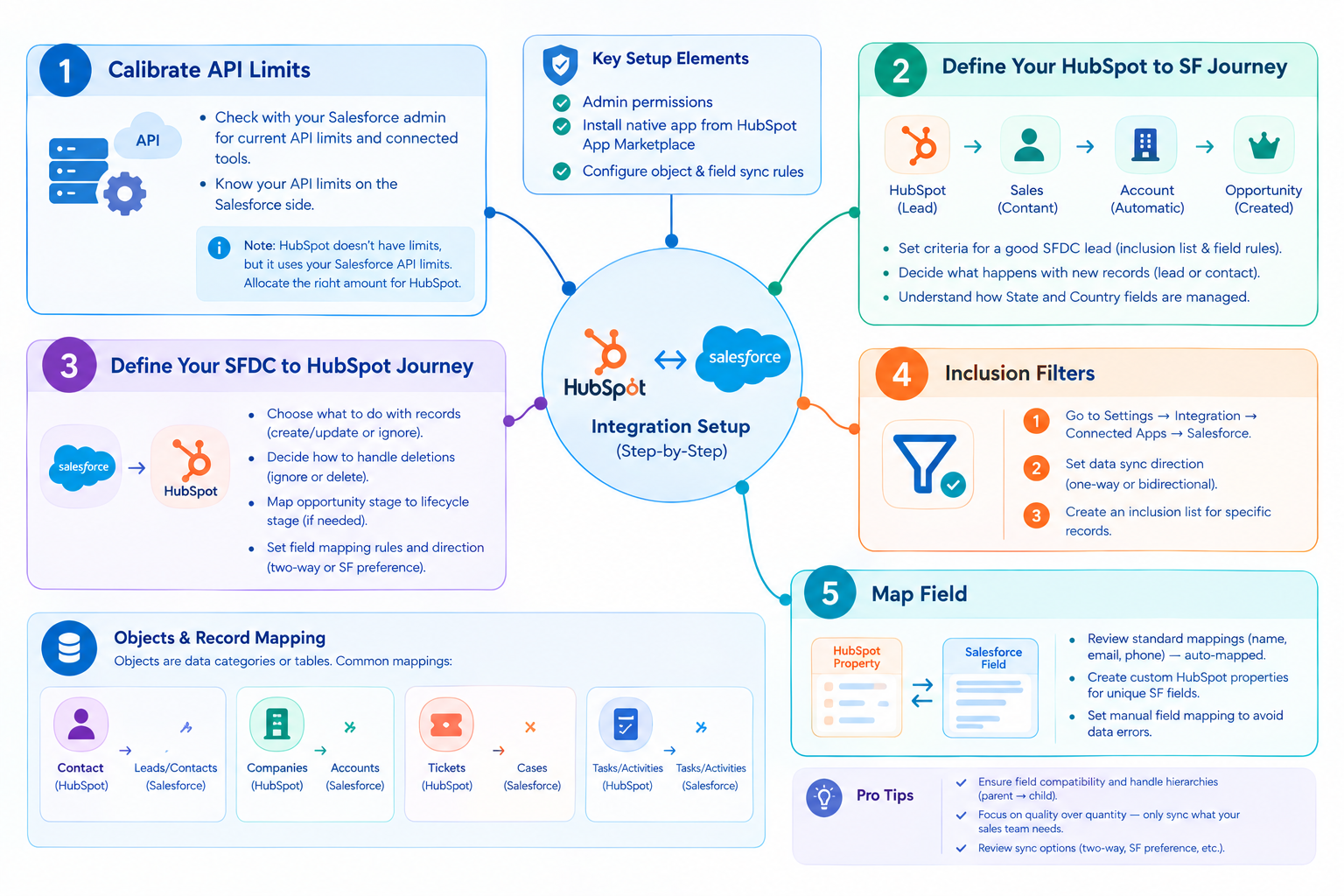
Salesforce HubSpot integration setup needs setting up admin permissions, installing the native app from the HubSpot App Marketplace, and at the same time configuring object and field sync rules.
Step 1. Calibrate API Limits
You can find out from the Salesforce.com (SFDC) admin.
What other tools are integrated with your SFDC instance?
Get to know what your Application Programming Interface (API) limits are on the SFDC side.
Note: This is a HubSpot-built integration, and HubSpot doesn’t have any limits set for it. However, this will impact users’ (yours) SFDC API limit. Therefore, you need to allocate the correct amount to HubSpot so you can make other integrations work simultaneously.
Step 2: Define Your HubSpot to SF Journey
You will need to determine: what does a good SFDC lead look like to your sales team? Based on these criteria, you will need to build your inclusion list, and this will act as the barrier for records in HubSpot that want to access SFDC.
What happens with the new record that is created in HubSpot? Does the record exist in SFDC or not? You can create a lead or a contact in SFDC.
Get to know how your State and Country fields are managed in SFDC. Should the integration match the Salesforce default values?
Usually, the most common journey tends to be as follows:
HubSpot creates a lead record -> The Sales Converted into a contact -> that will create an account automatically -> and an opportunity.
Step 3. Define Your SFDC to HubSpot Journey
The options for you are as discussed below:
You can create or update the contact in HubSpot or just ignore it.
Ignore or delete the contact in HubSpot.
The time the SFDC lead is created or updated: which number for 1?
The time the Salesforce lead is deleted: which number for 2?
When a SFDC contact is created or deleted: which number from option 1?
The time the Salesforce contact is deleted: which option from number 2?
Are you willing to have the contact’s opportunity stage in SFDC update the HubSpot contact’s lifecycle stage?
You need to determine which HubSpot Property should sync into which Salesforce field and what the rule should be. If you are planning these rules, check out the helpful Excel here; if you are deciding to use this Excel, please select File -> Make a copy.
You need to make sure that all the fields are compatible, in case of any hierarchy in the parent-to-child relationship. You have to discuss this with your Account Manager/a Technical Consultant.
Remember quality over quantity, and check whether the sales team really needs this information or not. You can create field mapping rules.
HubSpot contacts will sync to Salesforce lead/contacts; it cannot be turned off.
HS (HubSpot) companies sync to SFDC accounts; this can be turned off or on.
HS deals sync to SFDC opportunities; this tool can be chosen to turn on or off.
HubSpot activities sync to SFDC tasks; you can turn this on or off.
You can decide on mapping rules such as two-way vs. SF preference, etc.
Step 4: Inclusion Filters
HubSpot -> SFDC sync: set up an inclusion list.
You need to navigate to Settings -> Integration -> Connected Apps and Select Salesforce.
Now you would need to define your data sync direction, which could be one-way or bidirectional for the standard objects like contacts, leads, accounts, and opportunities.
Create an inclusion list that can specify which precise records qualify to sync between HubSpot and Salesforce.
Step 5. Map Field
Review standard field mapping, which includes name, email, and phone, and this maps automatically.
Create custom properties in HubSpot for any unique Salesforce fields, and then you can configure manual custom field mapping in order to avoid any data errors.
Install the Salesforce Integration
1. Navigate to the Marketing place icon in your HS account and select App Marketplace.
2. Now search for a SF integration and click to install the app; you may check the box if connecting to a Salesforce sandbox environment.
3. Log in as a Salesforce System Administrator, or you can integrate using credentials.
4. Allow HubSpot to access your SF data.
5. In the last, you need to follow the promoted setup wizard to install the HubSpot Managed Package directly into your SF organization.
Connect Salesforce and HubSpot
Here is how you can perform Salesforce integration with HubSpot in just a few steps. Check all the points discussed in this section.
Prepare Salesforce User: You can use a dedicated integration user with System Administrator API enabled, View Setup and Configuration, and Modify All Data permissions.
Authenticate: During the HubSpot installation process, you will need to log in with these SF credentials.
Authorization: Now click Allow to establish the secure OAuth connection and grant HubSpot data access.
Configure sync settings
1. Sync Direction: You would need to define the data flow as two-way or one-way, Salesforce to HubSpot or vice versa.
2. Record Creation: Set the specific trigger that is required to generate a new record in the other platform.
3. Record Updates: In this third process, you need to determine which system acts as the source of truth to resolve simultaneous data conflicts.
4. Deletions: Decide whether deleting the record in one of the systems deletes the same in the other (typically disabled to prevent accidental data loss).
5. Selective Sync: You may use an HS inclusion list to strictly control what records you want to sync with Salesforce.
Test in a Salesforce Sandbox
Testing with a sandbox environment is critical for verifying your configuration. Here are the significant HubSpot Salesforce integration best practices that admins must validate as discussed in the section below:
Record creation: Confirm that certain triggers, such as a contact attaining "Marketing Qualified" status, promptly and successfully create the appropriate matching record in the target system.
Record matching: To reduce duplication and avoid making duplicated entries, make sure the integration accurately recognizes existing records (usually by email address for contacts or domain for businesses).
Field updates: Verify that data flows correctly and complies with your defined overwrite rules by testing value changes on both platforms.
Association behavior: Verify that synchronized records uphold their relational connections, such as making sure a new Contact appropriately attaches to its corresponding Account and Opportunity.
Sync conflicts: To ensure that your "source of truth" settings resolve the conflict precisely as intended, purposefully update the identical field in both systems at the same time.
Error handling: Make sure that deliberate mistakes are appropriately reported in the HubSpot sync errors dashboard by triggering them (e.g., using mismatched picklist values or leaving a necessary Salesforce field blank in HubSpot).
API consumption: Keep an eye on how many Salesforce API calls you make during your tests to gauge volume and make sure the sync won't go above the daily Salesforce API limits set by your company.
HubSpot Salesforce Data Synchronization and Field Mapping
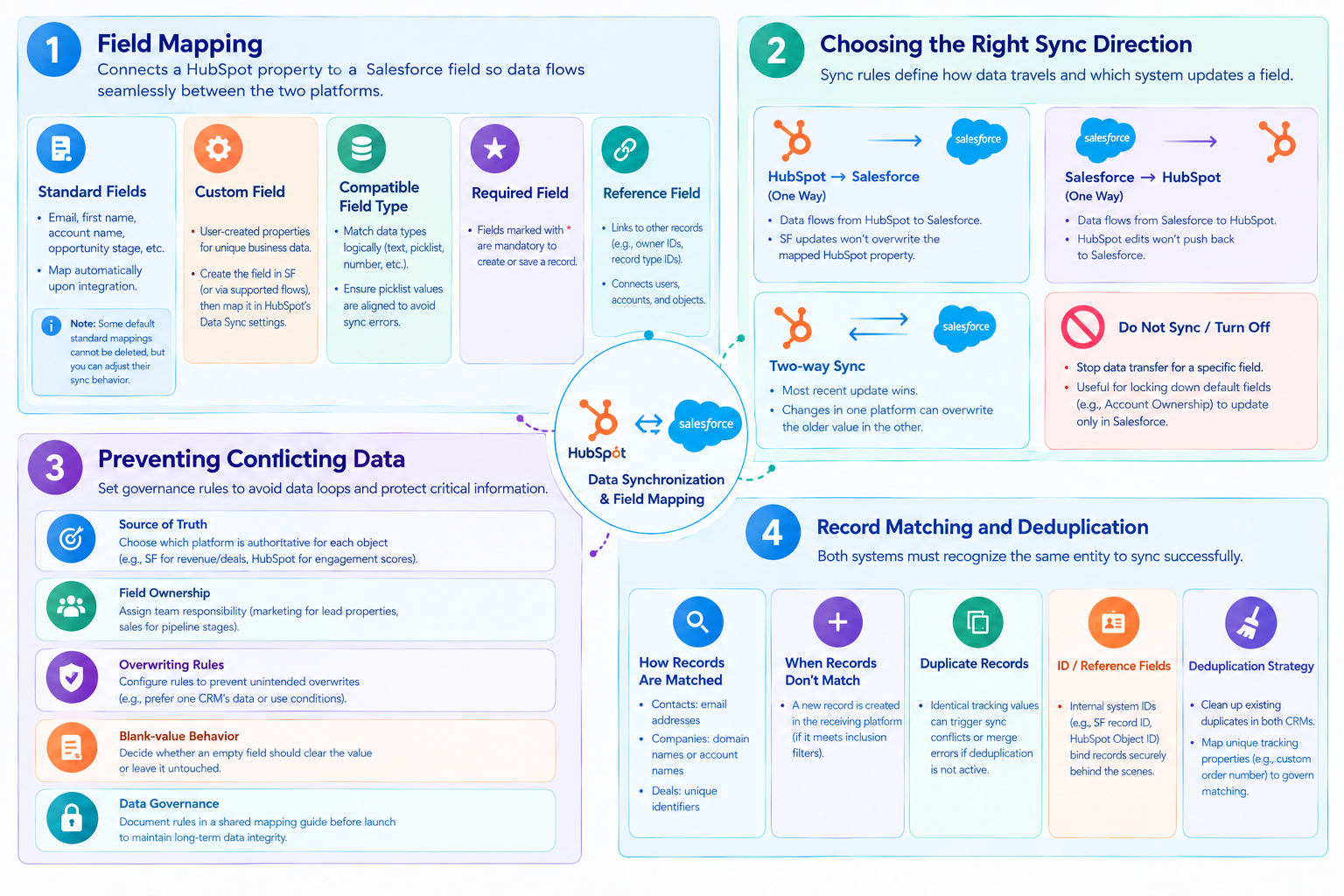
How field mapping works
Field mapping connects a HubSpot property to a Salesforce field so it can make the data flow seamlessly between them.
Standard Fields: All the pre-built default fields, including email, first name, account name, or opportunity stage, map automatically upon integration. Note: certain default standard mappings cannot be deleted, but you can adjust their sync behavior.
Custom Field: User-created properties built to track unique business data. First of all, you have to create the custom field in SF or via supported creation flows, then map it inside HubSpot’s Data Sync settings.
Compatible Field Type: The data type must be aligned logically ex. Single line text to text, dropdown select to picklist, number to number. Remember, the picklist values should match closely to avoid synchronization errors.
Required Field: All fields that are marked with an asterisk (*) all of them are mandatory to create or save a record.
Reference Field: A field referencing other records, which could be the owner IDs or Record Type IDs, links the relationship between users, accounts, and objects.
Choosing the right sync direction
In this section, we will discuss how sync rules dictate how data travels and which system dictates updates for a specific field.
HubSpot -> Salesforce (One Way): Data flow exclusively from HubSpot into Salesforce. Here, SF updates will not overwrite the mapped HubSpot property.
Salesforce -> HubSpot (One Way): Now data flows from Salesforce into HubSpot. HubSpot edits to this field will not push back to Salesforce.
Two-way sync: The most recent update wins; the changes made in one of the platforms SF or HS) overwrite the older value in the opposite system.
Do not Sync or Turn Off: You can stop data transfer for a specific field. It assists in locking down default standard fields like Account Ownership so they only update within Salesforce.
Preventing conflicting data
Without clear governance, simultaneous updates can assist in creating data loops or overwrite critical information.
Source of truth: You can designate which platform is authoritative for each object or specific property; for example, SF for revenue/deals, HubSpot for marketing engagement scores.
Field ownership: Within this, you can assign team responsibility so the marketing team controls specific lead properties while sales manages pipeline stages.
Overwriting Rules: This can be configured to avoid any unintended overwrites, and that could be preferring one CRM’s data unless a specific condition is met.
Blank-value behavior: Here you can decide whether an empty field in the source system should clear out an existing value in the destination system or leave it untouched.
Data governance: In this step, you can document your rules in a shared integration mapping guide before launching to maintain long-term data integrity.
Record matching and deduplication
When it comes to syncing successfully, both systems have to recognize that two separate records represent the exact same entity.
How records are matched: The system primarily matches contacts using email addresses, companies via domain names or account names, and deals using unique identifiers.
What happens when records don't match: If the matching unique identifier or email is not found, then the integration creates a brand new record in the receiving platform, provided it meets the inclusion filters.
Duplicate records: Multiple records with identical tracking values can trigger sync conflicts or merge errors if deduplication is not active.
ID/reference fields: Internal system IDs such as SF record ID or HubSpot Object ID bind the records securely, and this is done behind the scenes after the connection is initiated.
Deduplication strategy: It must be cleaned up by existing duplicates in both CRM tools before you launch the integration and map unique tracking properties such as custom order number to govern deal and object matching cleanly moving forward.
HubSpot Salesforce Integration User and Permissions
A dedicated HubSpot integration user within Salesforce acts as the secure bridge for bidirectional data flow. Here, it requires data flow, specific administrative objects, and field-level permissions to prevent sync failures.
What the Integration User Does
The system acts as an automated bridge, and it then executes read, create, and update requests between HS and SF.
It assists operations to continue in case a specific employee leaves the company. It eliminates the dependency on individual accounts.
Object Permissions
Object permissions require explicit read, create, and edit permissions, which is done on core standard objects such as leads, contacts, accounts, opportunities, campaigns, tasks, and users.
The dependent customer objects, including the related entities, need identical object-level access.
Field-level permissions
All mapped standard or custom fields must grant explicit visibility and edit rights to the integration user’s profile as well as the permission set.
Hidden or restricted fields will block specific property updates from syncing.
Read/Write & API Access
Remember that the API enabled permission is active to let HubSpot communicate via API calls.
Note: the read/write/edit functionality is mandatory; if there is only read profiles permission. This will block outbound changes from HubSpot.
Permission-set Considerations
Assign the standard Salesforce API Integration license and use dedicated permission sets instead of broad administrative overrides such as modify all data.
Enforce passwords never expire to prevent authentication tokens from breaking over time.
How Insufficient Permissions Cause Sync Failures
Blocked payload writes: missing edit rights on specific objects or fields, and this will cause SF to reject inbound Application Programming Interface requests, showing up as explicit insufficient access errors in HubSpot.
Silent divergence: Unmapped or restricted picklists/fields result without triggering broader system alarm.
Diagnosing a broken HubSpot Salesforce sync requires a step-by-step triage workflow, not just, or rather than, a random trial-and-error approach.
In this section, we will discuss all the HubSpot Salesforce integration problems, causes, and fixes that you must consider. Here is a sequential diagnostic framework, and this will help you isolate and fix root causes fast.
| Problem | Likely cause | How to troubleshoot |
|---|---|---|
| Records aren't syncing | Sync criteria/configuration | Check sync rules |
| Field isn't syncing | Mapping/field type | Check mapping compatibility |
| Permission error | Integration-user permissions | Review Salesforce access |
| Duplicate records | Matching configuration | Review record matching |
| Invalid Salesforce ID | Reference-field mapping | Validate Salesforce IDs |
| Picklist error | Value mismatch | Align picklist values |
| API-related problem | API usage/limits | Review API consumption |
| Association not syncing | Association configuration | Check object/association settings |
Advanced HubSpot Salesforce Integration Solutions
The decision to choose between a native connector and an Integration Platform as a Service (iPaaS) platform completely depends upon your organization’s workflow complexity and data architecture needs.
Native HubSpot-Salesforce integration
The HubSpot Salesforce Connector provides you with a free, bi-directional sync directly. In this section, we will discuss it step by step so you can get a comprehensive understanding of the same.
When It Is Sufficient
Standard Object Sync: This will only require you to sync standard data objects such as contacts, companies, leads, deals, and activities.
Straightforward Lead Handoff: Marketing nurtures leads in HubSpot, and sales works them in SF with basic field-level mapping.
Limited Budget and Resources: Your team is seeking to have someone provide fast development without hiring developers, as well as managing custom pipelines.
Single Org Setup: You are going to connect one HubSpot portal to one Salesforce organization with standard government rules.
iPaaS/automation platforms
When Organizations Need: Platforms like Workato, Tray.io, or MuleSoft will bring you multiple tools.
What it is best for: The multi-step flow will touch the third party application such as billing systems, data enrichers, customer support desks, and, further, visual pipeline orchestration and modern data formatting.
What are the limitations: The subscription costs are scaled by task volume, and its deeply nested, custom multi-object business logic can become difficult to maintain inside visual flowchart User Interfaces (UIs).
Custom API integration
When native and iPaaS Aren’t Sufficient: The high-volume, event-driven data flow will require direct REST or bulk API control.
What it is best for: It is best for complex data transformation, proprietary business logic, multiple enterprise data systems, and this can include connecting an Enterprise Resource Planning (ERP) system directly, and complete developer ownership.
Limitations: Some of the high implementation effort, its ongoing internal maintenance overhead, as well as the custom-built error handling infrastructure.
When Should You Move Beyond the Native Connector?
Here is how you can make an informed decision in order to determine when to stick with the native HubSpot Salesforce connector. With this, you will also learn when you can escalate to middleware (iPaaS) or a custom API integration.
| Evaluation Factor | Stay Native | Move to iPaaS / Middleware | Move to Custom API Integration |
|---|---|---|---|
| Data Objects | Standard objects (Contacts, Companies, Deals, Leads). | Standard objects + simple custom fields or secondary SaaS apps. | Deeply customized multi-object models, non-standard schemas. |
| Data Transformation | Direct 1:1 field mapping; minor picklist sync. | Conditional formatting, basic data cleansing, multi-app routing. | Heavy parsing, pre-load validation enrichment, programmatic sanitization. |
| Business Logic | Standard assignment rules and simple trigger updates. | Cross-app workflows, multi-step sequential triggers. | Advanced algorithmic routing, complex conflict resolution, proprietary logic. |
| External Systems | Strictly HubSpot and Salesforce. | HubSpot, Salesforce, plus other satellite SaaS tools (e.g., billing, support). | Enterprise data warehouses, legacy internal databases, direct ERP connections. |
| Team Ownership | RevOps / Marketing Operations with minimal IT support. | Operations engineers or centralized RevOps team. | Dedicated software engineering or integration development team. |
What Are the Best HubSpot Salesforce Integration Practices
Setting up and maintaining the HubSpot Salesforce integration requires one to have strict governance; in order to mitigate any data corruption, API limits being blown out, and sync loops.
Check out this comprehensive and practical admin checklist for HubSpot Salesforce integration best practices before you jump in to configure and audit your integration.
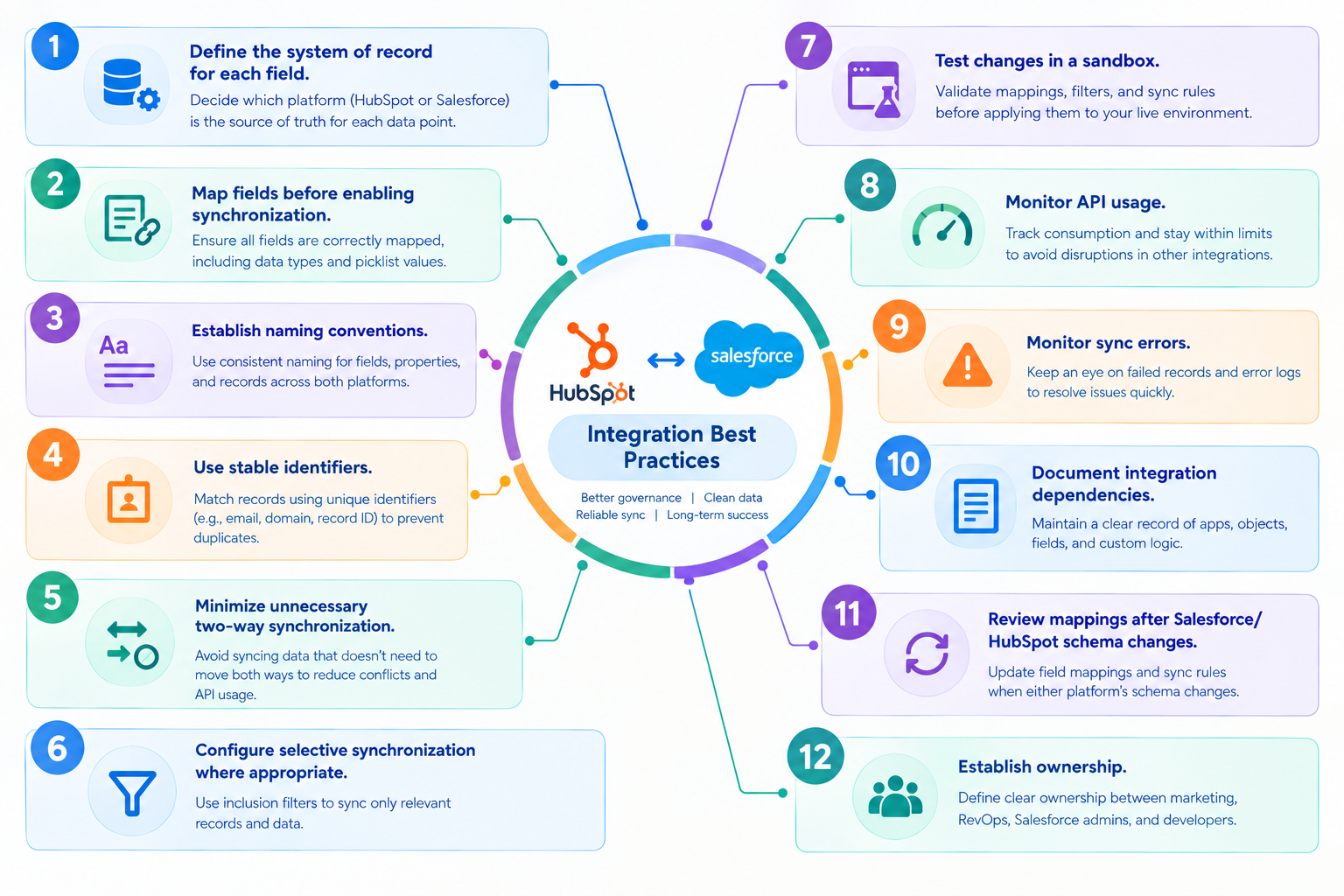
Define the system of record for each field.
Map fields before enabling synchronization.
Establish naming conventions.
Use stable identifiers.
Minimize unnecessary two-way synchronization.
Configure selective synchronization where appropriate.
Test changes in a sandbox.
Monitor API usage.
Monitor sync errors.
Document integration dependencies.
Review mappings after Salesforce/HubSpot schema changes.
Establish ownership between marketing, RevOps, Salesforce admins, and developers.
How to Monitor and Maintain the Integration
This section will help you understand how you can monitor and maintain the integration. Here, we will discuss all the points that you must consider for an improved experience after the integration.
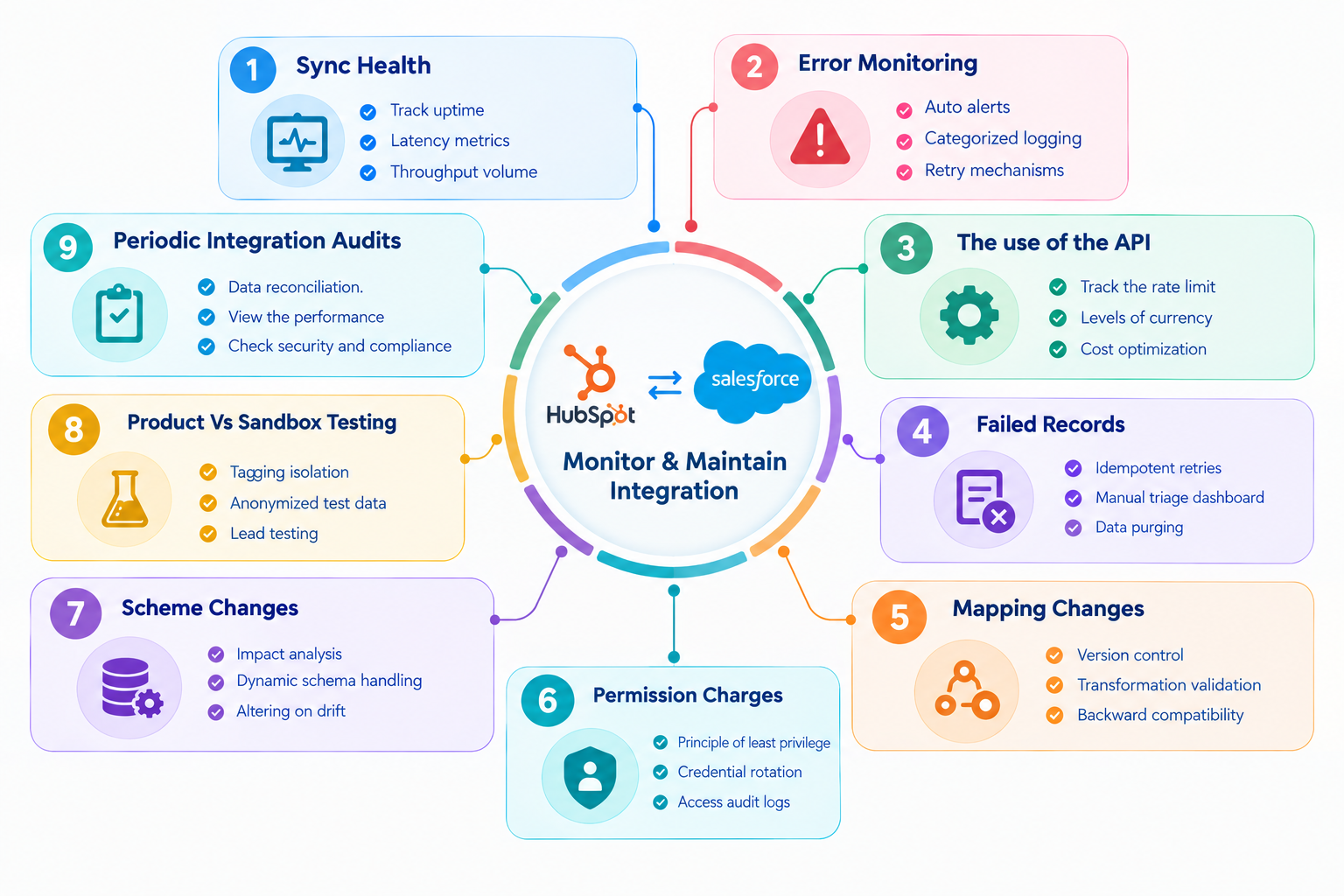
Go through each point discussed in this section as listed below.
Sync Health
Track uptime
Latency metrics
Throughput volume
Error Monitoring
Auto alerts
Categorized logging
Retry mechanisms
The use of the API
Track the rate limit
Levels of currency
Cost optimization
Failed Records
Idempotent retries
Manual triage dashboard
Data purging
Mapping Changes
Version control
Transformation validation
Backward compatibility
Permission charges
Principle of least privilege
Credential rotation
Access audit logs
Scheme Changes
Impact analysis
Dynamic schema handling
Altering on drift
Product Vs Sandbox Testing
Tagging isolation
Anonymized test data
Lead testing
Periodic Integration Audits
Data reconciliation.
View performance
Check security and compliance
HubSpot Salesforce Integration: Developer vs. Admin Responsibilities
Both developers and admins require distinct rules for HS SF integration in order to ensure smooth data flow and system health.
The table below will help you know specific responsibilities of each role based on the requirements.
| Admin | Developer |
|---|---|
| Configure integration | Build custom integrations |
| Manage permissions | Work with APIs |
| Configure field mappings | Transform data |
| Manage sync rules | Debug complex integrations |
| Monitor errors | Build custom workflows |
| Manage users | Handle custom objects/business logic |
HubSpot Salesforce Integration Checklist
This quick, scannable checklist for HS-to-SF integration with concise information will help you make your integration easier.
Before setup
☐ Define integration objectives
☐ Identify objects
☐ Identify system of record
☐ Audit fields
☐ Review permissions
During setup
☐ Install connector
☐ Configure integration user
☐ Configure mappings
☐ Define sync direction
☐ Configure selective sync
☐ Test records
Before production
☐ Test edge cases
☐ Validate duplicates
☐ Test permissions
☐ Review API usage
☐ Test error handling
After launch
☐ Monitor sync health
☐ Review errors
☐ Audit mappings
☐ Document changes
Conclusion
HubSpot Salesforce integration connects your marketing and sales data into one system. It allows both teams in your business to work faster and smarter while leveraging a unified customer view, better team alignment, less manual work, smart automation, and accurate reporting.
With the improved Salesforce to HubSpot integration, get rid of all the HubSpot-Salesforce integration problems by implementing deliberate data governance, granular sync rules, and restricted record mapping instead of just relying on default settings.
However, a native HS SF integration connects the marketing and sales data directly between the two platforms with no need for custom code or third-party tools.
Connect with one of the professionals at Concret.io right now; leverage the expertise your business needs for both powerful platforms to work together.
Case Study: Personalized Education with Salesforce HubSpot Automation
For a real-world example of optimizing lead flows and student engagement, explore our case study on Personalized Education with Salesforce HubSpot Automation to see how automated synchronization transforms operational efficiency.
Frequently Asked Questions
-
It checks for new or updated information across both platforms, HubSpot and Salesforce. This syncing process takes place approximately every 15 minutes; it also syncs if required. But it all depends on the settings you have applied for sync configuration and field mapping.
-
HubSpot integrates with Salesforce via a native, bidirectional sync application. This further connects your marketing and sales data across both systems in real time. The hierarchy of the process starts with native application -> data mapping -> sync rules.
-
HubSpot allows you to sync core CRM objects, standard/custom properties, and engagement activities. If you are seeking to have core objects synchronized. It assists you with contacts/leads, companies/accounts, deals/opportunities, tickets, and customer objects. Moreover, it helps you with activity engagement data, like timeline sync (one-way from HubSpot to Salesforce) and activity sync (two-way), and field and property data, like standard fields and custom fields mapping.
-
Yes, it allows you to sync data both ways (bi-directionally), where you can use its native HubSpot-Salesforce integration across core objects like:
Contacts and leads
Companies and accounts
Deals and opportunities
All the activities and tasks
-
To troubleshoot HubSpot-Salesforce sync errors, you can navigate to the HubSpot Sync Health Dashboard under your integration settings to identify falling records and apply targeted fixes.
Check error logs: go to Settings> Integrations> Connected Apps> Salesforce and open Sync Health.
Now verify authentication & permissions.
In the third step, inspect field mapping and picklists.
Review all the validation rules and flows.
Verify the inclusion list and filters.
In the last step, monitor the API limits.
-
Yes, the system allows you to test the HubSpot-Salesforce integration in a sandbox environment before you do the same live. This will help you avoid making any errors before you apply the changes to your live production data.
-
The integration requires account access and super admin permissions in HubSpot, as well as a Salesforce System Administrator profile (often a dedicated integration user with equivalent administrative rights) so that you can install the package. You must have the following permissions:
API enabled
Modify all
View setup and configuration
Modify metadata
Download AppExchange packages & customize application
Field-level visibility
Related Readings

Let’s Talk

Drop us a note, we’re happy to take the conversation forward 👇🏻