
HubSpot Marketing Hub Salesforce Integration (Native): Requirements, Setup & Cost
Does HubSpot Marketing Hub have native Salesforce integration?
Short answer: Yes. HubSpot Marketing Hub has a native integration with Salesforce on Professional and Enterprise plans. It is not available on Free or Starter.
Last verified: October 2026 against HubSpot’s official Salesforce integration documentation.
“Native” means HubSpot builds and supports the connector itself, so the HubSpot Marketing Hub Salesforce integration can sync contacts, companies, deals, activities, and other supported data between the two platforms without custom code.
In this guide, you’ll learn:
Which plans include the HubSpot Marketing Hub Salesforce integration and what the requirements are
How to complete the setup, step by step
How Marketing Hub Salesforce sync works, and which rules control your data
The limitations to check before you commit
What the integration really costs, and when a different approach makes more sense
Source: https://knowledge.hubspot.com/salesforce/install-the-hubspot-salesforce-integration
How Much Does HubSpot Marketing Hub Salesforce Integration Cost?
fee. HubSpot provides a native, two-way sync through its Marketplace, allowing supported records to move between the two platforms.
However, the integration still requires compatible subscriptions, and your total cost depends on setup complexity, data requirements, and ongoing maintenance.
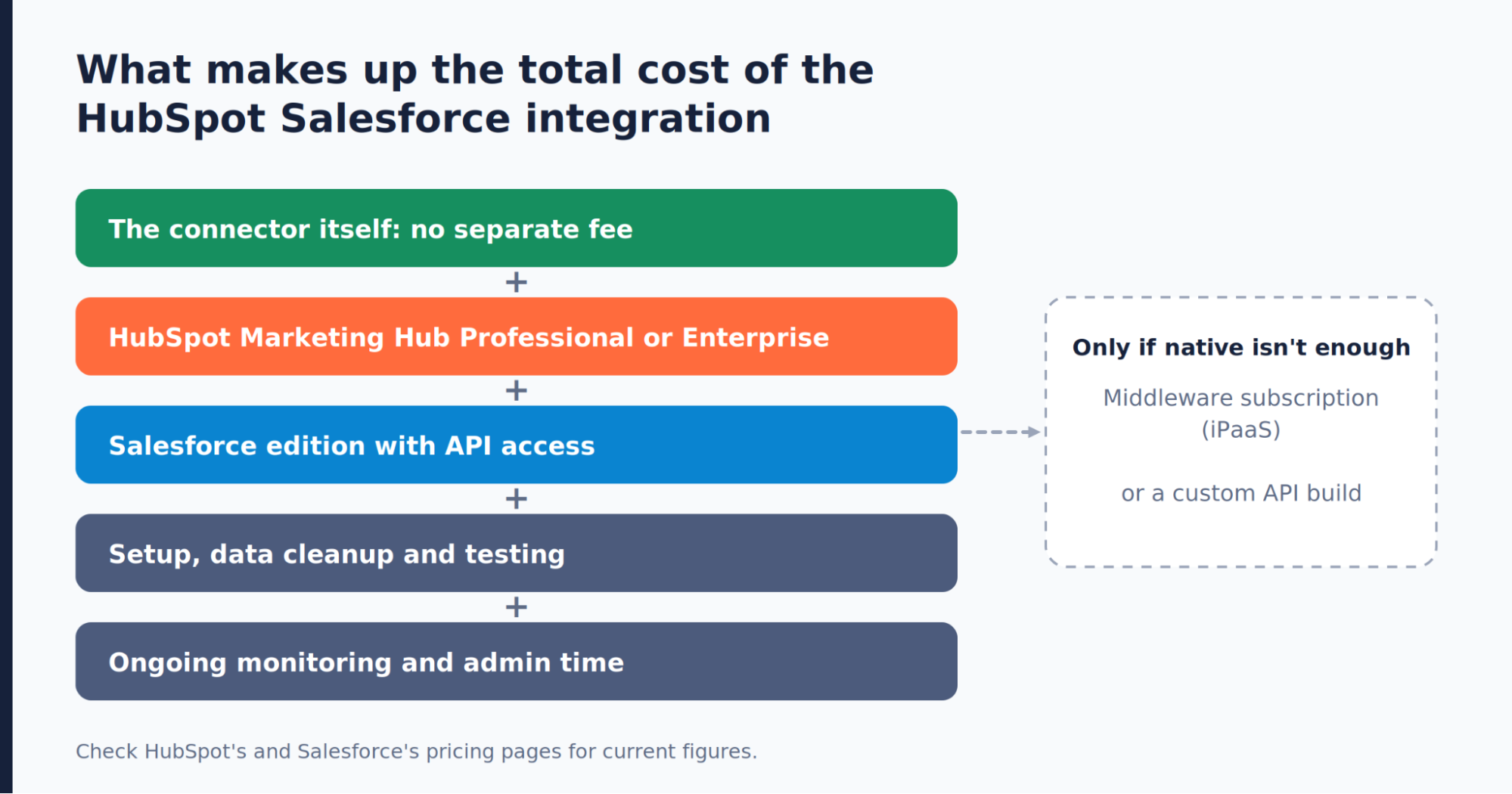
Here is a breakdown of the main costs to consider before planning your HubSpot Salesforce integration.
1. Software Subscriptions: The Biggest Cost
First, consider your existing software subscriptions and whether they cover the integration features you need.
HubSpot: The native Salesforce integration is available with Marketing Hub Professional and Enterprise. Marketing Hub Professional starts at $800 per month with annual commitment pricing, while Enterprise starts at $3,600 per month.
Required one-time onboarding fees are $3,000 for Professional and $7,000 for Enterprise. Final pricing depends on your billing arrangement and requirements.
Salesforce: You need a compatible Salesforce subscription with API access. Salesforce Sales Cloud Enterprise is listed at $175 per user per month, while Unlimited is $350 per user per month, both billed annually.
Check your existing edition and API permissions before budgeting for an upgrade.
Additional HubSpot costs: Your marketing contact volume, extra seats, and selected features can affect the final bill.
For example, HubSpot lists Sales Hub Enterprise starting at $150 per month, but this is a separate product from Marketing Hub.
If you are evaluating the HubSpot Marketing Hub Salesforce integration, calculate the cost of both platforms together rather than looking at the connector alone.
2. Setup and Implementation Costs
Installing the native connector is only one part of the HubSpot Salesforce integration setup. Your team may also need to map fields, configure sync rules, clean existing records, and test workflows before launch.
| Implementation Scenario | Indicative cost |
|---|---|
| Basic setup with standard objects and minimal customization | 2,000–10,000 |
| More complex setup involving custom fields, workflows, and data migration | 10,000–30,000+ |
These are third-party implementation estimates, not official HubSpot fees or fixed industry rates. Actual costs can vary considerably depending on the agency, data quality, project scope, and internal resources.
A team with clean data and an experienced administrator may be able to handle a straightforward setup internally.
3. Hidden Costs to Consider
The initial subscription and setup fees do not tell the whole story. These additional factors can affect the total HubSpot Salesforce integration cost:
Extra user licenses: Check whether your current Salesforce licenses cover the integration user and required permissions. An additional seat is not automatically necessary in every setup.
API usage: HubSpot notes that a single contact sync can use up to four Salesforce API calls per record, although actual usage varies. Review your API limits if you expect high sync volumes.
Data cleanup: Duplicate records, inconsistent field values, and incomplete contact information may require attention before synchronization. A HubSpot portal audit can show these problems before you sync.
Ongoing maintenance: Sync errors, changes to field mappings, and updates to business processes may require periodic monitoring and administration.
The best way to estimate your total cost is to assess your current subscriptions, the complexity of your data, and the limitations of the native integration before committing to additional tools or development work.
Note: Prices and subscription features can change. Check the official HubSpot Marketing Hub pricing page and Salesforce Sales Cloud pricing page for the latest figures. For integration requirements and limitations, refer to HubSpot's official Salesforce integration documentation.
HubSpot Marketing Hub Salesforce Integration Requirements
The HubSpot Marketing Hub Salesforce integration requires compatible subscriptions, the right permissions, and proper configuration across both platforms.
Before setting up the integration, check these key requirements:
Salesforce edition: You need an edition with API access or Salesforce Professional. Salesforce Government Cloud is supported, but Group Edition is not.
User permissions: The connecting Salesforce user must be a system administrator with API Enabled, View Setup and Configuration, and Modify All permissions for the objects being synced. The user also needs the Download AppExchange Packages permission and a visible Task Type field.
HubSpot account: You need Account Access permissions and a qualifying subscription, such as Marketing Hub Professional or Enterprise.
Data sync: The integration supports syncing contacts, companies, deals, activities, and other supported records. Field mappings and sync rules determine how records are matched and updated.
Integration limitations: Each HubSpot account can connect to only one Salesforce instance. Strict Salesforce IP restrictions may also prevent the connection from working.
For the complete technical requirements and setup instructions, refer to HubSpot’s official Salesforce integration guide.
How to Set Up the Native HubSpot Marketing Hub Salesforce Integration (Step by Step)
The native HubSpot Marketing Hub Salesforce integration connects the two platforms through HubSpot’s official Salesforce app. After installation, you can configure data synchronization, review field mappings, and control which records sync between HubSpot and Salesforce.
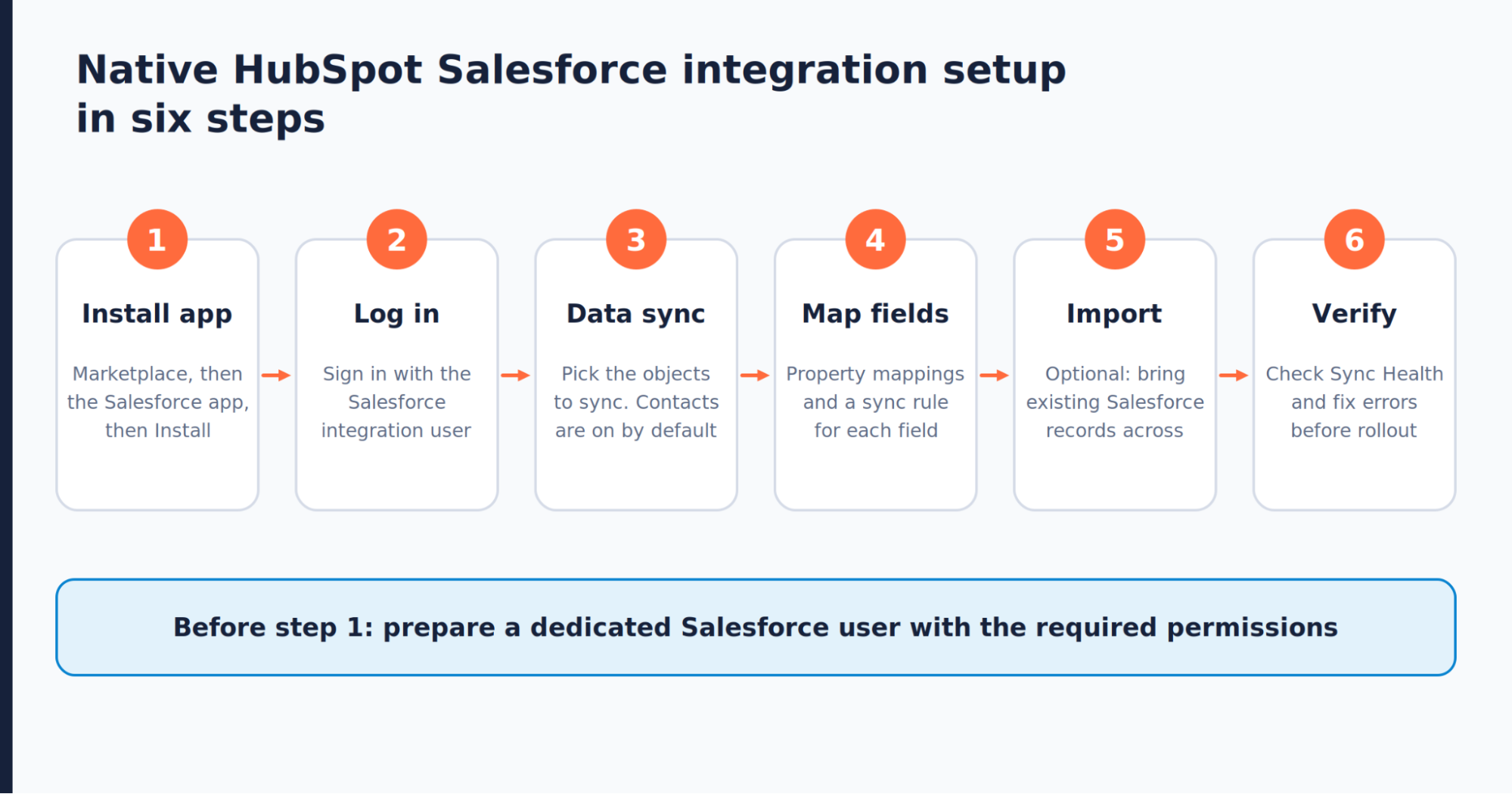
Step 1: Install the Salesforce App in HubSpot
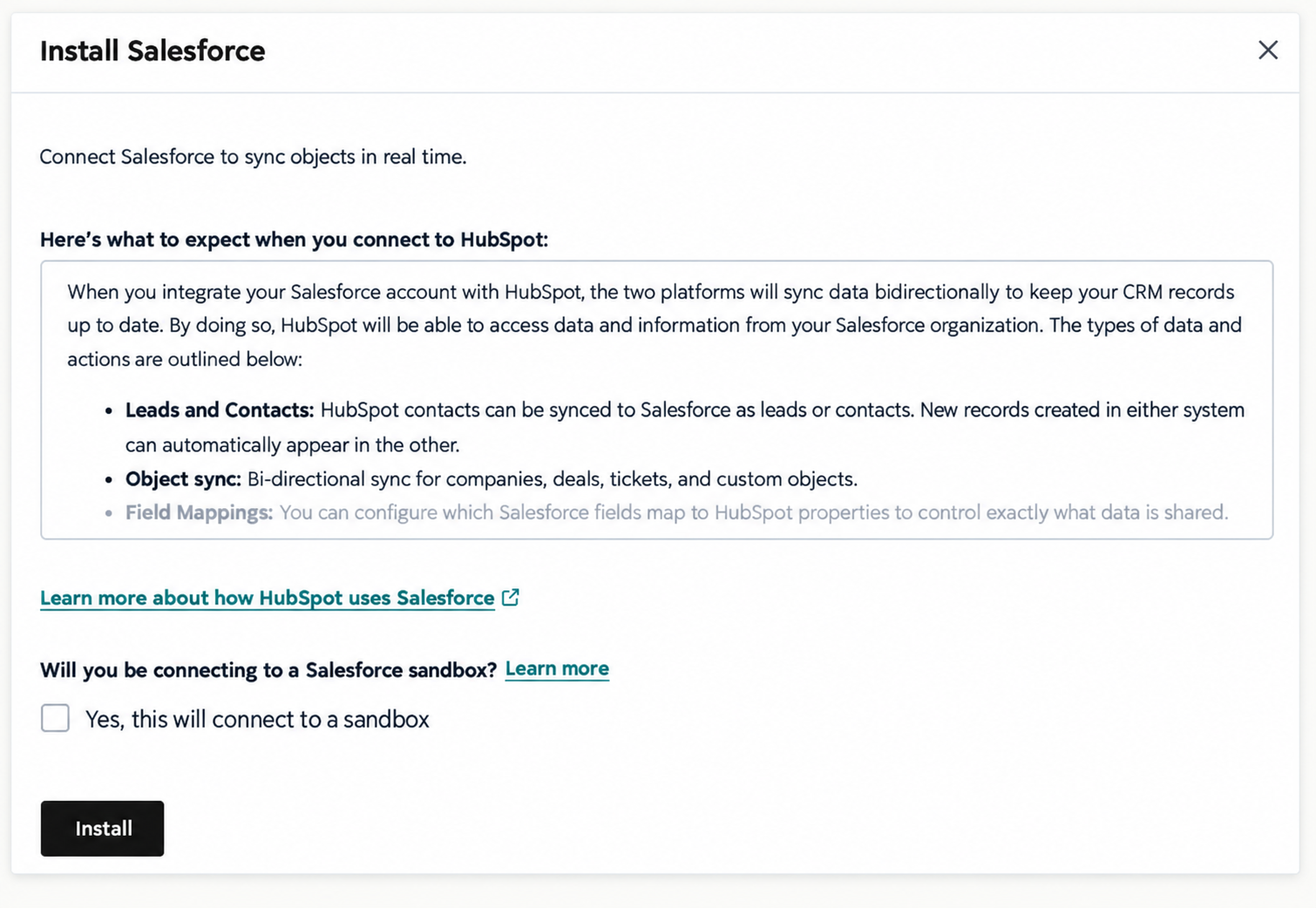
Log in to your HubSpot account.
Click the Marketplace icon in the top navigation bar and select HubSpot Marketplace.
Search for and select the official Salesforce app.
Click Install.
If you're connecting a Salesforce sandbox, select the checkbox indicating that the connection is for a sandbox.
Click Install again to continue.
Step 2: Log In to Salesforce and Authorize the Connection
In the installation pop-up, enter your Salesforce credentials.
Click Log In.
Follow the authorization prompts to allow HubSpot to connect to your Salesforce account.
After authentication, you should be redirected to HubSpot.
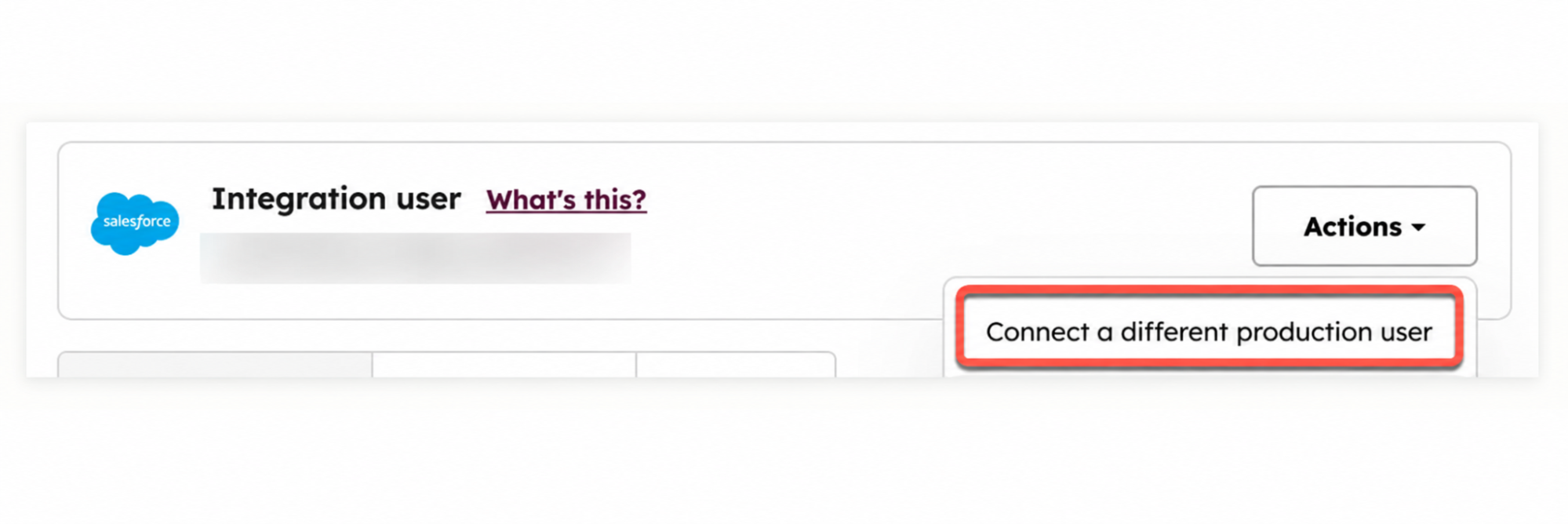
Use a Salesforce user with the permissions required for the objects you intend to sync. Those permissions determine which records HubSpot can access and update.
Step 3: Configure Data Sync Settings
In HubSpot, click the Settings icon.
Navigate to Integrations → Connected Apps.
Select Salesforce.
Open the Data sync tab.
Review the available object sync settings and configure the records you want to synchronize, based on your requirements.
Depending on your setup, you may configure synchronization for contacts, companies, deals, and other supported objects. Contact sync is enabled by default and cannot be turned off in the object settings.
Step 4: Review and Customize Field Mappings
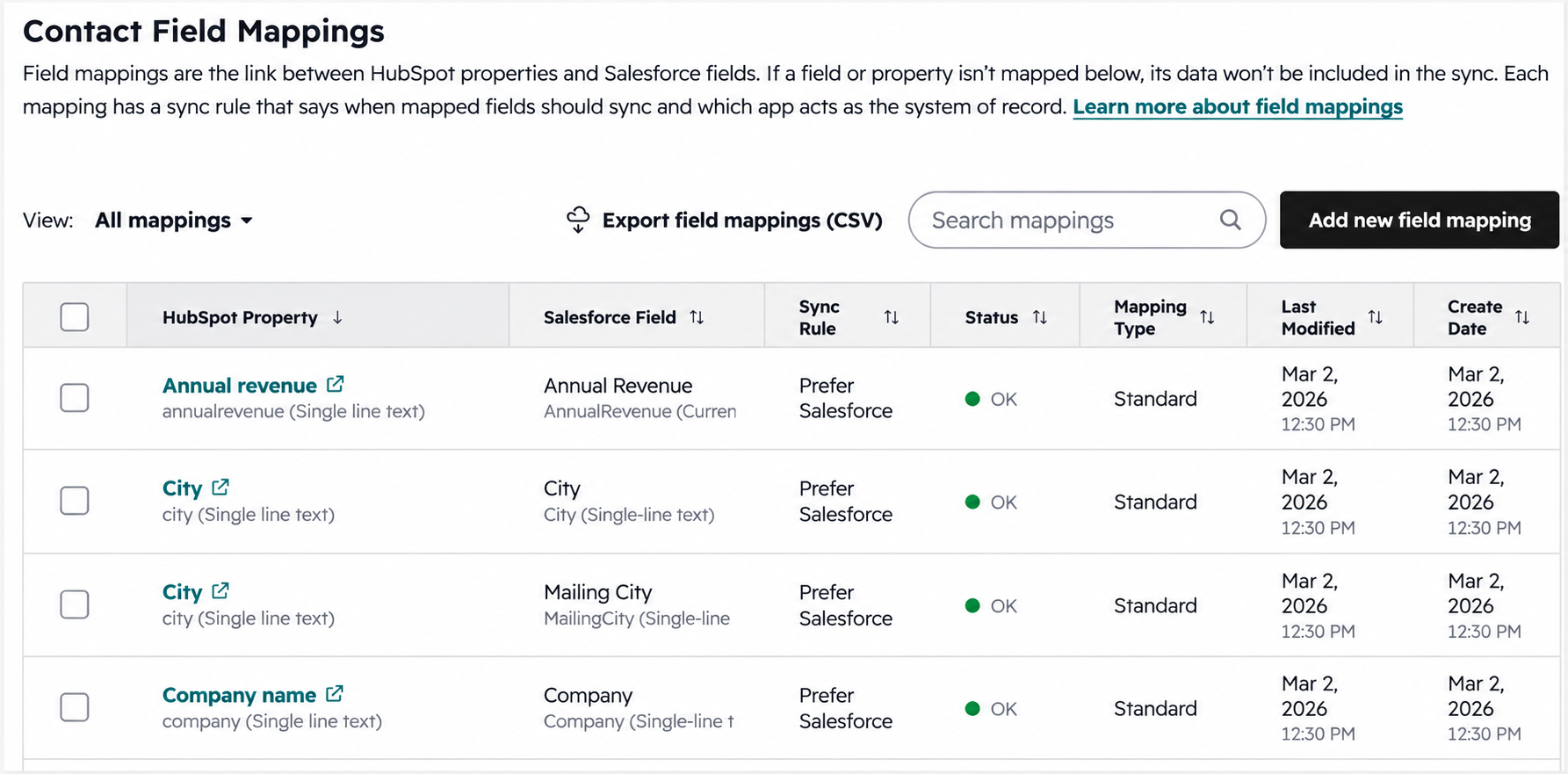
Field mappings determine which HubSpot properties correspond to Salesforce fields and how their values are updated.
Open Settings → Integrations → Connected Apps → Salesforce.
Select the Data sync tab.
Choose the object you want to configure.
Click Property mappings.
Review the default mappings or select Add new field mapping to create a custom mapping.
Choose the HubSpot property and its corresponding Salesforce field.
Select the appropriate sync rule and click Save.
For example, you can map HubSpot's Job Title property to the corresponding Salesforce lead or contact field. Choose the sync rule carefully because it determines which platform's value takes precedence.
Step 5: Import Existing Salesforce Records if Needed
Installing the integration does not automatically import every existing Salesforce record into HubSpot. If you need to bring existing data across, use HubSpot's import workflow.
In HubSpot, navigate to CRM → Contacts.
Click Add contacts → Import.
Select Import data.
Choose Objects from an app.
Select Salesforce records, then click Next.
Choose the Salesforce object you want to import, such as leads, contacts, accounts, or opportunities.
Apply filters if you want to import only selected records.
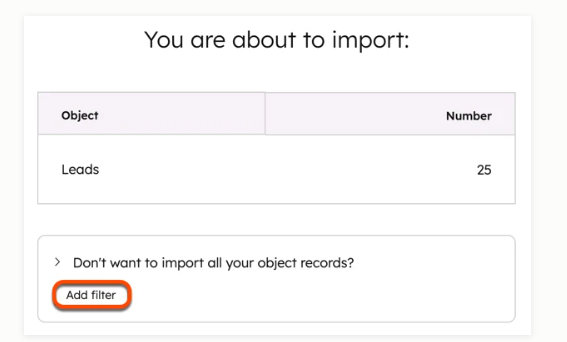
8. Review the import and click Begin import.
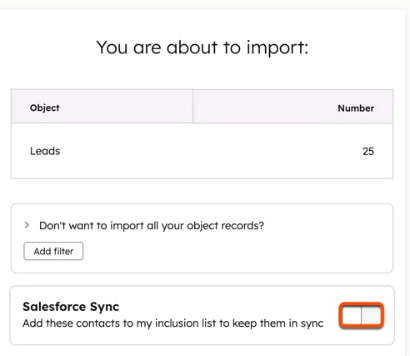
The records that subsequently sync depend on your integration settings, inclusion criteria, and sync triggers. You do not necessarily need to import all existing records if your workflow relies on automatic sync triggers.
Step 6: Verify Sync Status and Resolve Errors
Once you've configured synchronization, verify that the integration is working as expected.
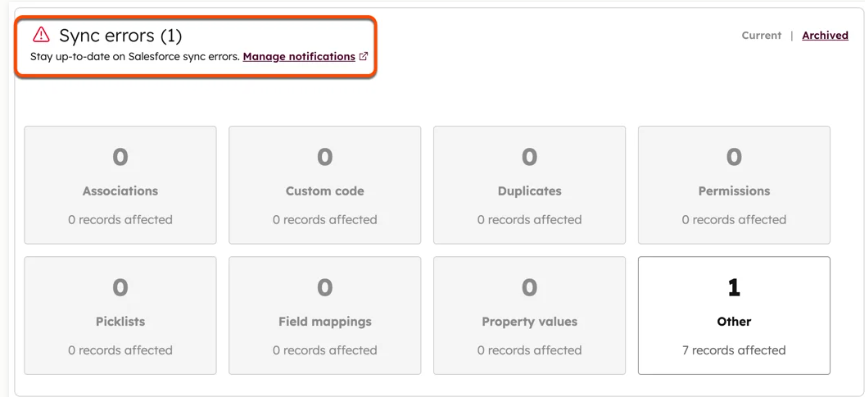
Navigate to Settings → Integrations → Connected Apps → Salesforce.
Open the Data sync tab.
Check Sync Health for errors or warnings.
Review any affected records and correct problems such as missing permissions, incompatible field mappings, or validation errors.
If a record hasn't synced, check whether it meets your sync criteria. You can manually resync eligible individual records from the Salesforce sync card on the HubSpot record.
For deeper troubleshooting, see our developer and admin guide to the HubSpot Salesforce integration.
How HubSpot Marketing Hub Salesforce Integration Works
The HubSpot Marketing Hub Salesforce integration keeps marketing and sales data connected by synchronizing records, properties, and supported activities between the two platforms.
However, not every record or field syncs automatically. Object mappings, sync rules, and record eligibility determine what gets updated and which platform takes priority when data changes.
Core Components of HubSpot Salesforce Sync
1. Object Mapping: Contacts, Companies, and Deals
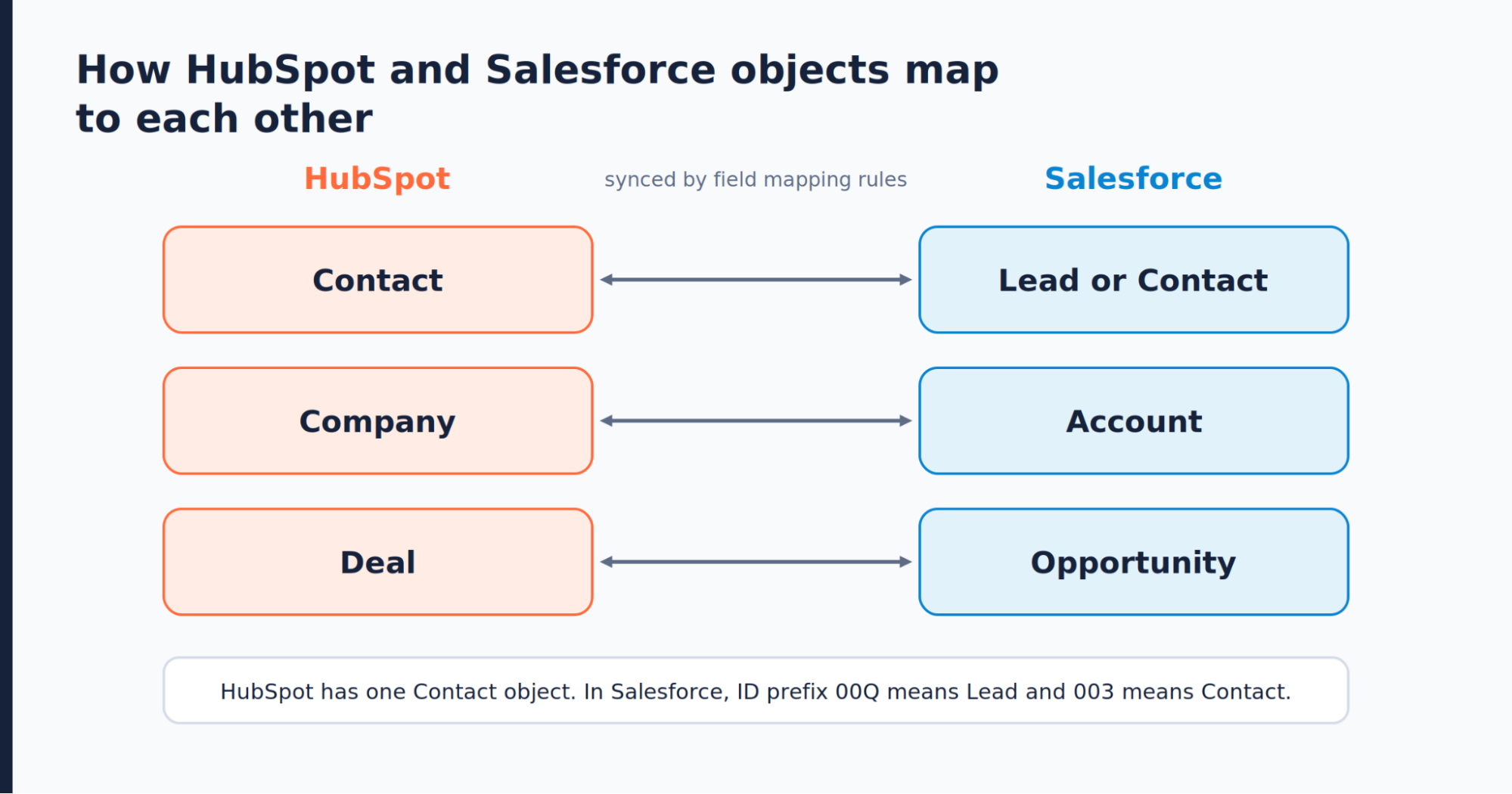
HubSpot and Salesforce use different names for similar types of records. Object mapping connects these records so that relevant information can move between the platforms.
Contacts: HubSpot contacts map to Salesforce leads or contacts.
Companies: HubSpot companies map to Salesforce accounts.
Deals: HubSpot deals map to Salesforce opportunities.
For example, when a mapped property on a contact changes in HubSpot, the corresponding Salesforce lead or contact can receive that update, provided the record is eligible for sync and the applicable rules allow it.
2. Field Mappings and Sync Rules
Field mappings define which HubSpot properties correspond to Salesforce fields, while sync rules determine how changes to those fields are handled.
Depending on the selected rule, you can prioritize Salesforce values, allow the most recent update to take precedence, or prevent a particular field from syncing.
For example, your team might use Salesforce as the source of truth for sales-owned contact information while allowing selected marketing properties to sync in both directions.
Review field mappings carefully to avoid unintended overwrites or inconsistent data.
3. Selective Sync vs. Inclusion Segments
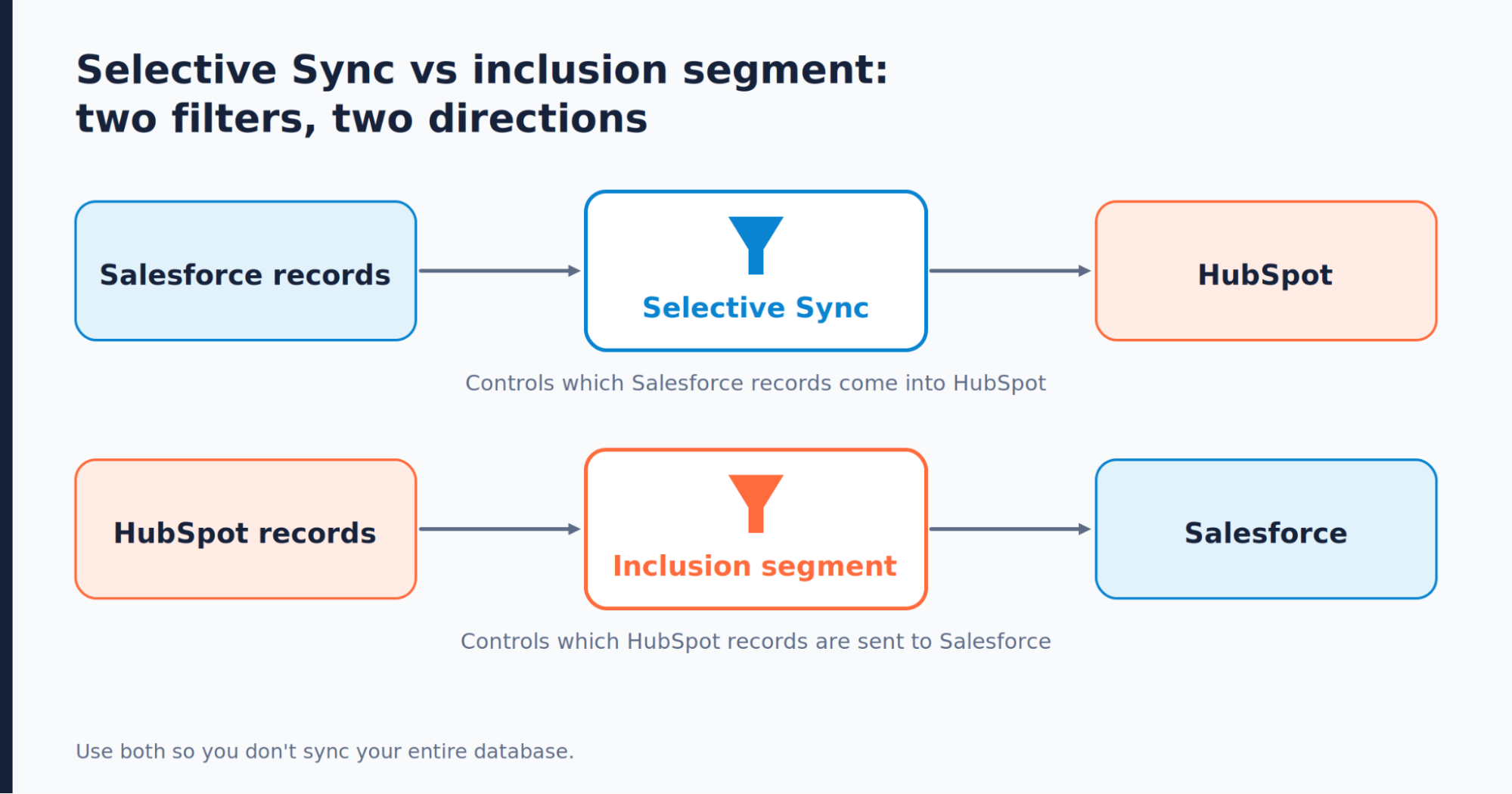
Both features control which records can sync, but they apply to different directions.
Selective sync: Filters Salesforce records eligible to sync into HubSpot.
Inclusion segments: Restrict which eligible HubSpot records can sync into Salesforce.
For example, you can use selective sync to bring only relevant Salesforce records into HubSpot and an inclusion segment to send only qualified HubSpot contacts to Salesforce.
This helps teams manage data flow without synchronizing their entire database unnecessarily.
4. What Triggers a Sync?
Synchronization can occur when records are created or updated, mapped properties change, or records become eligible under the configured sync criteria. Supported marketing and sales activities may also sync when the relevant settings are enabled.
HubSpot uses event-based triggers and periodic checks to identify changes. However, updates may not appear immediately, and connecting the two platforms does not automatically guarantee that every existing record will sync.
If a record doesn't sync, check whether:
The relevant object sync is enabled.
The record meets the applicable sync criteria.
The required field mappings and Salesforce permissions are in place.
Salesforce validation rules or field restrictions are blocking the update.
The record needs to be imported or manually resynced.
What Marketing Hub Teams Can Do with the Salesforce Integration
The HubSpot Salesforce integration connects marketing activities with sales data, helping teams manage leads, personalize campaigns, and measure results without relying on manual data transfers.
Bi-Directional Data Sync: Share supported contact, company, and deal data between HubSpot and Salesforce to keep records aligned.
Automated Lead Handoffs: Use HubSpot workflows and qualification criteria to identify promising leads and sync eligible records with Salesforce for sales follow-up.
Campaign Attribution: Connect marketing engagement with CRM and opportunity data to better understand how campaigns contribute to sales outcomes. Reporting depends on your attribution setup.
Sales and Marketing Alignment: Use synchronized sales-stage and contact information to adjust nurturing workflows and coordinate follow-ups.
Targeted Re-Engagement: Identify contacts associated with stalled opportunities and create relevant nurturing campaigns based on available CRM data.
HubSpot Salesforce Integration Limitations: What the Native Connector Can’t Do
The native HubSpot Marketing Hub Salesforce integration simplifies data sharing, but API limits, field mapping rules, and unsupported data types can affect how much you can synchronize.
1. Salesforce API Limits:
A single contact sync can use up to four Salesforce API calls, depending on the operation. If API capacity becomes a bottleneck, synchronization may be affected.
2. Sync Delays
Updates aren't always immediate. HubSpot checks for new or updated information approximately every 15 minutes, alongside event-based sync triggers.
3. Field Mapping and Data Conflicts:
Sync rules determine which platform's value takes priority. Incorrect mappings or conflicting updates can overwrite data or prevent fields from syncing as expected.
4. Custom Object Constraints
Custom-object synchronization depends on the supported configuration, available features, and subscription requirements. Confirm any object limits against current HubSpot documentation before implementation.
5. Campaign Data Limitations
HubSpot campaigns don't sync directly to Salesforce campaigns because they are different objects. Some Salesforce campaign data can still be used in HubSpot through supported integration features.
6. Activity Sync Restrictions
Activities such as tasks, sales emails, calls, and meetings require the relevant activity-sync settings. Not every activity or associated data point transfers automatically.
7. Lead Object Differences
Salesforce has separate Lead and Contact objects, while HubSpot manages these records through its Contacts object. Teams need to configure lead-to-contact mapping and qualification workflows carefully to maintain consistent records.
Native vs. Third-Party vs. Custom Integration: Which Should You Choose?
Choosing the right HubSpot Salesforce integration approach, native, third-party, or custom, depends on your workflow complexity, budget, and data synchronization needs.
| Criteria | Native Integration | Third-Party Integration | Custom Integration |
|---|---|---|---|
| How it works | HubSpot's official Salesforce connector | An external integration platform connects both systems | Developers connect the platforms through APIs |
| Setup time | Usually the quickest | Relatively quick, depending on workflow complexity | Requires development and testing |
| Cost | No separate connector fee, but eligible subscriptions may be required | Subscription or usage-based fees may apply | Development and ongoing maintenance costs |
| Customization | Standard object mappings and sync rules | Depends on the platform's features | High control over business logic and data flows |
| Maintenance | Managed through the native integration | Shared between the provider and your team | Your team maintains the code and monitors API changes |
| Best for | Standard contact, company, deal, and supported activity sync | Multi-app workflows and additional automation | Complex transformations and specialized requirements |
Which Option Should You Choose?
Native integration: Best for teams that need standard HubSpot-Salesforce data synchronization with minimal additional infrastructure.
Third-party integration: Suitable when you need to connect more applications or automate workflows beyond the native connector's capabilities.
Custom integration: Makes sense when complex business rules, specialized data transformations, or unsupported workflows justify the development effort. For example, through an iPaaS tool such as Workato
Conclusion
The HubSpot Marketing Hub Salesforce integration is native, but only on Professional and Enterprise plans. It is more than a way to sync CRM records. It helps marketing and sales teams turn campaign engagement into better lead handoffs, smarter workflows, and clearer visibility into revenue. The key is getting the setup, data sync, and costs right from the start.
Planning your HubSpot Salesforce integration? Check your plan and Salesforce permissions first, decide which system owns each field, and test with a small batch before rolling out to your full database. If your needs go beyond the native connector, compare third-party and custom options before you commit.
Not sure which route fits your setup? A HubSpot consultant can audit your portal, map your fields and sync rules, and catch problems before they reach your live data. Book a consultation to talk it through.
Frequently Asked Questions
-
Yes, on Marketing Hub Professional and Enterprise. You install HubSpot’s own connector from the HubSpot Marketplace, with no custom code.
-
The connector has no separate fee. The cost comes from the HubSpot plan that unlocks it, a Salesforce edition with API access, and setup and maintenance time. The cost section above has the full breakdown.
-
The install itself takes only a few minutes: add the Salesforce app from the HubSpot Marketplace and log in. The real time goes into planning and testing, such as mapping fields, choosing which records sync, cleaning duplicates, and checking results. A simple setup with clean data can go live quickly, while an org with custom fields and complex rules needs more time.
-
You need a Salesforce edition with API access, such as Salesforce Professional. Salesforce Government Cloud is supported, but Group Edition is not. The Salesforce user you connect with also needs the required permissions, such as API Enabled.
-
Yes, in some setups. Custom object sync depends on your HubSpot subscription and configuration, so it isn’t available everywhere. It is also narrower than what middleware or a custom API build can do. Check HubSpot’s current documentation for your plan before you design a process around it.
-
Most errors come from a few causes:
The integration user is missing permissions on an object or field
A mapped field has an incompatible type, or a picklist value doesn’t match
A Salesforce validation rule rejects the incoming value
The record doesn’t meet your sync criteria
Salesforce API limits have been reached
Check the Sync Health tab in your integration settings to see which records failed and why.
-
Field mapping links a HubSpot property to a Salesforce field, so a value entered in one system appears in the other. Each mapping also has a sync rule that decides which system wins when the values differ. For example, you can map Job Title in both directions, while keeping deal stage controlled by Salesforce.
-
Start by cleaning duplicate Leads, Contacts, Accounts, and Companies in both systems before you turn on sync. The integration matches contacts using their email address, so make sure emails are consistent. Then limit what syncs with an inclusion segment or Selective Sync, set clear sync rules, and test a small batch in a sandbox before rolling out to your full database.
Related Readings

Let's Talk

Drop us a note, we’re happy to take the conversation forward 👇🏻