
How to Use the Agentforce Plan Tracer to Monitor AI Reasoning
Key Takeaways:
Agentforce Plan Tracer helps developers inspect agent execution, including topic selection, action execution, and the steps behind a response.
Developers can review trace details to analyze unexpected behavior and identify potential issues.
Effective troubleshooting requires reviewing trace results, checking agent instructions and action configurations, and testing changes to confirm the expected behavior.
Building an agent in Agentforce is the easy part. You describe what you want in plain language, and often you don't need to write any code. The harder part comes afterwards: is the agent actually making the right calls, and are its answers correct?
Salesforce gives you a few ways to test and trace agent behavior. This post covers the simplest one to start with, the Agentforce Plan Tracer.
We'll go through how it works, how to use it, and how to interpret the results when your agent does something you didn't expect.
What Is Agentforce Plan Tracer?
Plan Tracer is a tracing feature built into Agentforce that allows developers to examine an AI agent's execution plan during testing, such as how it handled a request, which topic it picked, and which actions it decided to run. Users can also inspect trace details in a readable text view or a structured JSON format.
It helps most when an agent misbehaves. A wrong answer on its own doesn't tell you much. With the plan in front of you, you can see what the agent did step by step and find where it went off track.
What Can You See Using Plan Tracer?
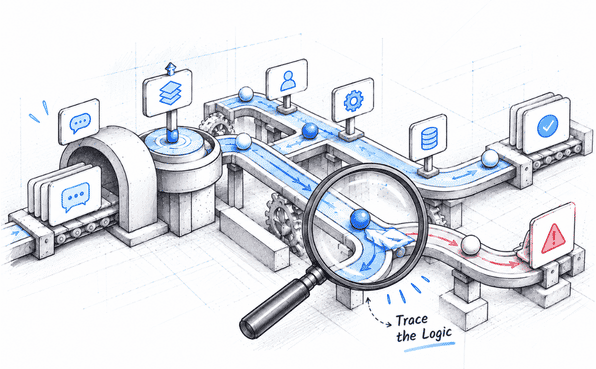
When you run a test in Agentforce, the final response only tells you what the agent did. Plan Tracer shows you how it got there: how the agent handled the request and which actions it chose along the way. We explain the logic behind this in detail in our blog on how Agentforce works.
Here are the key things Plan Tracer can show you.
1. Topic or subagent selection
When a request comes in, Agentforce determines which topic or subagent is best suited to handle it. Plan Tracer helps you inspect that selection so you can investigate whether the agent routed the request as expected.
Say a customer asks about an order status, but the agent picks the topic meant for product recommendations. The tracer lets you see that wrong turn and work out why it happened.
2. Action selection and execution
Agentforce uses actions to perform tasks. Plan Tracer helps you examine which actions the agent selected and how the execution proceeded.
So when the agent doesn't do what you asked, you can sort out the cause. Either it picked the wrong action, or it picked the right one and something in that action's setup is not correct.
3. Action Inputs and Outputs
An action depends on the inputs it receives. Plan Tracer lets you inspect the available input and output details, helping you investigate whether the action received the expected values and returned the information the agent needed.
For instance, if an agent retrieves the wrong account details, examining the action inputs and outputs can help you narrow down where the problem occurred.
Together, these details help you move beyond the final response and investigate the execution path behind an agent's behavior.
4. Trace details in text and JSON
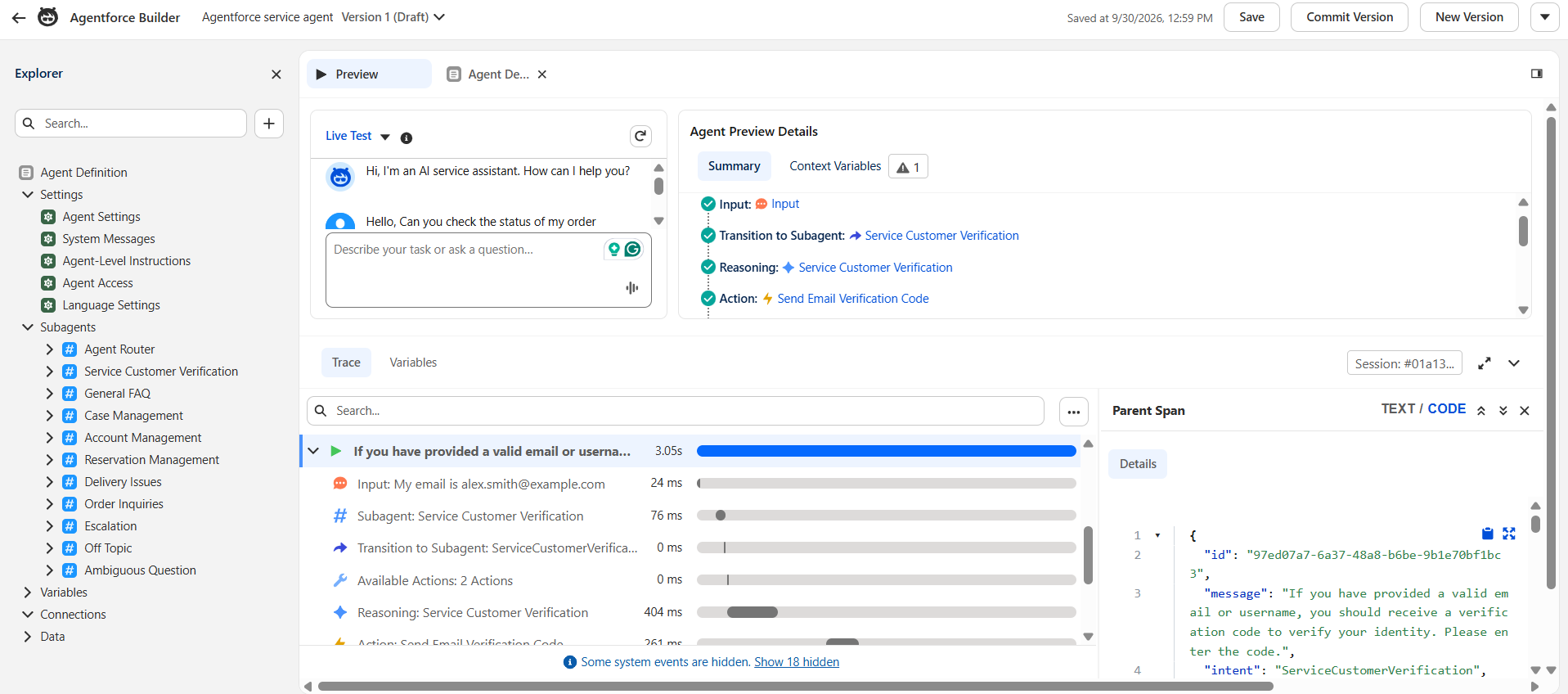
Agentforce shows trace information in two views: text and code. The text view is easier to read when you just want to follow what happened. The code view shows the same trace as structured JSON.
If a response still doesn't make sense, you can copy the JSON and dig through it while debugging.
How to Use Plan Tracer Step by Step
Now that you know what Plan Tracer shows, here's how to use it on your own agent. The routine is simple: run a test, read through the execution details, and find the point where the agent did something you didn't expect.
Step 1. Open your agent in Agentforce Builder
Open Agentforce Studio in Salesforce and go to the Agents page. Pick the agent you want to test and open it in Agentforce Builder.
It's best to pick an agent that already has its subagents, actions, and instructions set up. That way you have something real to test and troubleshoot.
If you don't have one, our guide on How to Create Agentforce AI Agents shows you how to build one.
Step 2. Open Preview and Run a Test
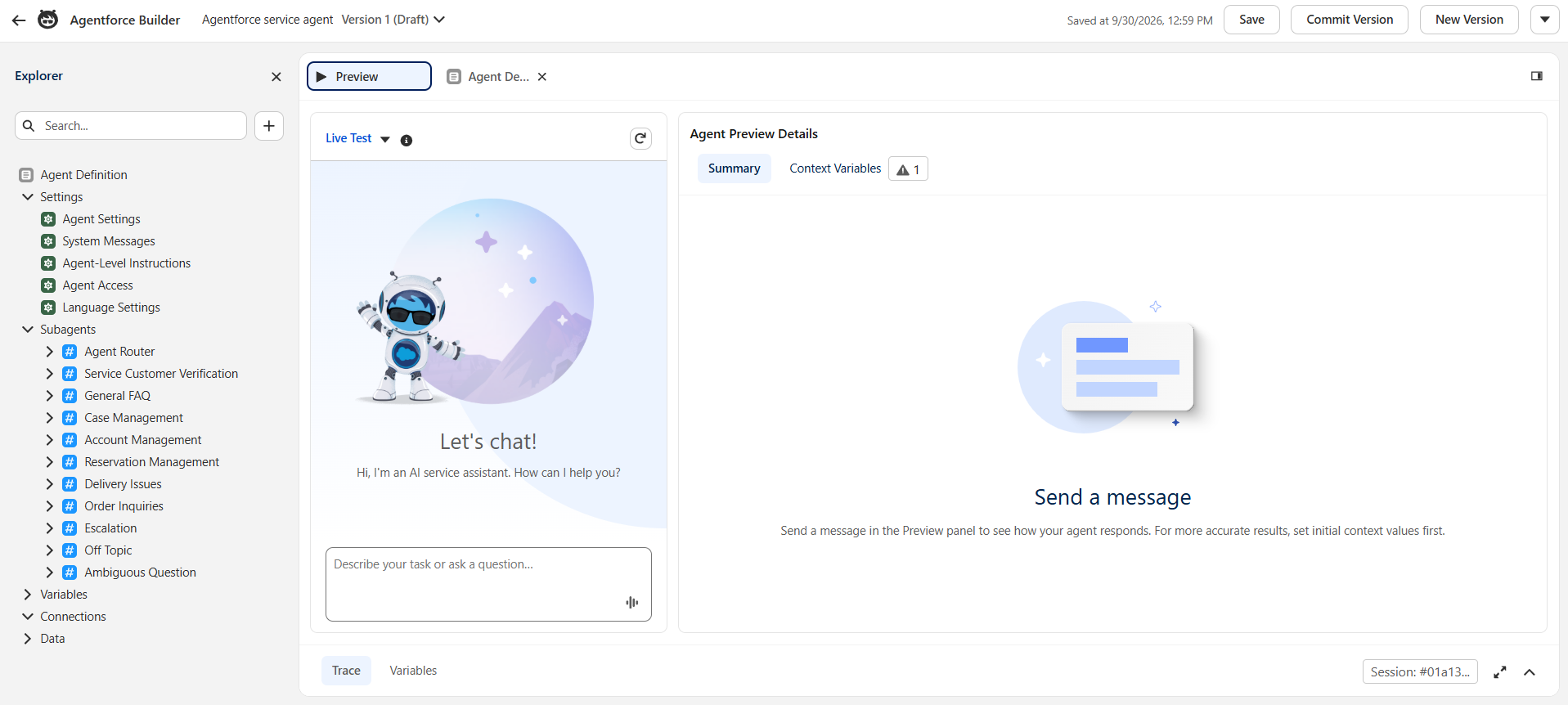
In Agentforce Builder, click Preview to open the agent's testing interface. This is your testing mode; enter a prompt that represents a real user request.
For example, if you're testing a customer support agent, you could ask, "Can you check the status of my latest order?"
Step 3. Review the Agent's Response
Once you've submitted your prompt, read the agent's reply carefully. Is the answer correct? Did it pull the right information or complete the action you asked for?
If something looks off, don't stop at the reply. The final answer only shows the result. The next step is to find out how the agent got there.
Step 4. Inspect the Execution Trace
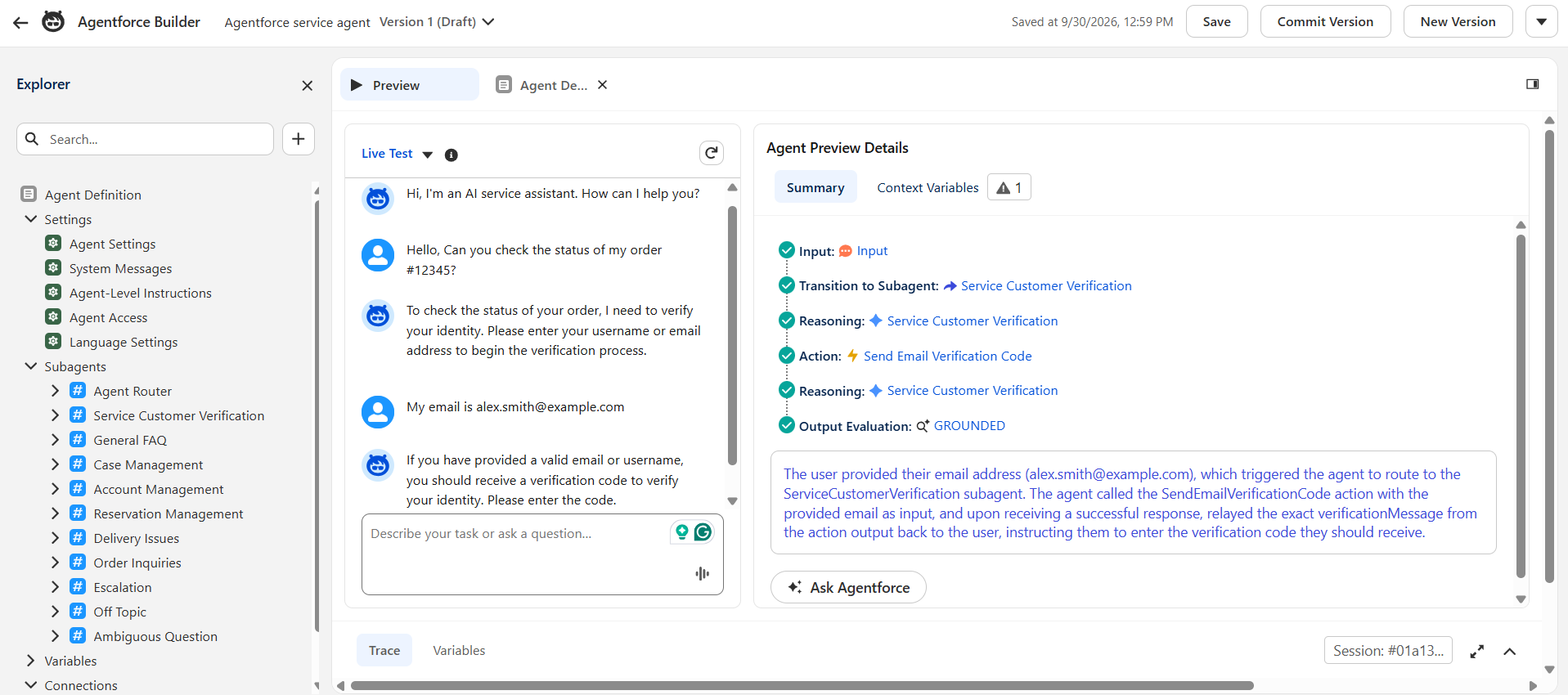
Open the Agent Preview Detail Summary in the Summary tab on the right. It lists the sequence of events behind the response, with a high-level view of the agent's reasoning, which subagent it picked, which actions ran, and how it moved between them.
For more detail, open the Trace tab below. It lets you click into individual events, see what happened in each one, and check how long each took.
As you go through it, watch for a few things: a subagent that shouldn't have been picked, an action that never got called, errors, or results that don't match what you expected. Any one of these usually points you toward the source of the problem.
Step 5. Check the Variables and Make Adjustments
If the trace doesn't immediately explain the issue, inspect the Variables tab to compare variable values at the beginning and end of the interaction. Incorrect or missing context can affect how an agent handles a request.
Based on what you find, review the relevant subagent instructions, action configuration, or data source. Make the necessary changes, reset the preview session, and run the same prompt again.
Comparing the results before and after the change helps you determine whether your adjustment addressed the issue.
How to interpret Plan Tracer results
Running Plan Tracer is only half the job. The other half is reading what the trace is telling you. Don't hunt for one obvious error. Follow the agent's path from start to finish
Check whether the agent picked the right topic
Begin with the routing. Did the request go to the right topic or subagent? Say a customer asks about an order and the agent picks the product recommendations topic. In that case, go back to the instructions and descriptions that guide topic selection, because that's usually where the mix-up comes from.
Check the actions the agent ran
Next, look at which actions the agent picked and whether they ran the way you expected. If an action you expected is missing, ask whether the agent chose a different one instead, or whether the instructions and action descriptions need a rewrite.
Review Action Inputs and Outputs
Sometimes an action runs but gives back something unexpected. Open its input and output details and check two things: did it receive the right parameters, and did it return what the agent needed? If the output itself is wrong, the problem is probably further down, so check the Flow, Apex code, API, or prompt template behind the action.
Compare the Trace With the Final Response
Last, see whether the agent's reply matches what its actions returned. If the action output is correct but the final answer isn't, the problem is in how the agent has been told to read and present that information, so go back and review those instructions.
Plan Tracer Limitations and Best Practices
Plan Tracer shows you what happened in a single agent interaction, but it won't solve every debugging or monitoring problem. A trace can point to where a decision or action went wrong. Finding out why may require you to take a look at the agent's configuration, the underlying code, or the connected data sources.
Keep these best practices in mind when using Plan Tracer:
Test with realistic prompts. Use requests that sound like real users, including vague or half-finished questions.
Change one thing at a time. If you spot a likely cause, adjust that one instruction or setting, then rerun the same prompt and compare the results.
Check the underlying action: If an action returns incorrect information, look at its Flow, Apex logic, API, or data source instead of focusing only on the agent.
Use broader monitoring for production: Plan Tracer is useful for single interactions during testing. For trends across multiple conversations and ongoing pro
Other ways to monitor Agentforce beyond Plan Tracer
Plan Tracer works well during testing, but it can't show how your agent handles real customers at scale. That's where Agentforce Observability tools step in. These Salesforce tools help you monitor, analyze, and optimize an agent's performance and reasoning in near real time, which makes them especially useful once the agent is live.
1. Agent Analytics
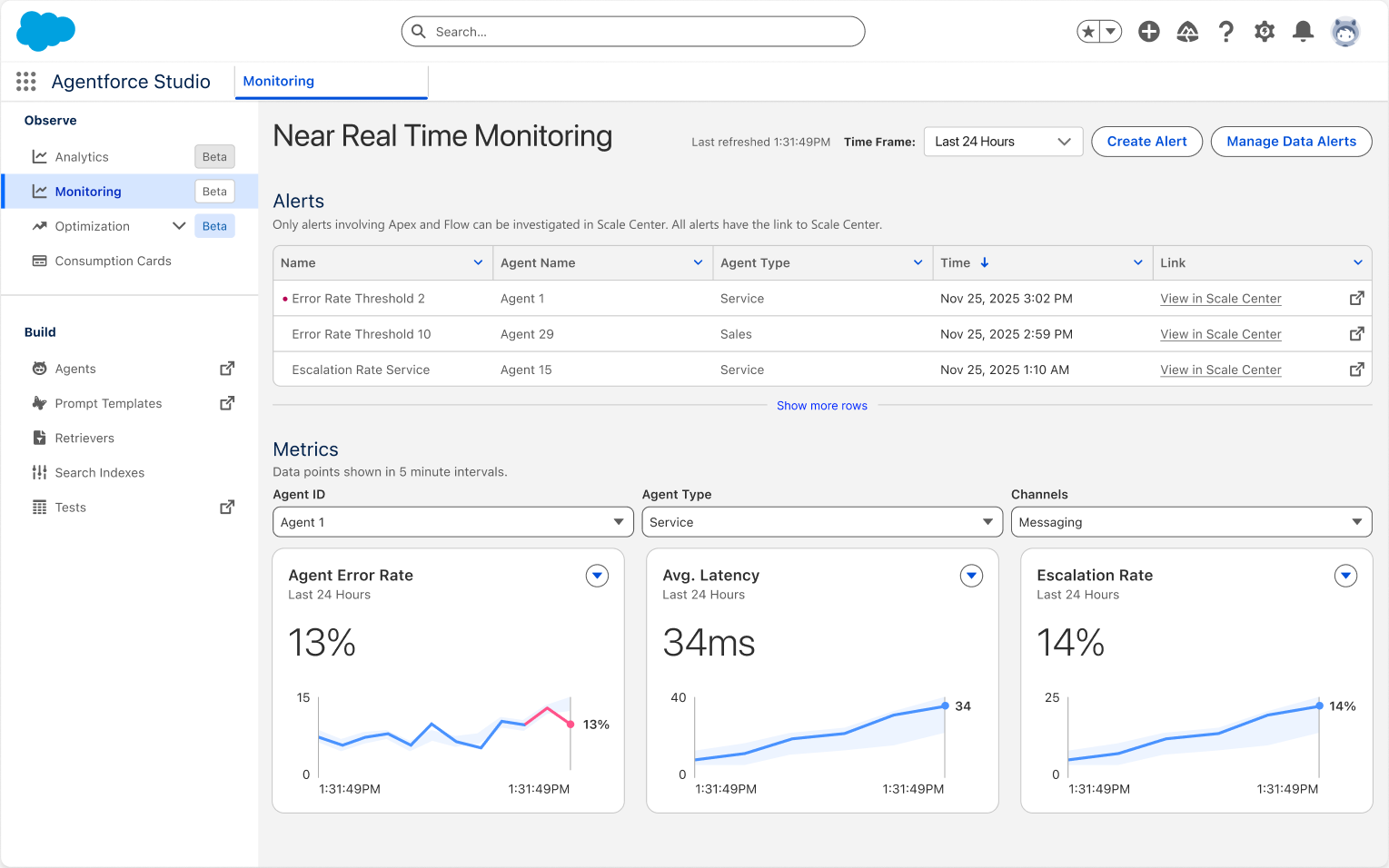
Agent Analytics shows how your agent performs over time. Its dashboards track success rates, escalation rates, response quality, usage, and latency. Together they show you where performance is slipping and where the agent needs work.
2. Agent Optimization
Once you spot a problem, Agent Optimization lets you open individual sessions. You can read through the conversations, see which subagents and actions were triggered, and use the quality scores and trace details to work out why an interaction failed.
3. Agent Health Monitoring
Agent Health Monitoring watches for operational trouble, like rising error rates or slower responses. You can set alerts on the metrics you care about, and when one crosses your threshold, you can open the sessions behind it.
4. Agentforce Session Tracing
Session Tracing goes further than a single test. It captures detailed interaction data across agent sessions, which helps with troubleshooting, reporting, and studying agent behavior in both sandbox and production.
Each tool has its own job. Use Plan Tracer while you're building, Agent Analytics to spot trends, Agent Optimization to dig into specific sessions, and Agent Health Monitoring to catch problems early.
Conclusion
When an agent gets something wrong, the final answer rarely tells you why. That's what makes Plan Tracer worth learning. It lets you follow the agent's decisions in order.
The routine is easy to remember. Run the prompt, read the trace, change one thing, and run it again. Do that a few times and you'll find most problems faster than by rewriting instructions and hoping for the best.
Just remember that Plan Tracer looks at one interaction at a time. Once your agent is live, you'll want broader monitoring to catch patterns across conversations.
If you're building Agentforce agents and want a hand with setup, testing, or troubleshooting, the Agentforce specialists at Concretio are happy to help.
Related Agentforce Resources
Troubleshooting Unexpected Agentforce Behavior: A Self-Service Guide
Agentforce Guide to Achieving Reliable Agent Behavior
Gain Complete Visibility Into Your AI Agents With Agentforce Optimization
Is Your Agent Production-Ready?
Salesforce Deepens Observability in Agentforce 360
Related Readings
Let's Talk

Drop us a note, we’re happy to take the conversation forward 👇🏻