
How to Set Up OAuth 2.0 for Marketing Cloud API Access
Key Takeaways:
Set up Marketing Cloud OAuth 2.0 through Installed Packages for secure API access.
Generate a Marketing Cloud access token using your Client ID and Client Secret.
Secure your Salesforce Marketing Cloud API integration by limiting scopes and protecting your OAuth credentials.
Every integration with Salesforce Marketing Cloud starts the same way: you need an access token, and you need it fast. But Marketing Cloud API authentication isn't a checkbox; it's the front door to your customer data, and how you set it up decides whether that door is locked or left ajar.
OAuth 2.0 is how Marketing Cloud handles that gatekeeping. No usernames flying around, no passwords hardcoded into scripts, just scoped, revocable trust between your app and SFMC.
This guide walks through Marketing Cloud OAuth 2.0 setup: what it actually does, what you need before you start, and how to configure it so SFMC OAuth works on day one and stays secure long after.
What OAuth 2.0 Actually Does in Marketing Cloud
OAuth 2.0 is the authorization framework Salesforce Marketing Cloud uses to manage access to its APIs. Instead of sending a username and password with every request, your application uses credentials such as a Client ID and Client Secret to obtain an access token.
That token is then used to securely access the APIs based on the permissions granted to the application.
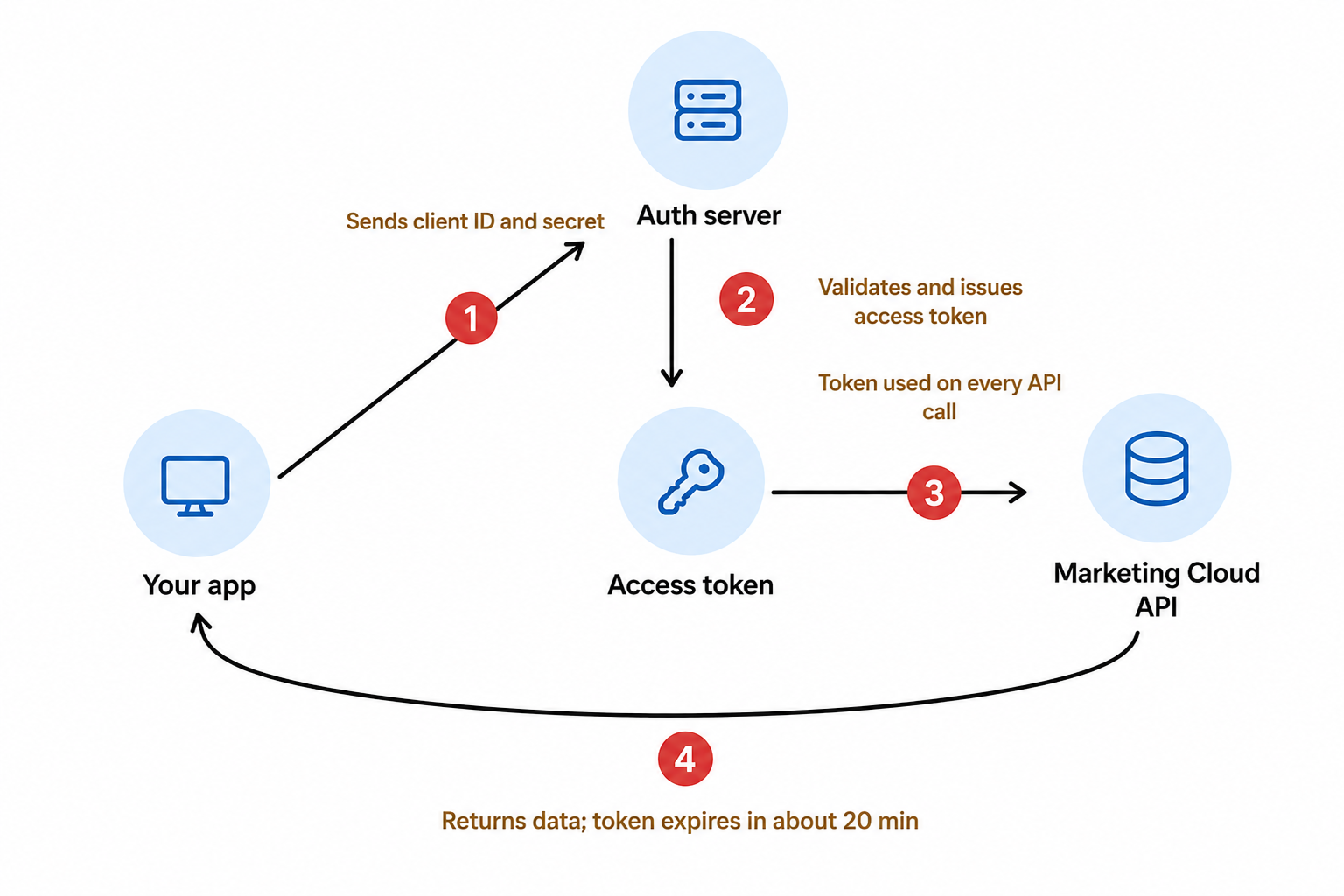
Here's the process:
Your app sends its client ID and client secret to Marketing Cloud's authentication endpoint.
Marketing Cloud validates the credentials and returns an access token.
Every subsequent Marketing Cloud API call uses that access token for authorization.
The token expires after a set period, usually around 20 minutes for SFMC, so you'll need to refresh it. Annoying, but that's the security tradeoff.
This is what Marketing Cloud OAuth actually gives you:
No shared passwords: apps authenticate with credentials scoped to the integration, not a user account.
Token expiration: access tokens are short-lived, which limits the damage if one gets exposed. A leaked token that dies in 20 minutes is a much smaller problem than a password that works forever.
Scoped permissions: SFMC lets you restrict what an app can access (contacts, automations, data extensions) and whether it's read or write. Honestly, this is the part most tutorials skip, and it's where teams either get API security right or leave a door open without realizing it.
Bottom line: every request is tied to a token, every token has an expiration, and every integration only gets the access it's explicitly granted.
Prerequisites: What You Need Before Setting Up OAuth 2.0
Before starting OAuth 2.0 implementation in Salesforce Marketing Cloud, keep these in mind.
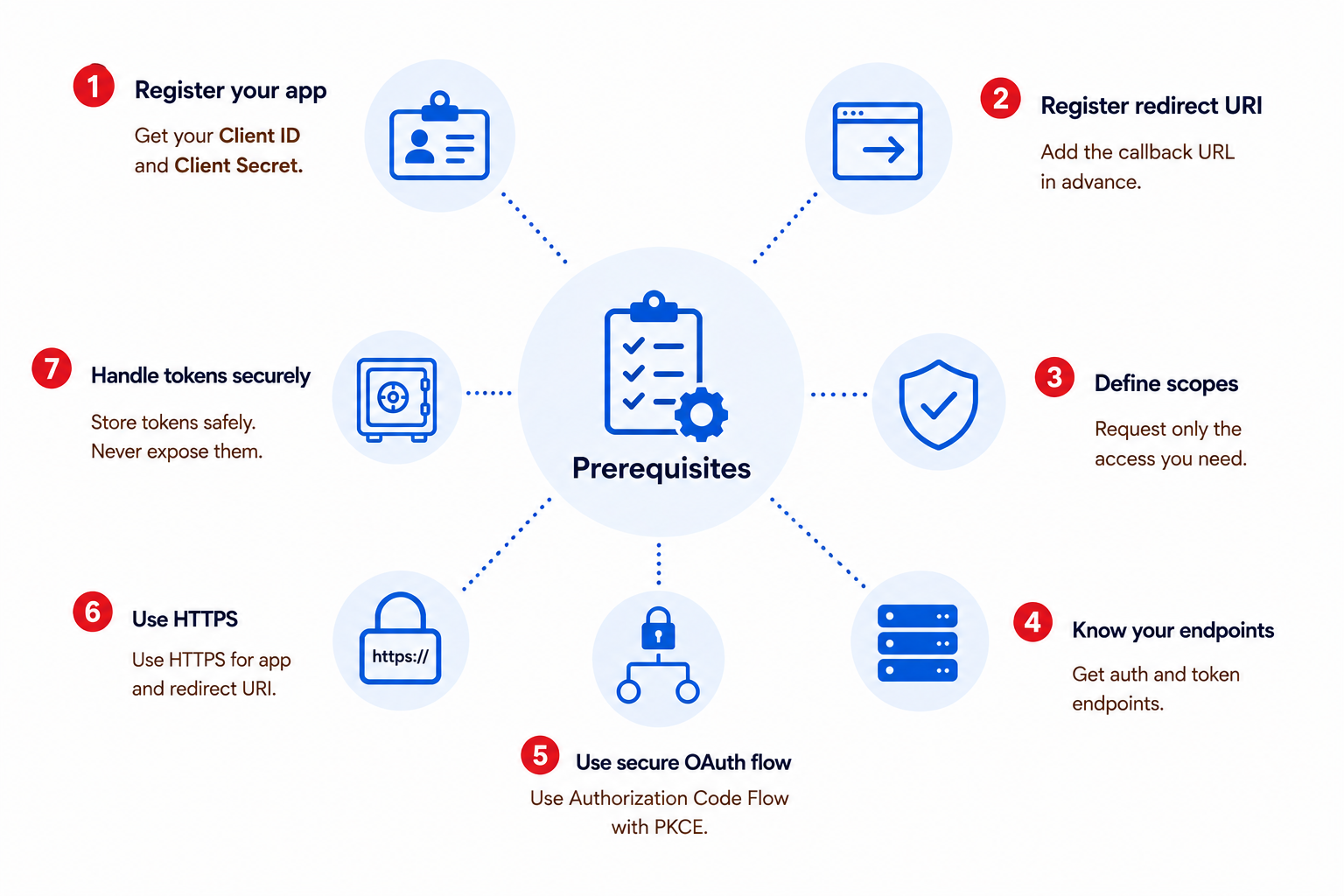
Register your app with the OAuth provider: This is where you get your Client ID and, if your integration type needs one, a Client Secret. No registration, no credentials, no access.
Set up a redirect URI: The URL the provider sends users back to once they've approved access. It has to be registered ahead of time.
Know your scopes. Decide exactly what your app needs, such as contacts, orders, messages, whatever it is, and request only that.
Get your endpoints straight. You'll need the provider's authorization endpoint and token endpoint at minimum. Some providers also give you a revocation or introspection endpoint worth checking for if you ever need to kill a token early.
Secure OAuth Flow: For most apps today, that's Authorization Code Flow with PKCE. If you're building anything that runs in a browser, never let the client secret anywhere near it. PKCE exists specifically so you don't have to.
Use HTTPS: Your app and your redirect URL both need it in production. Sending authorization codes or tokens over plain HTTP is basically handing them to anyone listening.
Secure Token Handling: Access and refresh tokens should never sit in frontend code, get pushed to source control, or show up in logs. If a token leaks, whoever has it can act as your app until it expires.
The exact requirements depend on the OAuth provider and your application type, but app registration, redirect URI, scopes, endpoints, and secure token handling are the core things to prepare.
How to Set Up OAuth 2.0 in Marketing Cloud (Step-by-Step)
Here's the actual walkthrough of Salesforce Marketing Cloud implementation, from opening Setup to getting a working access token.
Step 1: Go to Installed Packages
In Marketing Cloud, navigate to Setup > Apps > Installed Packages. This is where every API integration in Marketing Cloud lives.
Step 2: Create a new package
Click New, give it a name and description (something that tells your future self what it's for; "Order Confirmation Sync" beats "Package 1"), and save it.
Step 3: Add an API Integration component
Open the package you just created, go to Components, and click Add Component. Select API Integration. Once you add this component, you can't remove it, so make sure it's actually what you need before confirming.
Step 4: Choose your integration type
You'll be asked to pick one:Server-to-Server: for backend automation with no user login. Uses the client credentials grant. This is what most integrations use.
Web App: for apps where a user logs in and authorizes access, with a redirect flow.
Public App: for client-side apps that can't securely hold a secret.
For most Marketing Cloud API integrations, Server-to-Server is the right pick.
Step 5: Set your scopes
Enable only the permissions your integration actually needs: contacts, data extensions, journeys, whatever applies. Every scope you skip is one less thing that can go wrong (or get exploited) later.
Step 6: Save the package and save your client secret immediately
Once you save, Marketing Cloud generates your Client ID, Client Secret, and three Base URIs: Authentication, REST, and SOAP.
This is the step people mess up: you can only view the client secret once. Copy it into a secrets manager or environment variable right away. If you lose it, there's no "forgot password" link; you'll have to regenerate it.
Step 7: Note your Base URIs
There's no separate "subdomain" field; your subdomain is embedded inside the Base URIs Marketing Cloud gives you (e.g., https://yoursubdomain.auth.marketingcloudapis.com/). You'll use the Authentication Base URI to request tokens, and the REST/SOAP Base URIs for your actual API calls.
Step 8: Request your access token
Send a POST request to your Authentication Base URI's /v2/token endpoint, with client_id, client_secret, and grant_type: client_credentials in the request body:
You'll get back an access token valid for 20 minutes that authenticates every subsequent Marketing Cloud API call. Once it expires, repeat this step to get a new one.
Common Setup Mistake: Save Your Client Secret Immediately
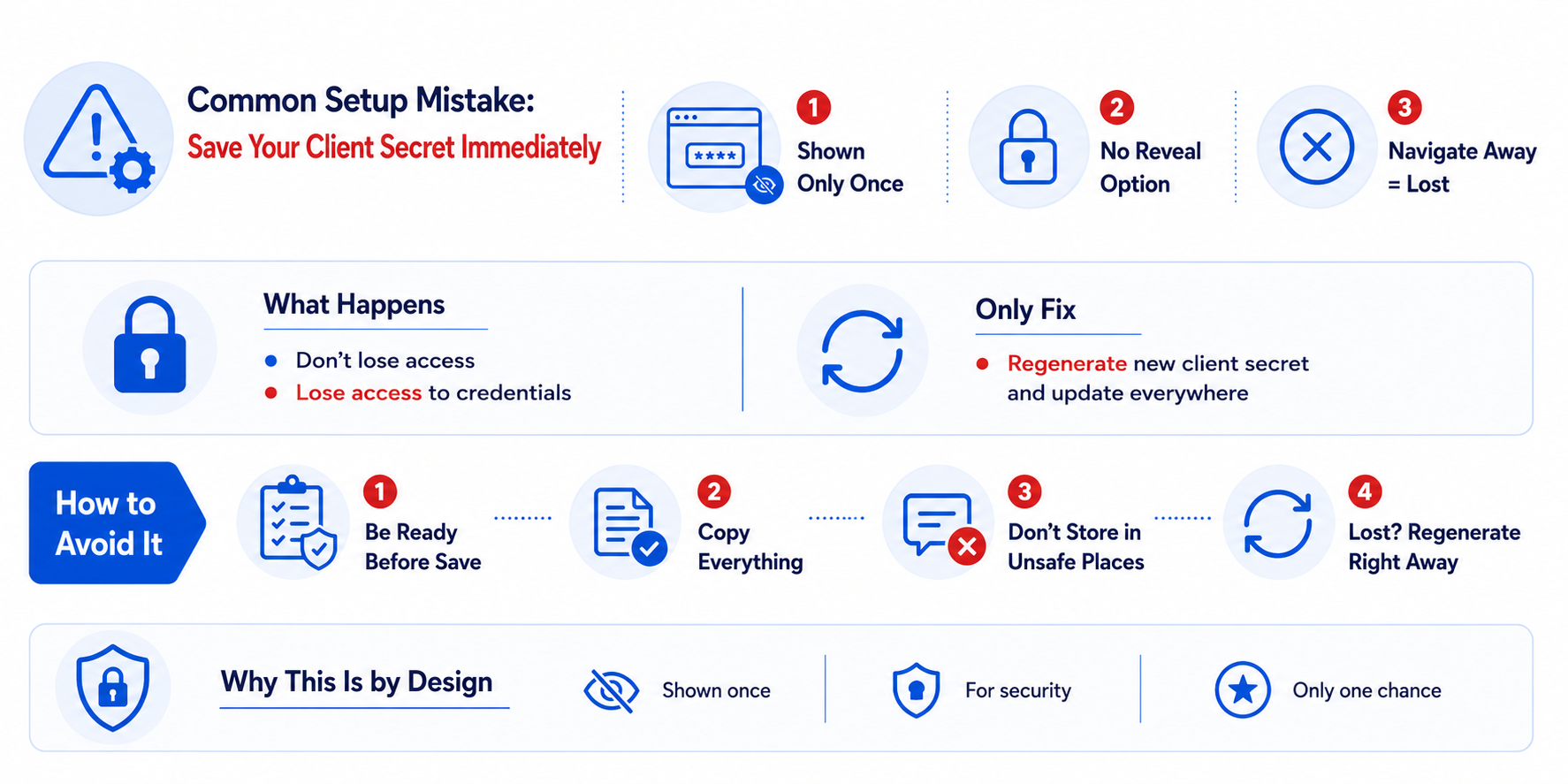
Here's the mistake that trips up nearly everyone the first time: closing the Installed Package screen before copying the client secret to a safe place.
Marketing Cloud shows you the Client Secret exactly once right after you create the API Integration component. There's no "reveal" button, no way to view it again later, no password-reset-style recovery.
If you navigate away, refresh the page, or just assume you'll "grab it in a minute," it's gone.
What actually happens if you miss it:
You don't get locked out of Marketing Cloud; you get locked out of that specific integration's credentials. The only fix is to generate a new client secret for the package, which means updating every place that old secret was supposed to go (your app config, secrets manager, environment variables) before anything works again.
How to avoid it:
Have your secrets manager or .env file open before you click save on the API Integration component.
Copy the Client ID, Client Secret, and all three Base URIs (Authentication, REST, SOAP) in the same sitting; don't do it in stages.
Never paste the secret into Slack, a ticket, an email, or a shared doc "just for now." Temporary storage has a way of becoming permanent storage.
If you do lose it, regenerate immediately rather than leaving the integration half-configured. An incomplete setup is easy to forget about and easy to misconfigure later.
This isn't a Marketing Cloud quirk; it's standard OAuth practice. Client secrets are shown once by design, because a system that lets you view a secret repeatedly is a system where that secret is easier to leak.
The trade-off is that you have to treat that one moment of visibility as it matters because it's the only one you get.
How to Use Your OAuth 2.0 Credentials for API Access
1: Request the token
Include account_id (your MID) if you're working across multiple business units. Skip it, and the token defaults to whichever BU created the integration.
2: Read the respons
A successful call returns a Marketing Cloud access token, valid for 20 minutes: access_token, token_type: Bearer, expires_in (20 minutes), plus your rest_instance_url and soap_instance_url.
3: Call the API
Use the rest_instance_url from Step 2 as your base, not a hardcoded subdomain.
4: Cache and refresh
Tokens last 20 minutes. Cache it, track its age, and request a new one before it expires; don't wait for a failed call.
Step 5: Know your errors
401 → token expired, get a new one.
403 → not a token problem, a scope problem. Check the Installed Package permissions.
Keeping Your OAuth 2.0 Setup Secure: Rotate Your Secret
Client secrets expire automatically after 180 days. Rotate them before that deadline hits; don't wait for it.
1: Generate and stage a new secret
In Setup, search for packages → open Installed Packages.
Select your package.
In Staged Secret, click Generate.
Add a description, click Next.
Copy the secret; you can't view it again after clicking Finish.
You can only generate one staged secret every 5 minutes.
2: Update your apps
Both the staged and active secrets work during this window, with no downtime. Update your app config, secrets manager, and environment variables now. Wait 5 minutes after staging before testing the new one.
3: Activate
Go back to Installed Packages → select the package → click Activate. This deactivates the old secret immediately and permanently. Anything still using it breaks on the spot, so only activate once every app is confirmed updated.
Good to know:
Check expiration dates for all secrets on the Installed Packages summary page.
Secrets generated after March 2026 use a new format: SFMC_ prefix + 51 characters + 8-character checksum.
Lost a secret? The same process works outside the 180-day cycle too.
Conclusion
OAuth 2.0 in Marketing Cloud isn't complicated once you've done it once. It comes down to a few things: register your integration, save your client secret the moment you see it, request a token, and use it before it expires.
Get Marketing Cloud OAuth set up right, and it fades into the background every Marketing Cloud API call authenticates cleanly, scoped to exactly what your integration needs.
The habits that matter long-term:
Store credentials in a secrets manager, never in code.
Rotate your secret before the 180-day expiration forces your hand.
Grant only the scopes you actually use.
Watch for 401s and 403s; they tell you exactly what broke.
This is what a secure API integration Salesforce teams can rely on looks like: not a one-time setup, but a habit built into how you work. Get this part right, and the rest of your Salesforce Marketing Cloud implementation has a foundation that won't need revisiting every time something breaks.
Frequently Asked Questions
-
OAuth 2.0 is an industry-standard authorization framework that lets external applications securely access user data or system resources without exposing usernames or passwords
-
Send a POST request to your Authentication Base URI followed by /v2/token, including your Client ID, Client Secret, and client_credentials grant type.
-
The token endpoint is your Authentication Base URI followed by /v2/token. For example: https://yoursubdomain.auth.marketingcloudapis.com/v2/token.
-
First, request an access token from the OAuth token endpoint. Then include that token in the Authorization: Bearer header when making Marketing Cloud API requests.
-
Marketing Cloud provides REST and SOAP Base URIs for making API requests after you receive an access token. The token response also provides the appropriate instance URLs for these APIs.
-
An Installed Package is where you create and manage API integrations in Marketing Cloud. It contains the credentials and configuration your application needs to access Marketing Cloud APIs.
Related Readings

Let’s Talk

Drop us a note, we’re happy to take the conversation forward 👇🏻