
How to Run a Zero-Copy Data Kit Deployment in Marketing Cloud Using Salesforce CLI
Key Takeaways:
Understand how Zero-Copy Data Kits support configuration deployment without copying external customer data into Salesforce.
Learn how to package and retrieve Data Kit metadata using Salesforce CLI.
Follow the process for moving Zero-Copy configurations from sandbox to production.
Marketing Cloud needs customer data to power audience segmentation, personalization, journeys, and campaign activation. That data can come from Salesforce or supported external data sources connected through Data 360.
When external data is accessed through Zero-Copy Data Federation, the data can remain in its source system instead of being copied into Salesforce. But once you've configured that setup in a sandbox, there's another challenge: how do you move the Salesforce-side configuration to production without rebuilding everything manually?
This is where DevOps Data Kits come in. A Data Kit package supported Data 360 metadata and process definitions so they can be moved between environments. Salesforce CLI then provides the developer workflow for retrieving that metadata into a Salesforce DX project and deploying it to the target org.
In this guide, we'll walk through the sandbox-to-production workflow, from creating a DevOps Data Kit and downloading its manifest to retrieving the metadata with Salesforce CLI, preparing it for deployment, and pushing it to production.
Marketing Cloud relies on customer data for segmentation, personalization, journeys, and campaign activation. That data can come from Salesforce or supported external sources connected through Data 360.
With Zero-Copy Data Federation, external data can remain in its source system instead of being copied into Salesforce. But once the configuration is ready in a sandbox, you still need a way to move the Salesforce-side configuration to production.
That's where DevOps Data Kits come in. They package supported Data 360 metadata and process definitions for deployment between environments, while Salesforce CLI lets you retrieve and deploy that metadata through a Salesforce DX project.
This guide walks through that sandbox-to-production workflow, from creating the Data Kit and downloading its manifest to retrieving, preparing, and deploying the metadata with Salesforce CLI.
What Are You Actually Deploying?
Before getting into the commands, it's important to distinguish between data and metadata.
A Zero-Copy setup is designed to let Data 360 work with supported external data without first creating another copy of that data in Salesforce.
The Data Kit deployment is different. You're moving the Data 360 metadata and process definitions that make up the configuration.
So the workflow looks like this:
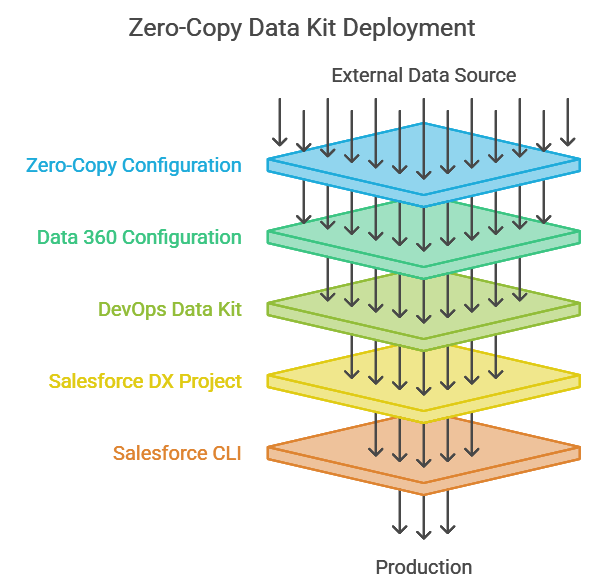
The customer data itself isn't what you're packaging into the Data Kit.
What Is a DevOps Data Kit?
A Data Kit is a package of supported Data 360 components that can be deployed together.
For a development workflow, you create a DevOps Data Kit in the sandbox and add the Data 360 components you want to move to the target environment.
Salesforce's current CLI deployment guide lists components such as:
Data streams
Data lake objects
Calculated insights
Data graphs
You also review the publishing sequence for those components before deploying them.
The important distinction is that the Data Kit contains the metadata and configuration, not a copy of the underlying customer dataset.
How Does Zero-Copy Fit Into This?
Zero-Copy Data Federation and Data Kit deployment solve different parts of the same implementation.
Zero-Copy determines how Salesforce can work with supported external data while that data remains in its source system.
The Data Kit packages the supported Data 360 configuration that needs to exist in the target environment.
Salesforce CLI retrieves and deploys that metadata through a Salesforce DX project.
So if you've configured a Zero-Copy-based Data 360 solution in a sandbox, the deployment process is about moving the supported Salesforce-side configuration to production.
It isn't about copying the external data from one environment to another.
Prerequisites for Data Kit Deployment
Before creating the Salesforce DX project, make sure you have the required permissions, tools, connections, and environments in place.
Data Cloud Architect permission
The user deploying Data Kit components needs the Data Cloud Architect permission set.
Deployment connection
Create a deployment connection between the relevant production and sandbox orgs before starting the workflow.
Salesforce CLI and VS Code
Install:
Salesforce CLI
Visual Studio Code
Salesforce Extension Pack (Expanded)
Salesforce DX project
Create a Salesforce DX project with a manifest from VS Code using SFDX: Create Project with Manifest.
Data spaces
Create a data space in both the sandbox and production org.
As per Salesforce, the same data space prefix name must exist in both the sandbox and production orgs.
A configured Data 360 solution
Finally, make sure the Data 360 configuration you want to move already exists in the sandbox and that the components you intend to deploy are supported by the DevOps Data Kit workflow.
Step 1: Create the DevOps Data Kit in the Sandbox
Start in the sandbox where your Data 360 configuration has been developed and tested.
Go to Data Cloud Setup and create a new Data Kit.
For Data Kit Type, select DevOps.
Then add the Data 360 components you want to deploy.
If your implementation uses Zero-Copy, this is where you include the supported Data 360 configuration relevant to that implementation, provided it is supported by the Data Kit deployment model.
Review the publishing sequence
After adding your components, review their publishing sequence.
Don't skip this step.
Data 360 components can have dependencies, so deployment order matters. Reviewing the sequence before publishing gives you an opportunity to identify potential dependency problems before they reach production.
Once you've confirmed the components and sequence, publish the DevOps Data Kit.
Step 2: Download the Data Kit Manifest
After publishing the DevOps Data Kit, go to Data Cloud Setup - Developer Tools - Data Kits in your sandbox.
Select the DevOps Data Kit and click Download Manifest.
Salesforce provides a package.xml file containing the metadata components included in the Data Kit. You then place this manifest in your Salesforce DX project.
You can also retrieve the manifest programmatically using the Get Data Kit Manifest Data 360 Connect REST API endpoint.
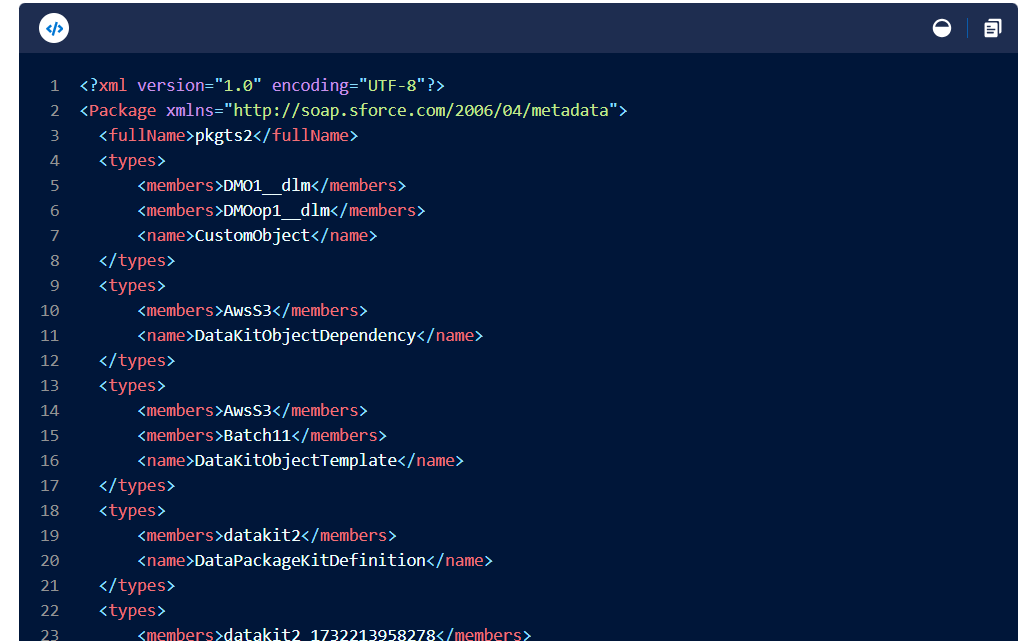
The downloaded package.xml is then used with Salesforce CLI to retrieve the Data Kit metadata into the Salesforce DX project.
Step 3: Retrieve the Data Kit Metadata
Place the downloaded manifest in your Salesforce DX project. Then run the following command from your Salesforce DX project:
sf project retrieve start --manifest manifest/package.xml
This command retrieves the Data Kit metadata into your Salesforce DX project, creating the corresponding project folders and metadata files.
At this point, you're still working with metadata and configuration.
The external data accessed through your Zero-Copy setup isn't being downloaded into the project.
If you're using GitHub or another source-control system, commit the retrieved metadata now so you can track changes and maintain a versioned history of the deployment.
Step 4: Remove Key Qualifier Files
According to Salesforce, after retrieving the Data Kit metadata, remove any key qualifier files and their references from the project.
On Unix systems, you can use the appropriate commands to delete the key qualifier files.
On Windows, Salesforce recommends searching the project directory for those files and manually deleting the files and their references.
Why does this matter?
The retrieved metadata can contain key qualifier references that shouldn't be carried into the deployment. Leaving them in the project can cause deployment failures.
So the workflow is:
Retrieve metadata → Remove key qualifier files/references → Deploy
Don't move directly from retrieval to deployment.
Step 5: Deploy the Data Kit to Production
Once the metadata has been retrieved and the key qualifier files have been removed, you're ready to deploy.
Run:
sf project deploy start --manifest package.xml
The --manifest flag tells Salesforce CLI which metadata components to deploy using the package.xml file.
This command deploys the Data Kit metadata from your Salesforce DX project to the target production org.
Remember: this is a metadata deployment, not a customer data migration.
Step 6: Check the Deployment Status
After running the deployment command, check the deployment status in Salesforce.
Salesforce recommends using Deployment History to review the result. After a successful deployment, you can see the Data Kit and its associated components, including data stream bundles, data models, and calculated insights.
At this point, verify that:
The Data Kit deployed successfully.
The expected Data 360 components are present.
No dependency errors were reported.
The relevant configuration is available in the production data space.
The Zero-Copy-related configuration is ready for validation.
A successful metadata deployment is an important milestone, but it isn't necessarily the end of the process.
Step 7: Validate the Configuration in Production
Now validate the deployed configuration from the production environment.
For a Zero-Copy implementation, confirm that the relevant external connection is available and that Salesforce can work with the external data through the expected federation mechanism.
Then test the Marketing Cloud use case that depends on that data.
For example, if the configuration is intended to support audience segmentation, verify that the relevant data can be used by the intended marketing workflow.
The objective is to confirm both sides of the deployment:
Metadata: Did the Data Kit deploy correctly?
Data access: Can the production environment actually work with the external data as expected?
Common Deployment Issues
Data Kit deployments can fail for several reasons, including missing metadata, schema mismatches, dependency issues, or inactive connectors. Before troubleshooting the CLI itself, check whether the deployment error points to one of these underlying issues.
Missing FieldSrcTrgtRelationship Reference for a DMO Relationship
This can occur when Data Model Objects have relationships but the required FieldSrcTrgtRelationship metadata is missing or contains invalid references.
Locate the XML files mentioned in the error, delete them manually, and retry the deployment.
Missing FieldSrcTrgtRelationship Metadata
If the deployment reports that a required relationship definition is missing, Salesforce provides two approaches:
Retrieve the specific relationship through the org browser.
Add the missing FieldSrcTrgtRelationship names to the package.xml manifest and retrieve them.
If key qualifier files are present, they should also be removed before retrying the deployment.
DLO Schema Changes
A deployment can fail when the target org contains fields that are missing from the source org's Data Lake Object.
Synchronize the schemas between the source and target environments before deploying the Data Kit to avoid schema mismatches.
Keeping sandbox and production schemas synchronized can prevent these mismatches from appearing during deployment.
Inactive Connectors After Deployment
A deployment can complete successfully while some connectors remain inactive in the target org.
Salesforce explains that connection configurations can be replicated, but sensitive authorization data isn't copied during certain sandbox refreshes or deployment processes. As a result, connectors may need to be reauthorized in production.
To resolve this:
Open Data Cloud → Connectors in the production org.
Find connectors showing an Inactive status.
Reauthorize them.
Redeploy the Data Kit if necessary to ensure the components are correctly linked.
Running into deployment issues that go beyond these common fixes? Our expert Salesforce services can help troubleshoot and deploy Data 360 configurations correctly the first time.
What Actually Changed After the Deployment?
At the end of this process, the configuration that existed in the sandbox has been deployed into the production environment.
That includes the supported metadata and process definitions contained in the DevOps Data Kit.
What hasn't happened is equally important.
The deployment hasn't copied your external customer dataset into Salesforce.
That's the point of keeping the Zero-Copy architecture separate from the metadata deployment process.
The workflow moves the Salesforce configuration while the external data remains in its source system.
So the overall process is:
Configure in Sandbox
↓
Create DevOps Data Kit
↓
Review publishing sequence
↓
Download package.xml
↓
Retrieve metadata with Salesforce CLI
↓
Remove key qualifier files
↓
Deploy with Salesforce CLI
↓
Validate in Production
Final Takeaway
A Zero-Copy Data Kit deployment is easier to understand when you separate data access from configuration deployment.
Zero-Copy allows supported external data to remain in its source system while Data 360 works with it. The DevOps Data Kit packages the supported Data 360 metadata and process definitions needed to reproduce the configuration in another environment. Salesforce CLI then provides the tools to retrieve that metadata into a Salesforce DX project and deploy it to production.
For a Marketing Cloud implementation, the practical goal is simple: develop and test the data configuration in a sandbox, move the supported metadata to production, and keep the underlying external data where it already lives.
That makes the deployment repeatable without turning a metadata deployment into a data migration.
Frequently Asked Questions
-
Common causes include missing FieldSrcTrgtRelationship metadata, schema mismatches between source and target Data Lake Objects, and unsynchronized sandbox/production schemas. Reviewing the publishing sequence before deployment helps catch dependency issues early.
-
Review Deployment History to confirm the Data Kit deployed successfully, the expected components are present, and no dependency errors occurred. Then validate that external connections work and the dependent Marketing Cloud use case (like segmentation) functions correctly.
-
A metadata deployment moves configuration, definitions, and structure between orgs. A data migration moves the actual dataset. This workflow is strictly the former, the external data referenced through Zero-Copy is never migrated.
Related Readings


Let’s Talk

Drop us a note, we’re happy to take the conversation forward 👇🏻