

Setup Guide for DiffSpot
DiffSpot is a web-based HubSpot scanning and comparison tool designed for HubSpot Admins and Developers. The app allows you to audit portal configurations, assess complexity, and identify differences between HubSpot environments.
Users can:
Perform a full inventory scan of a HubSpot portal to evaluate migration readiness and portal health.
Compare two portals side-by-side to identify configuration discrepancies.
Generate structured, actionable metadata reports for auditing CRM structure, workflows, and assets.
Install the App
Follow these steps to connect your HubSpot account to DiffSpot.
Navigate to https://diffspot.concret.io.
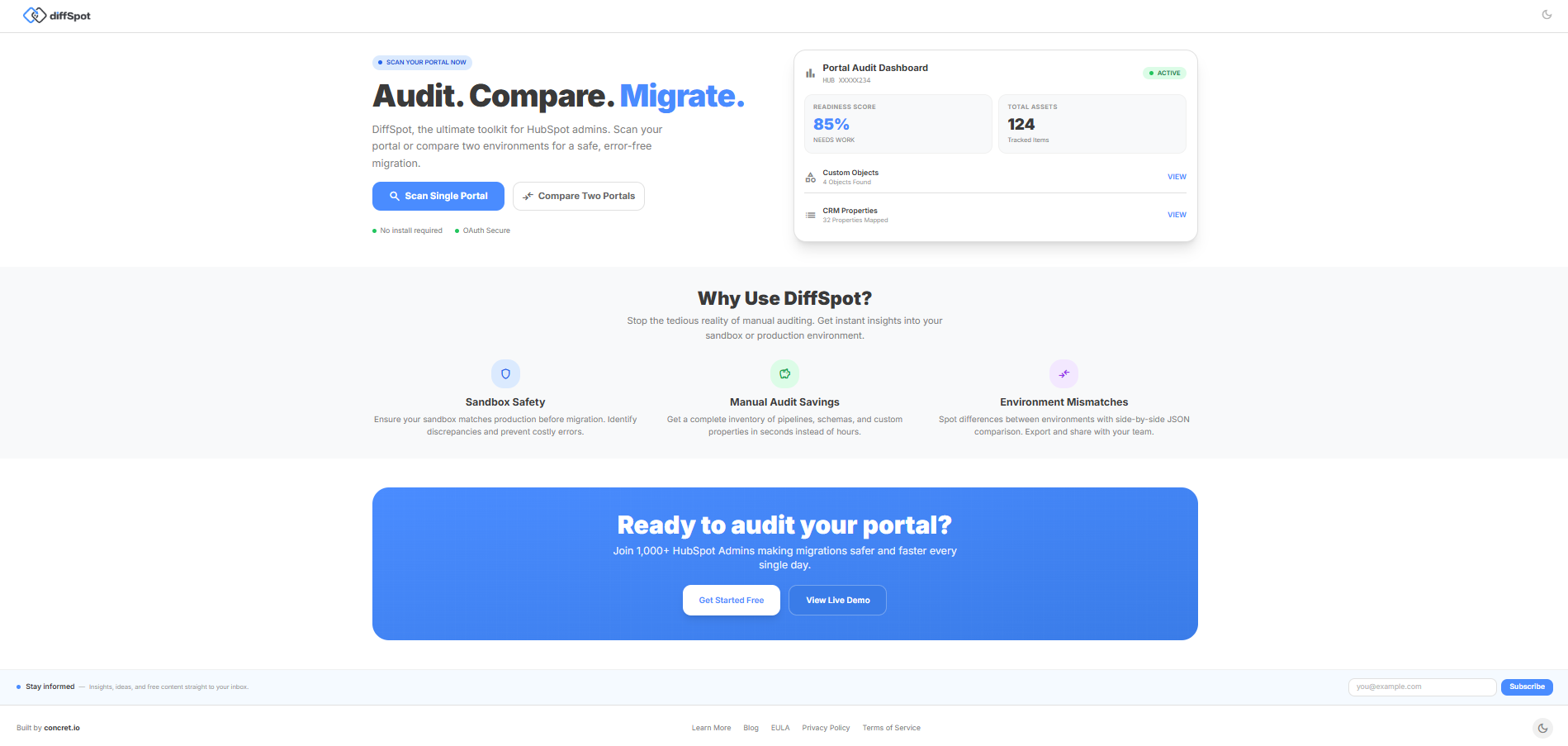
2. Select an Operation Mode: Scan Single Portal or Compare Two Portals.
3. Accept the Data Usage terms; DiffSpot acts as a read-only client and never stores customer records.
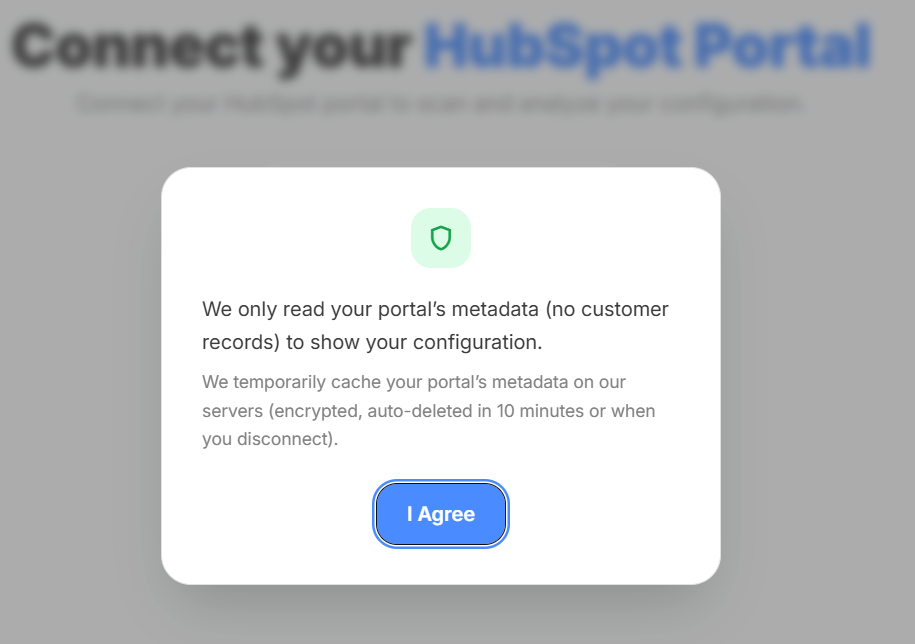
4. Connect a HubSpot Account
4.1 Open the HubSpot login tab in DiffSpot and sign in to your HubSpot account
Note:-
Uses OAuth 2.0, token-based access, and JWT session management
Flow: User connects → HubSpot authenticates → Access token issued → Access token issued → DiffSpot fetches metadata via APIs
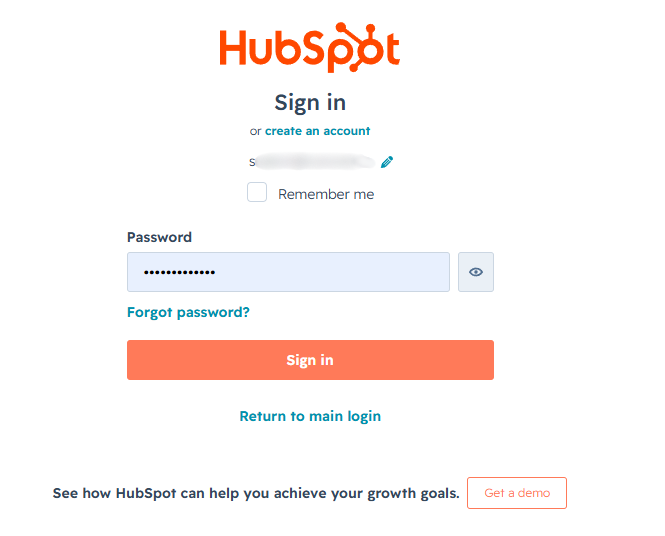
Secure: No credentials stored and tokens expire automatically
5. Click Connect the Portal (or Connect Primary/Secondary Portal for comparison).
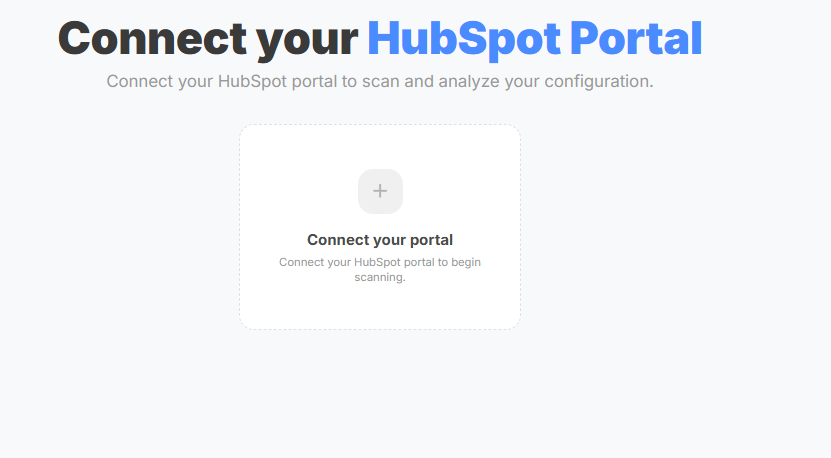
2. Configure the App
OR
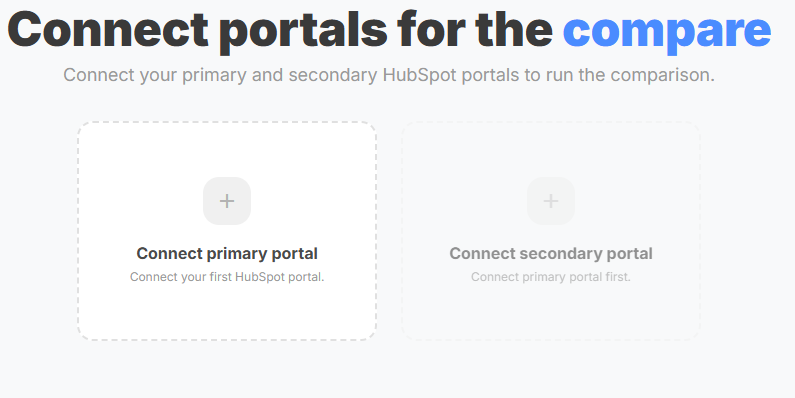
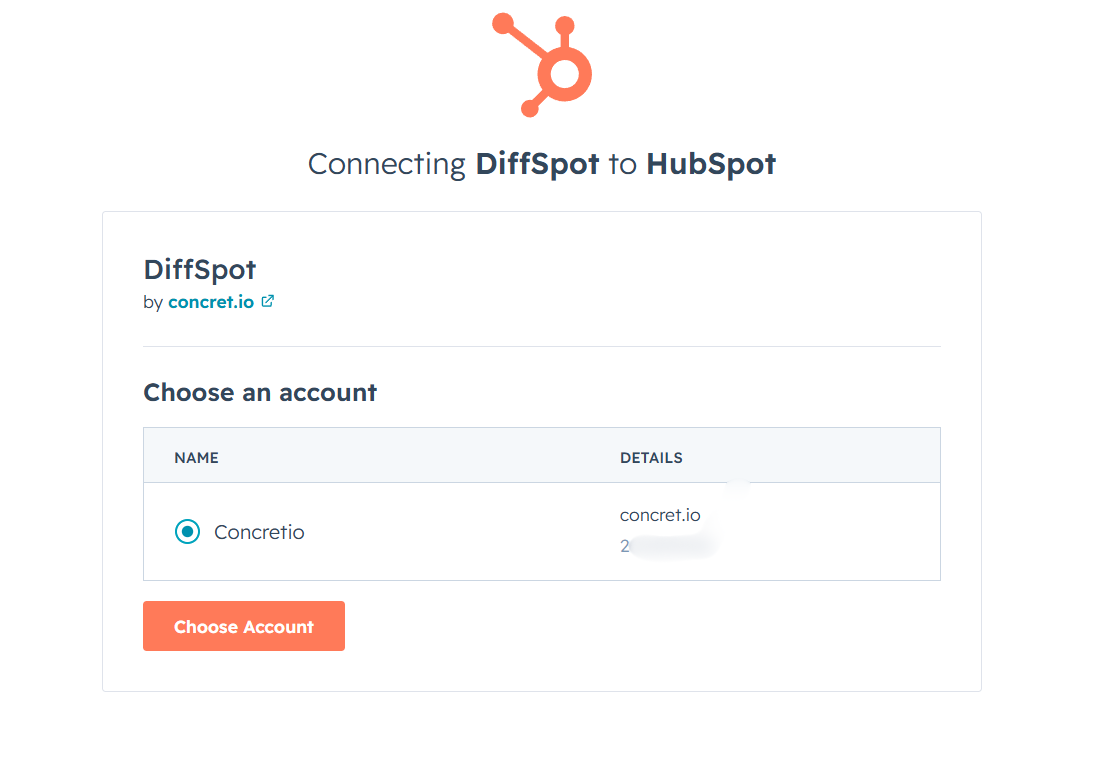
6. A HubSpot account selection screen will appear. Select the desired account.
7. Click Choose Account.
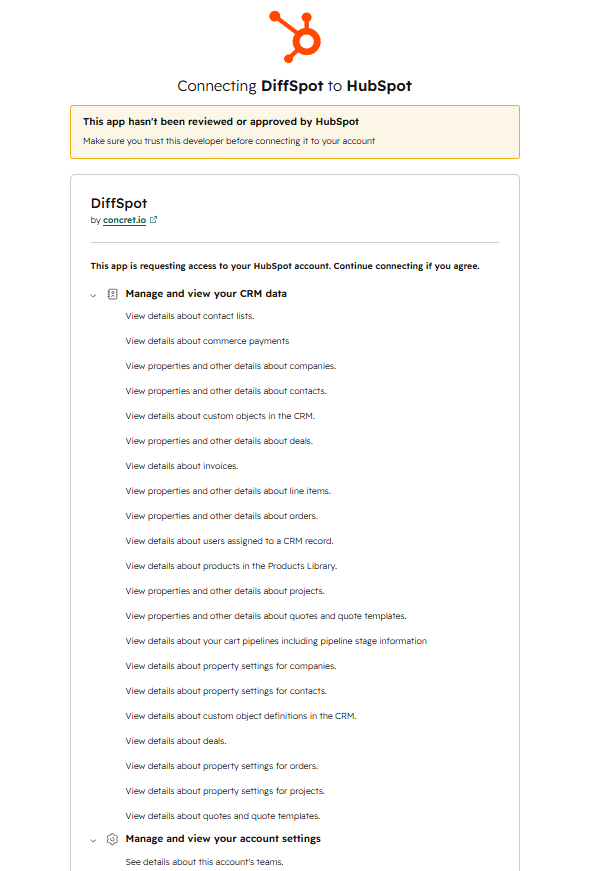
8. Review the requested OAuth scopes. DiffSpot requests read-only access to CRM data, workflows, and account settings to generate your audit.
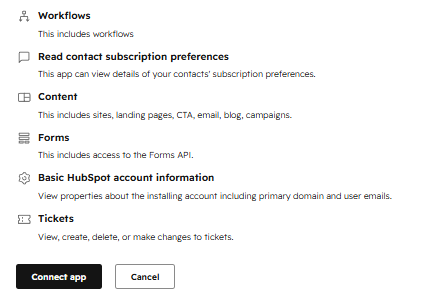
9. Click Connect App.
10. Connection Confirmation
10.1. You will be redirected back to DiffSpot.
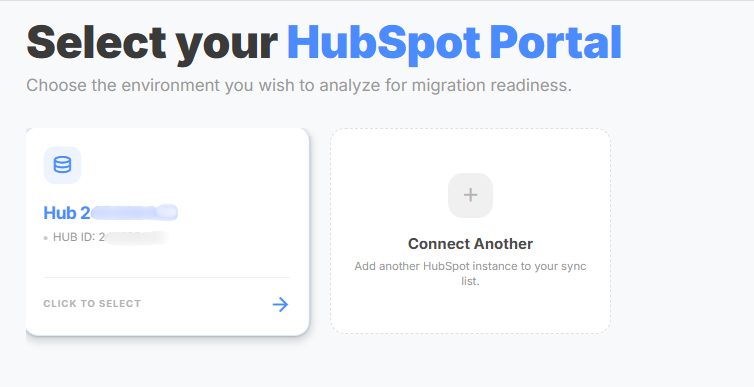
10.2. Your connected HubSpot portal will be displayed:
10.3. Example:
10.3.1. Hub Name: Hub 2453XXXX8
10.3.2. HUB ID: 2453XXXX8
10.3.3 Click to select
10.4.Single Portal
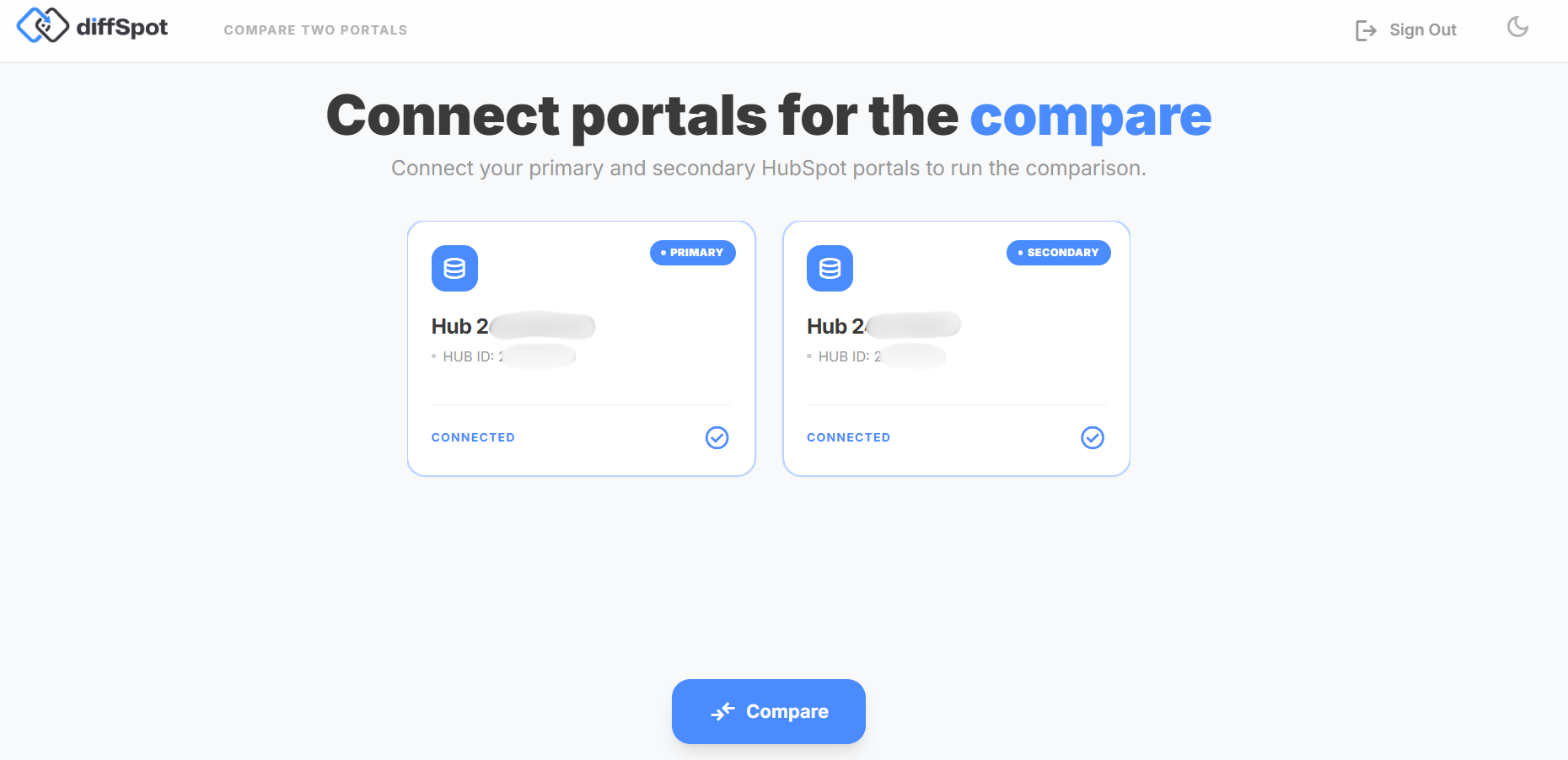
10.5. For comparison mode, both portals will be listed.
DiffSpot is a read-only analysis tool and does not require complex manual field mapping. It is pre-configured to automatically sync metadata via HubSpot APIs.
• Data Access: Once connected, DiffSpot automatically retrieves the metadata necessary for your selected scan (e.g., CRM Properties, Custom Objects, Workflows).
• Automatic Sync: There are no background syncs. Scans are manually triggered by the user to ensure data privacy and performance.
| App Object | HubSpot Object | Direction | Scope Category |
|---|---|---|---|
| Custom Objects | Custom Objects | HubSpot → DiffSpot | CRM (Read) |
| Contact Properties | Contact Properties | HubSpot → DiffSpot | CRM (Read) |
| Company Properties | Company Properties | HubSpot → DiffSpot | CRM (Read) |
| Deal Properties | Deal Properties | HubSpot → DiffSpot | CRM (Read) |
| CRM Pipelines | CRM Pipelines | HubSpot → DiffSpot | CRM (Read) |
| Forms | Forms | HubSpot → DiffSpot | Marketing (Read) |
| Workflows | Workflows | HubSpot → DiffSpot | Automation (Read) |
| Owners | Owners | HubSpot → DiffSpot | CRM (Read) |
| Landing Pages | CMS Page Publishing | HubSpot → DiffSpot | CMS (Read) |
| Marketing Emails | Marketing Email | HubSpot → DiffSpot | Marketing (Read) |
| Subscription Types | Email Subscription | HubSpot → DiffSpot | Marketing (Read) |
| Lists / Segments | Contact Lists | HubSpot → DiffSpot | CRM (Read) |
| Tickets | Tickets | DiffSpot → HubSpot | CRM (Read) |
| Contacts | Contacts | HubSpot → DiffSpot | CRM (Read) |
| Quotes/Quote Properties | Quotes | HubSpot → DiffSpot | Commerce (Read) |
| Deals | Deals | HubSpot → DiffSpot | CRM (Read) |
| Companies | Companies | HubSpot → DiffSpot | CRM (Read) |
| Orders | Orders | HubSpot → DiffSpot | Commerce (Read) |
| Line Items | Line Items | HubSpot → DiffSpot | Commerce (Read) |
| Invoices | Invoices | HubSpot → DiffSpot | Commerce (Read) |
3. Use the App
Single Portal Scan
Connect one HubSpot portal.
Select the portal from your connected dashboard.
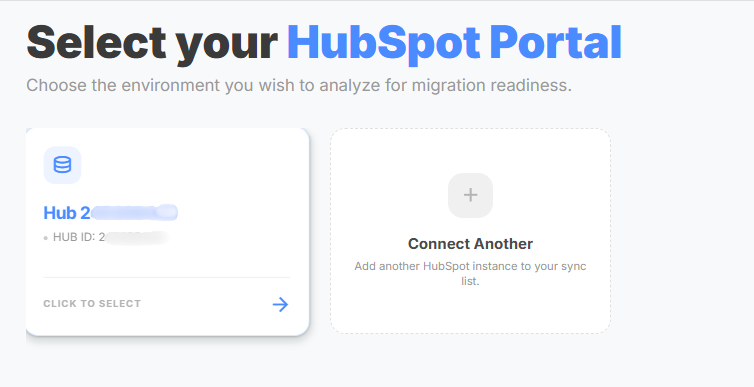
3. Click on the card to start scanning the org.
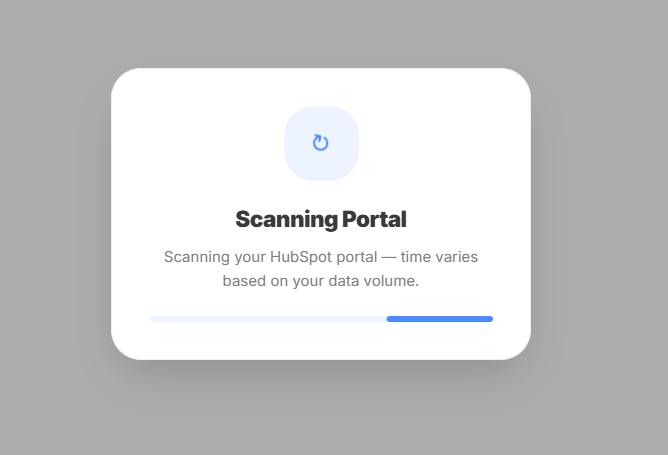
Note: The scan may take up to 60 seconds, depending on your organization's metadata.
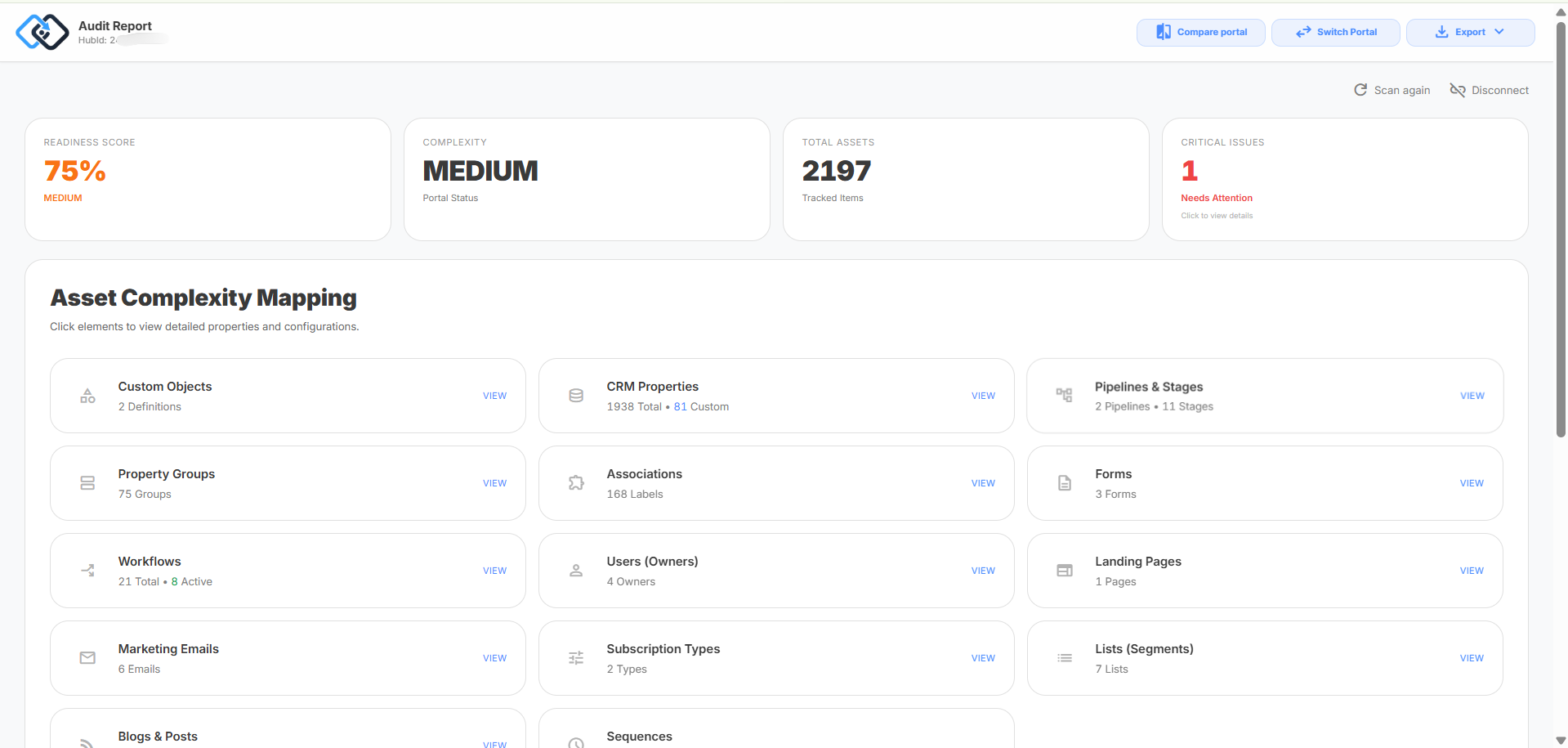
4. View your full metadata audit, including risk indicators, asset complexity mappings, and workflow summaries.
Compare Two Portals (Diff)
Connect your Primary Portal.
Click Connect Secondary Portal to select your comparison environment.
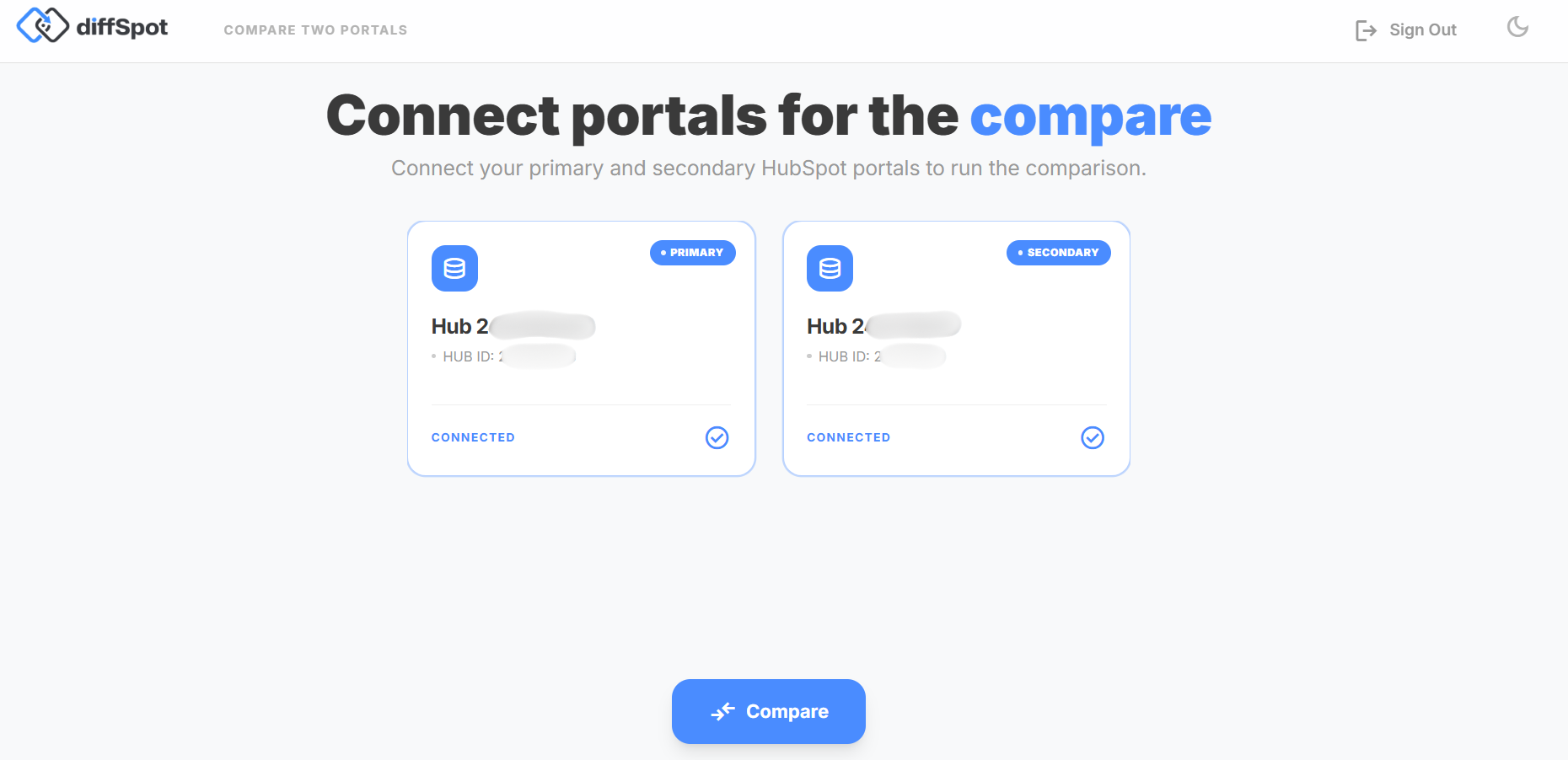
3. Click “Compare” to start scanning both portals.
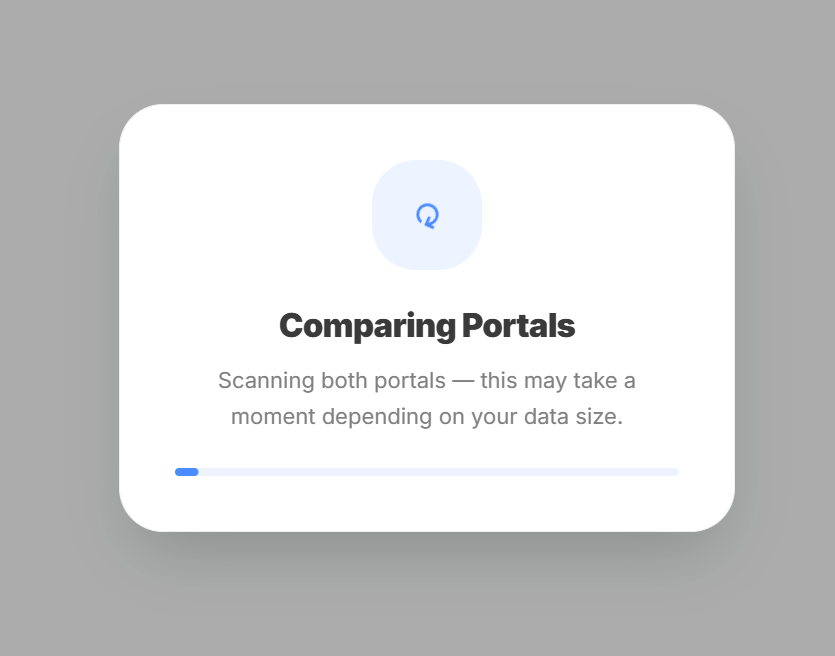
Note: The scan may take up to 60 seconds, depending on your organization's metadata.
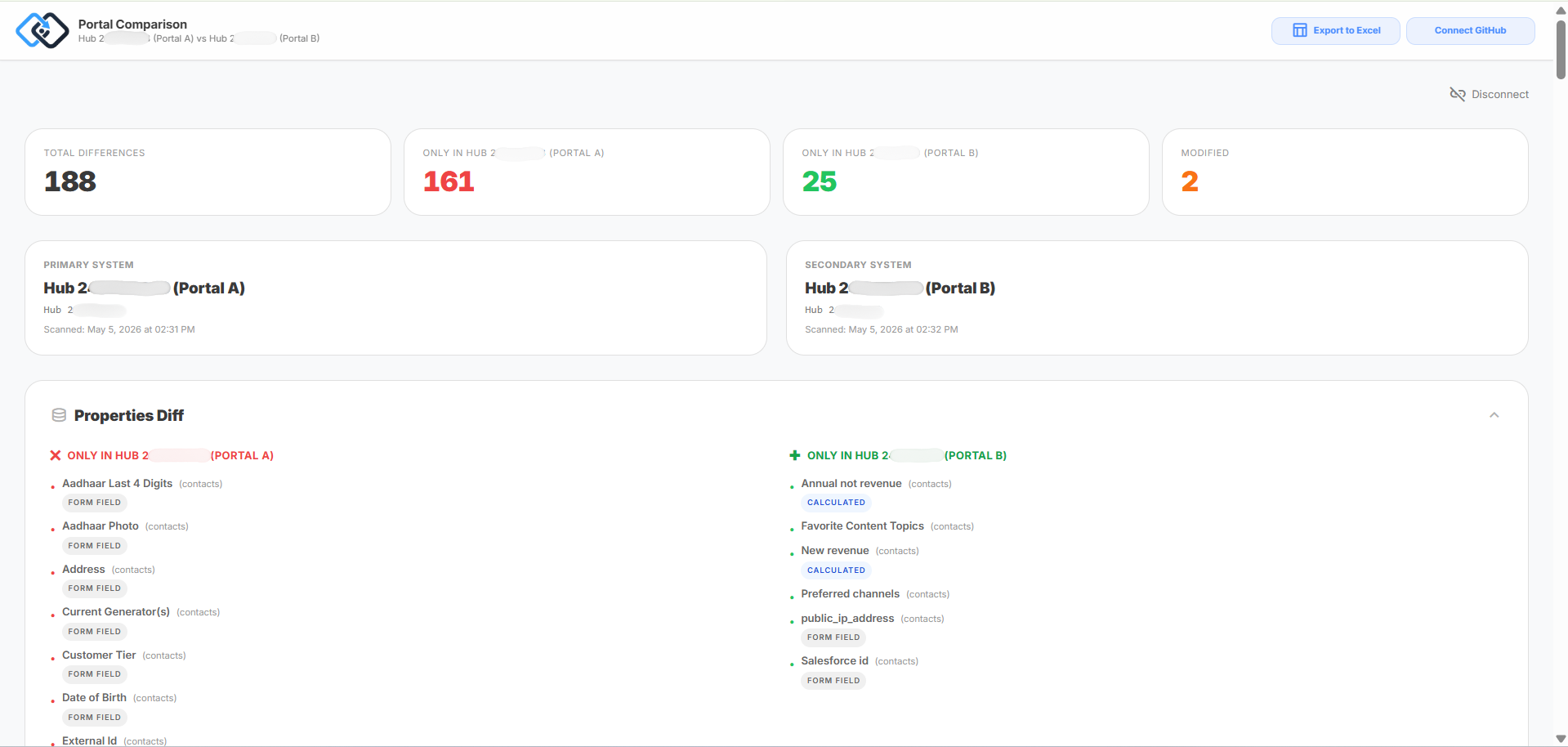
4. Once complete, view the side-by-side comparison report to highlight added/removed objects, property differences, and structural inconsistencies.
Automation Behavior
Scans are manually triggered by the user (no auto-start).
No background or scheduled syncs with HubSpot.
On scan, DiffSpot fetches and only fetch portal metadata via APIs.
Results are generated and shown after the scan completes.
Reports/exports (PDF, Email, JSON, GitHub) are created automatically post-scan.
Data may be temporarily cached for faster access.
Fully read-only — no data is created, updated, or deleted in HubSpot.
4. Uninstall the App
To fully remove DiffSpot from your HubSpot account:
Log in to your HubSpot account.
Navigate to Settings > Integrations > Connected Apps.
Locate DiffSpot in the list.
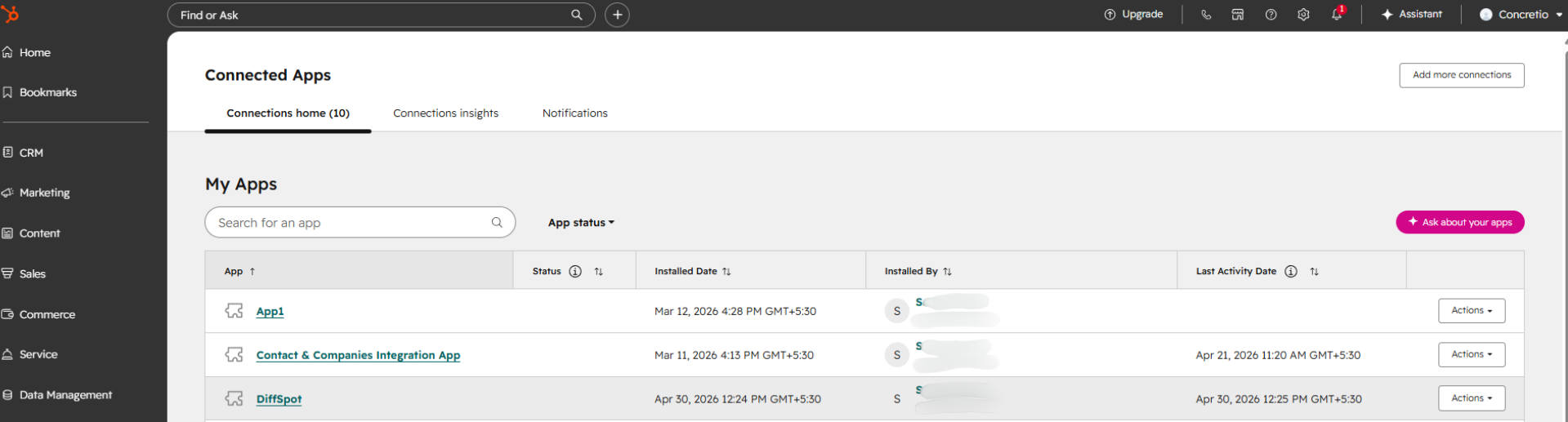
4. Click Uninstall.

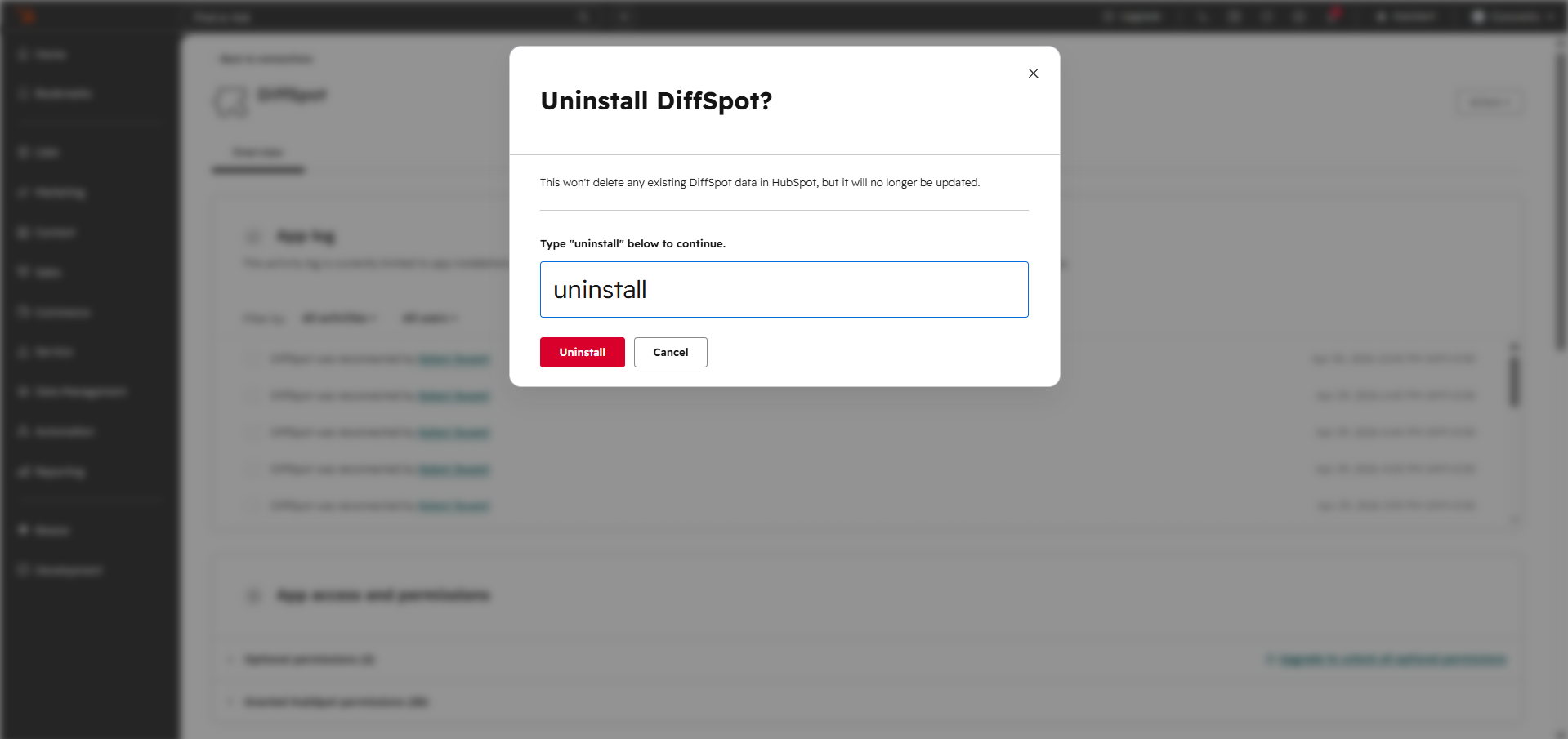
Follow the full instructions in this HubSpot Knowledge Base article.
Note: This revokes all OAuth tokens and permanently removes access.
Last Updated: February 2026 | Guide for DiffSpot Users | 2026 DiffSpot. All rights reserved