
Stop Treating Task Creation Like Clerical Work: Let MCP + Cursor Automate
Most teams don’t have a “task management” problem.
They have a context transfer problem.
Every time a Tech Lead, Senior Engineer, or Tech PM spots an issue while coding/testing, the same slow ritual begins: open a PM tool, find the right project/list, rewrite the context, add acceptance criteria, assign it, then hope someone can reproduce what you just saw.
That’s not “project management.” That’s manual transcription, and it doesn’t scale.
In this post, I’ll show a practical workflow where Cursor (vibe coding) + MCP turns task creation into a near one-liner, while preserving the context that usually gets lost.
In case you hate reading, here is a quick video demo:
What I’m Actually Automating (And Why It Matters)?
When people say “automate task creation,” they usually mean: fill a form faster.
The real productivity gain is different:
Auto-pick the right defaults (project, portal/workspace, task list, priority, assignee)
Auto-capture context (what I was doing, what broke, what I expect)
Auto-structure the task (template + acceptance criteria)
Make the task reusable as LLM context later
The Workflow: Cursor as Your “Task Operator”
#1 Set up MCP connection (once)
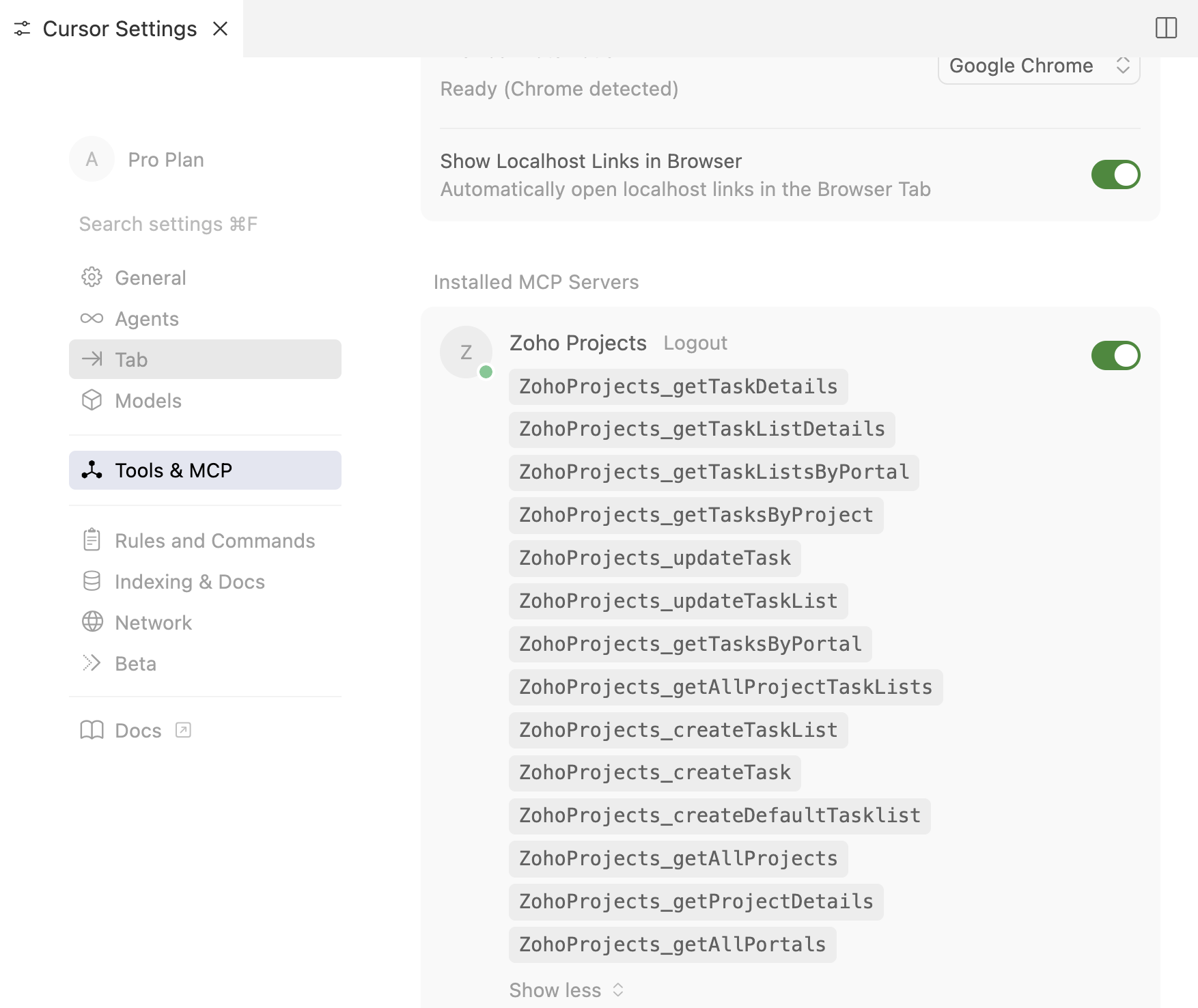
#2 Keep a small configuration file with usual Task defaults
This is optional, in the example below it was a hobby project, so I configured it to pick quickly defaults including assignee.
{
  "workspace": "md-human",
  "zoho_projects": {
    "portal_id": "802009154",
    "portal_name": "concretio",
    "project_id": "2075097000003964311",
    "project_name": "Markdown VS Code Extension",
    "default_tasklist_id": "2075097000003964354",
    "default_tasklist_name": "General",
    "default_assignee": {
      "email": "xxxxx@concret.io",
      "first_name": "Bhavya",
      ...
    },
    "default_priority": "none"
  }
  ...
}
#3 Prompt Cursor to create a task
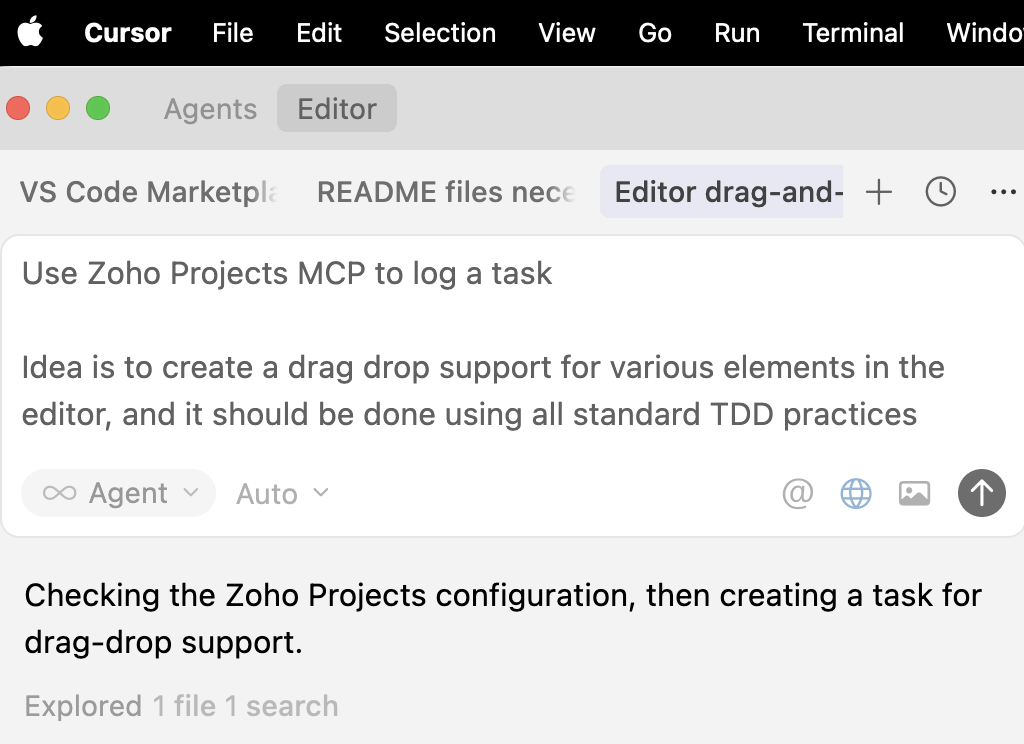
#4 Cursor uses MCP tools to create a fully populated task
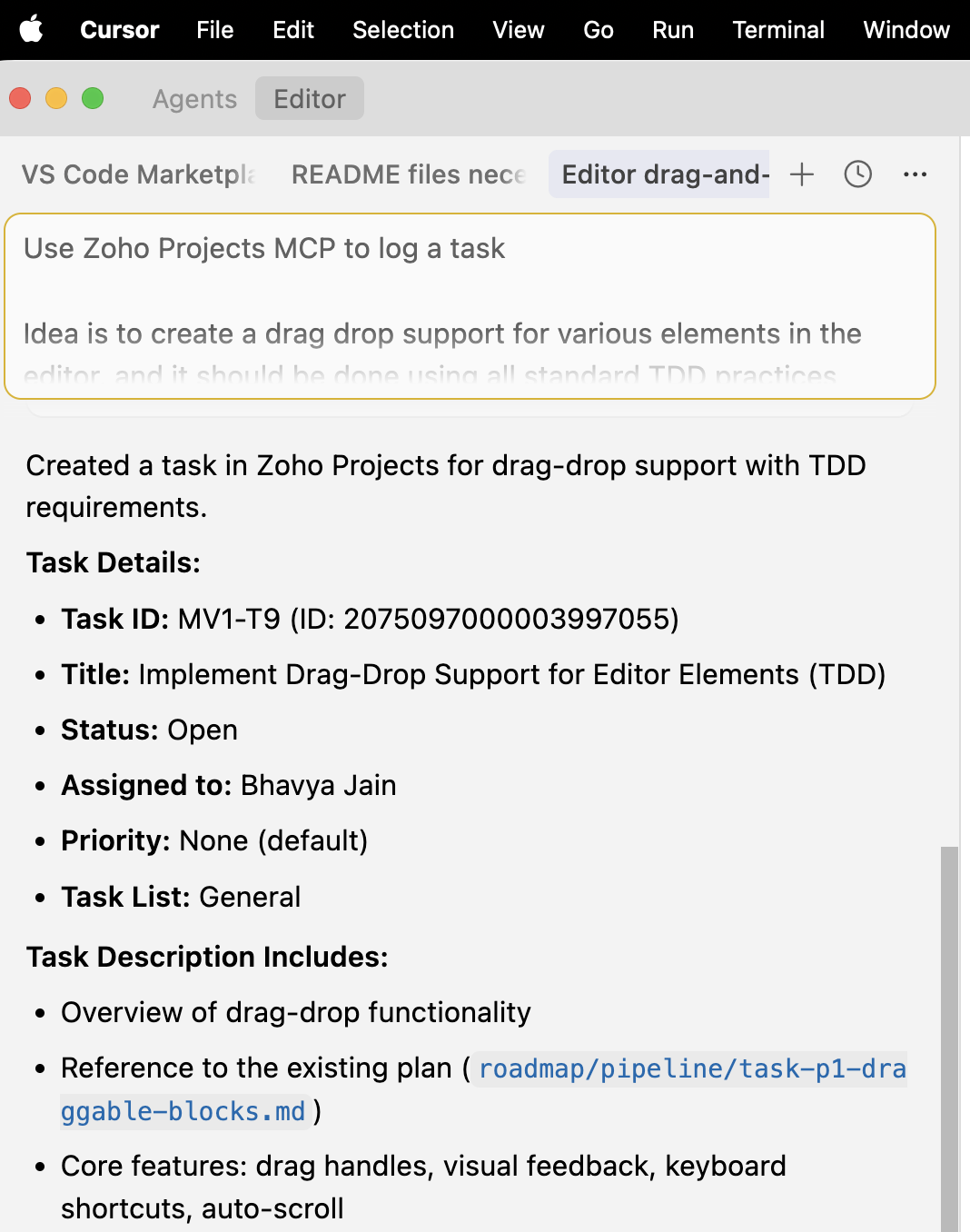
Why “Defaults” Are the Real Secret
Most automation demos look impressive until the 3rd task, when the AI asks:
which project?
which list?
what priority?
who’s the assignee?
If your workflow requires those questions every time, you haven’t automated anything, you’ve just moved the UI into chat.
So the system needs opinions (defaults) baked in:
Default project
Default task list
Default priority
The automated assignee possibility
It can be done in so many ways like
Default assignee, like I did for 1 person hobby project.
Routing rule configured in LLM or Vibe coding tool based on project to assign feature specific tasks to given assignee
Ask MCP to know who worked on similar tasks, assign it to them on its own, this can also allow to map relevant tasks in the new bug or ticket.
A Simple Task Template That Works With AI
A task created by an LLM should be readable by humans and useful as context later.
Here’s a clean template you can adapt:
## Summary
<One-line description>

## Context
- Where I noticed it:
- What I expected:
- What happened instead:

## Steps to Reproduce
1.
2.
3.

## Acceptance Criteria
- [ ]
- [ ]

## Notes / Links
- Related file/module:
- Screenshots/logs:
Real Example: Logging a Feature Task While Building a VS Code Extension
In the demo, I’m building a VS Code extension called “Markdown for Humans” (a project where UX details matter), and I want to log a feature task for drag-and-drop support.
Instead of switching tools, I prompt Cursor to create the task using the MCP connection.
That’s the pattern you want:
“I noticed something”
“I want to capture it without breaking flow”
“I want it created in the system, correctly”
Where This Gets Even More Powerful
This workflow doesn’t have to stop at task creation.
If you pair MCP task creation with:
browser automation / DevTools capture
screenshots
logs / network traces
structured reproduction steps
Bonus: Chrome DevTools MCP (Debug → Evidence → Task)
A really practical next step is pairing Chrome DevTools MCP with your task-creation MCP.
Instead of manually copying console errors, failed network calls, and “what I clicked” into a ticket, the agent can collect evidence directly from the browser session (console logs, network details, screenshots, and DOM context)
Then open a task with all of that attached. It’s especially useful for UI regressions, flaky flows, and “works on my machine” bugs, because the ticket contains the same artifacts you’d otherwise spend 15 minutes assembling.
The sweet spot is still human-in-the-loop: you trigger the capture, skim the summary, and then let the agent create the task with clean repro steps + artifacts.
# Example: prompt + MCP tool flow (conceptual)

User → Cursor:
"Use Chrome DevTools MCP to reproduce the issue on /checkout. Capture console + network errors + a screenshot. Then create a task with a summary, repro steps, and attach the captured artifacts."

Agent (via DevTools MCP):
1) Open URL: https://app.example.com/checkout
2) Perform steps: click "Pay" → select "Card" → submit
3) Capture:
   - Console errors (last 100 lines)
   - Failed network requests (status >= 400)
   - Screenshot of the broken UI state
   - Optional: DOM snippet for the error component

Agent (via PM tool MCP):
4) Create task:
   - Title: "Checkout: Pay button fails with 500"
   - Description: includes repro steps + console excerpt + failed request details
   - Attachments/links: screenshot + exported logs
   - Assignee/Priority: defaults from your config
The Bottom Line
Cursor + MCP turns task creation into a first-class developer workflow.
Not by making forms faster—
but by preserving context, enforcing structure, and keeping you in flow.
If you’re a Tech PM, Tech Lead, or Senior Engineer, this is one of the most practical “AI productivity” upgrades you can deploy today—because it improves both speed and task quality.
Your Turn
If your team adopted this tomorrow, what would break first—templates, permissions, or defaults?
Would you trust auto-generated tasks as “drafts,” or do you want a human gate every time?
References & Sources
Model Context Protocol (MCP), official docs: https://modelcontextprotocol.io/docs/getting-started/intro
Cursor (AI code editor): https://cursor.com/
Chrome DevTools Protocol (CDP): https://chromedevtools.github.io/devtools-protocol/
Zoho MCP documentation (used in the demo’s PM workflow): https://help.zoho.com/portal/en/kb/mcp/getting-started/articles/zoho-mcp-help-documentation-29-9-2025