
Updated on: August 6, 2026
Introduction
Formula fields are custom fields that automatically provide results based on records and related records. They are a valuable and powerful tool provided by Salesforce to the Admins as they are updated automatically in real-time whenever a record is accessed.
They are read-only fields and are calculated based on fields and expressions specified in the formula and the values present in those fields. It calculates the latest data when it is viewed or when any of the source fields changes. More interestingly, they can also be used in Reports or SOQL queries.
A formula field expression is composed of -
Fields of Records
Fields of Related Records
Formula Operators
Formula Functions
There are a few points to consider when we are creating formula fields like -
A formula field expression can contain only 3900 characters, including Spaces, return Characters & Comments.
You can’t delete a field that is being referenced by the formula field expression.
Long Text Area, Rich Text Area, Multi-Select Picklist and Encrypted type fields cannot be referenced in a formula field expression.
A field value cannot depend on another formula field that references it.
The Hidden Bottleneck: Character Limit vs. Compile Size
Most administrators know that a formula expression cannot exceed 3,900 characters. However, the silent cause of formula errors in complex orgs is the 5,000-byte Compile Size limit.
Salesforce computes formula fields dynamically at read time rather than storing static values in the database. If your formula references multiple nested formula fields or deep CASE() / IF() statement chains, the underlying SQL generated by Salesforce expands exponentially. When a formula exceeds the 5,000-byte compile size, it fails to save.
How to optimize compile size:
Replace long nested IF() chains with a single, concise CASE() statement.
Avoid repeating the same child formula field inside multiple conditional logical branches.
Move static baseline calculations over to native Salesforce Flow or Apex trigger fields if the formula complexity threatens governor limits.
When creating a formula field, you have to specify the return type of the field, which is the type of value that a specific formula field will hold or, in other words, the type of the value that will be returned by the expression specified in the formula field. Following return, types are allowed for a formula field.
Checkbox
Currency
Date
Time
Datetime
Number
Percent
Creating a Formula Field
Now, let’s see how to create a formula field for an object. To explain the steps, let’s take a scenario to create a formula field on the Account object, named Annual Tax, to calculate Annual tax as 10% of the Annual Revenue.
To create a formula field for a specific object-
Go to the “Fields & Relationships” section of that specific object and click on the “New” button.
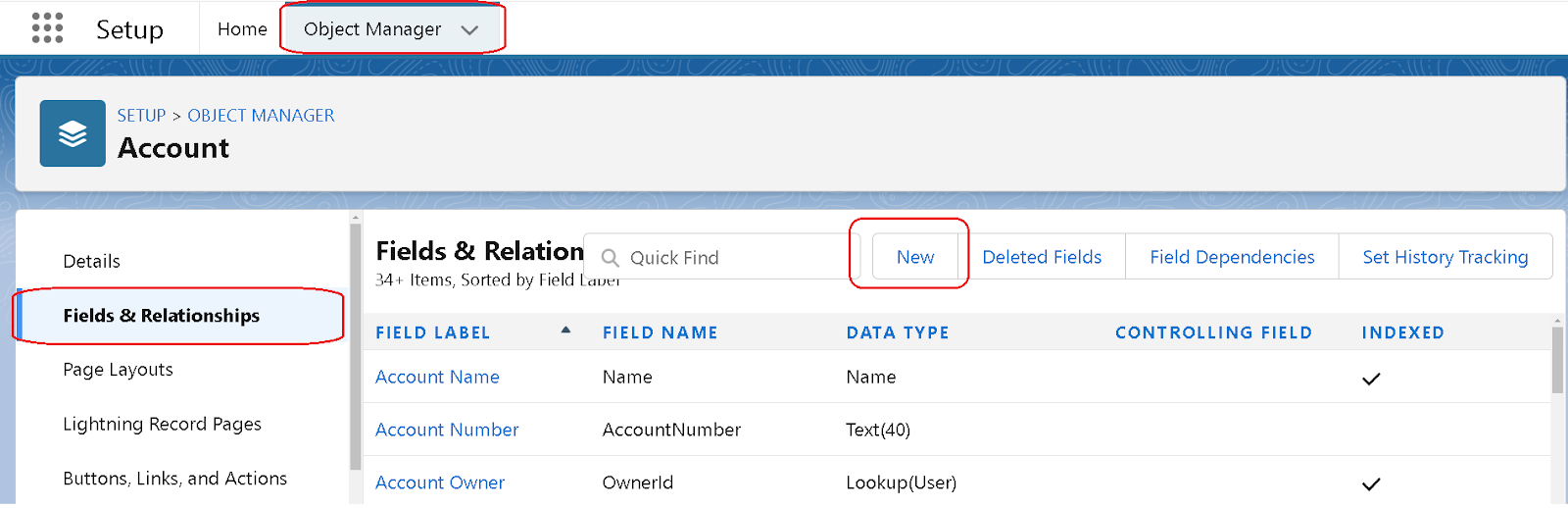
2. Choose “Formula” as Data Type and click on “Next”.

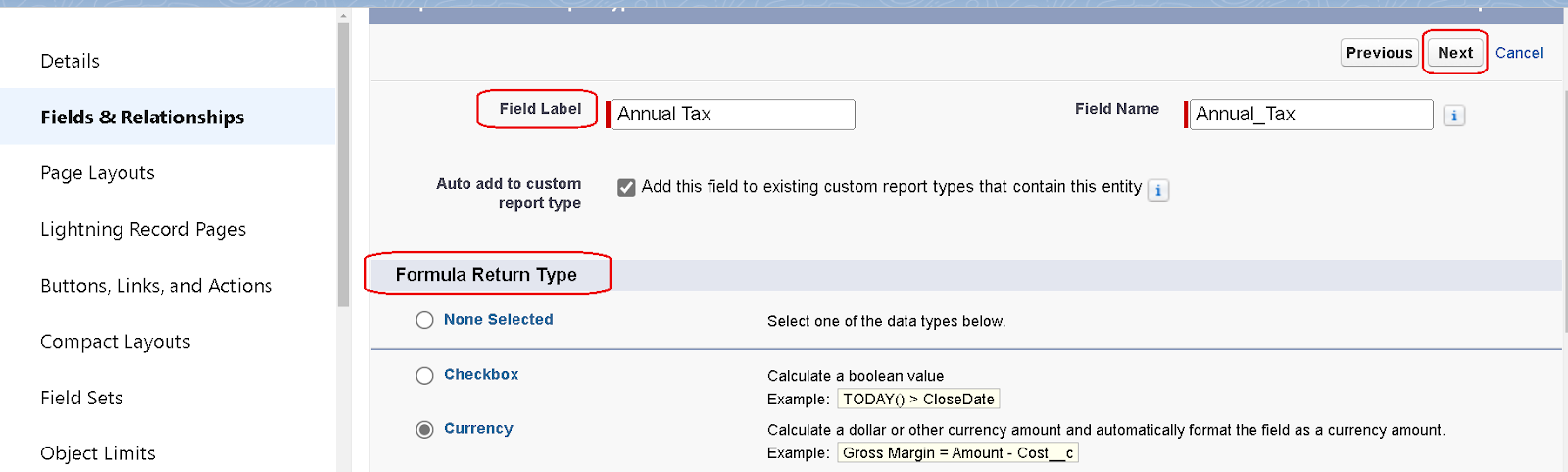
3. Choose “Formula Return Type”, provide a “Field Label” and Click on the “Next” button.
(Like for current scenario we have chosen “Currency” as Return Type and “Annual Tax” as the field label)
4. Click on the “Simple Formula” tab, and make sure the “Select Field Type” combobox should point to the “Account” Object and click on the “Annual Revenue” field from the “Insert Field” combobox. [As required for current scenario]

5. Write the given formula to calculate the Annual Tax by using ‘(’, ‘*’, and ‘/’ operators from the Insert Operator combobox.
( AnnualRevenue * 10 ) / 100
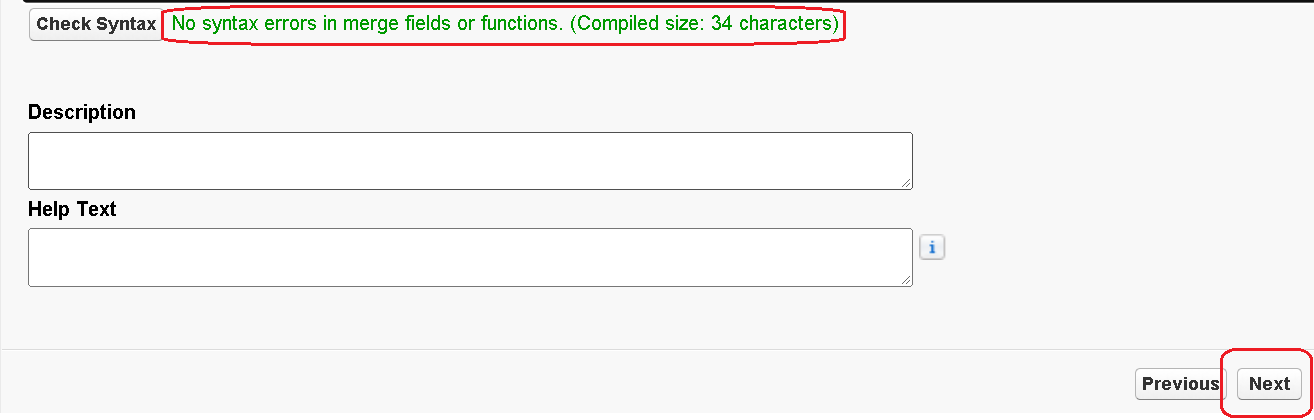
6. Click on the “Check Syntax” button to verify the expression and click on the “Next” button.
7. Choose the profile for which you want to make this field visible, and click on the “Next” button and click on the “Save” button.
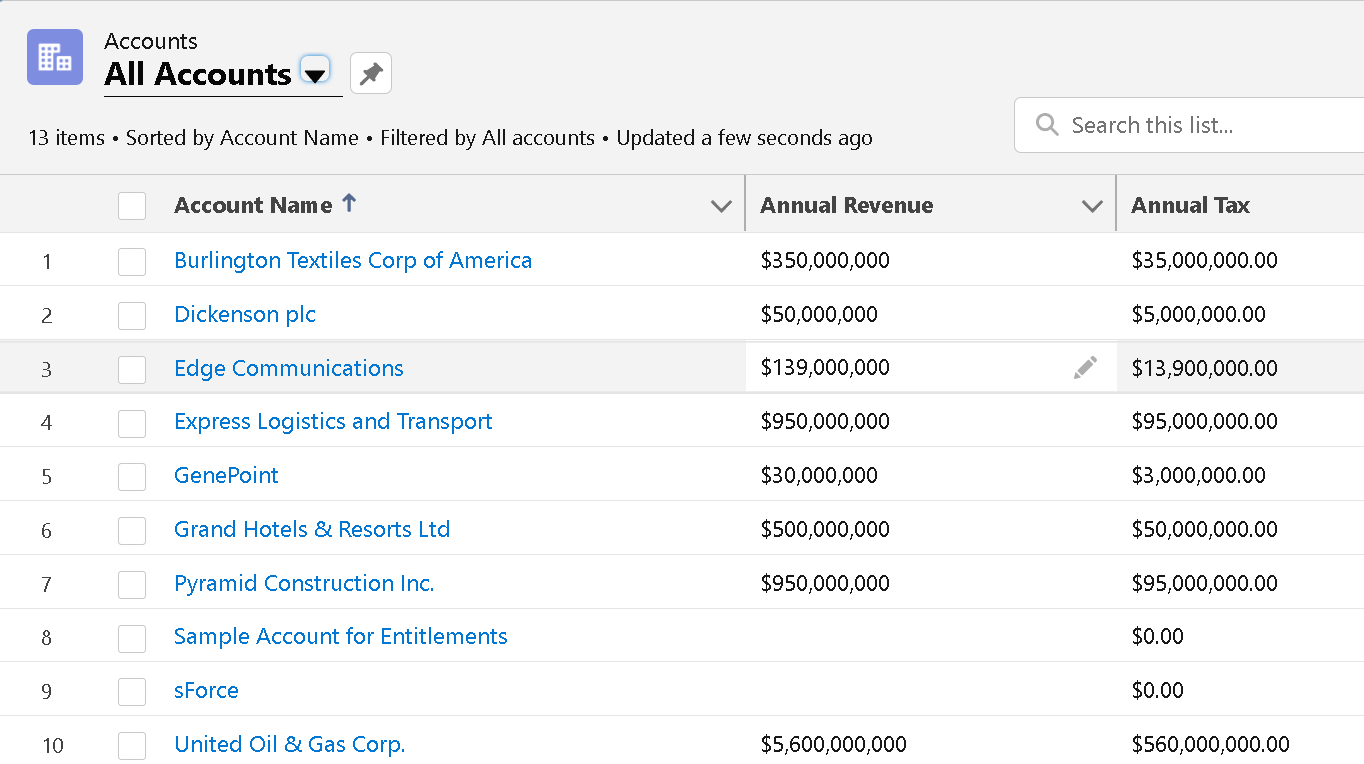
Now when you see records of the Account Object, you can see the “Account Tax” is calculated as 10% of the Annual Revenue.
Simple Formula vs Advanced Formula
You might have noticed the “Simple Formula” and “Advanced Formula” tab while creating the formula. Our current requirement is fulfilled by the “Simple Formula” itself, but you can use “Advanced Formula” as well.
Now, let's see what’s the difference between “Simple Formula” and “Advanced Formula”.
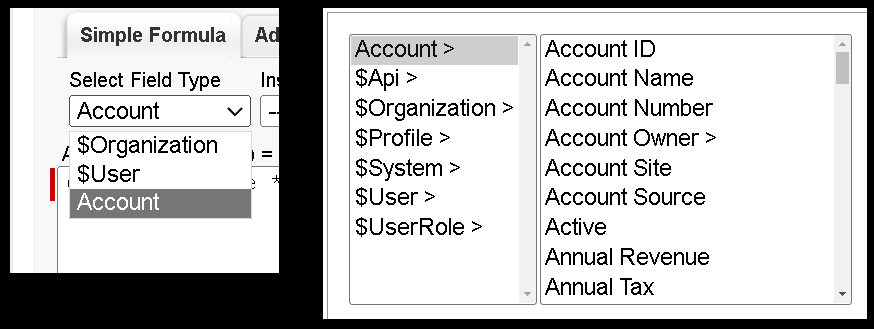
In Simple Formula, you can only use fields from the Current Object or Universal Objects like “User” and “Organization”. In contrast, in Advance Formula, you can use fields from Current Object and Related Objects (Parent) along with many Universal Objects.
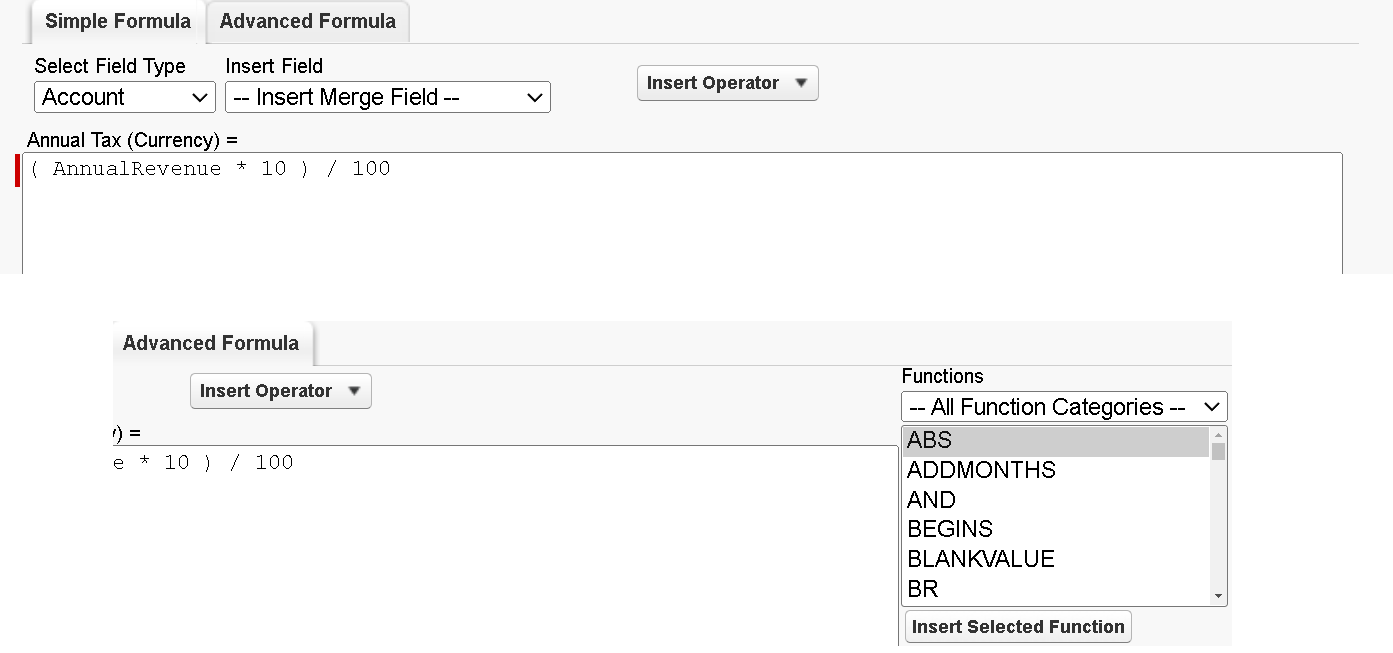
Formula Functions are not available in Simple Formula, but they are available in Advanced Formula.
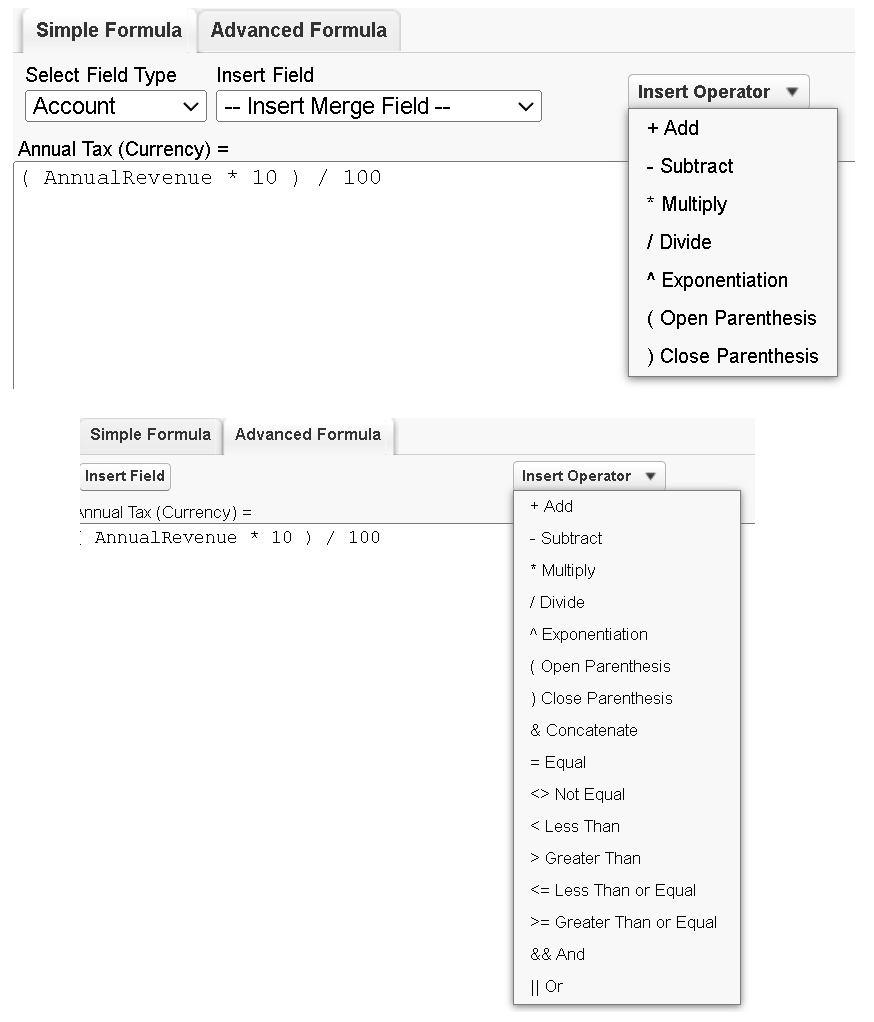
Logical Operators are not available in Simple Formula, but they are available in Advanced Formula.
Now, let us see the various Formula Operators and Formula Functions that we can use in Formula Fields.
Formula Operators in Formula Fields
Following types of Formula Operators can be used in Formula Fields, and as discussed earlier, Simple Formula can only use Math Operators.
Math Operators - These operators are used to perform mathematical operations.
Logical Operators - These operators are used to perform comparison operations. All these operations either result in ‘True’ or ‘False’.
Text Operator – This operator is used to concatenate texts.
Concatenate [&] – For example ‘Hello’ & ’ World’ will result into ‘Hello World
Formula Functions in Formula Fields
We hope you enjoyed this blog! In the next one, we’ll be talking about the formula functions and their use cases and scenarios. until then you can take a dive into our other Salesforce blogs, See ya soon!! 🙂
Formulas in Modern Architecture: Data Cloud & Indexing Impact
Because formulas are calculated dynamically on-the-fly, they behave differently than standard text or number fields across search indexing and enterprise analytics:
Standard Indexing Limitations: Standard formula fields cannot be indexed by default because their values change dynamically without updating the record's underlying LastModifiedDate or SystemModstamp. If a formula uses deterministic logic (referencing only fields on the current object without dynamic functions like TODAY() or NOW()), you can submit a request to Salesforce Support to enable custom indexing for better SOQL performance.
Data Cloud & Zero-Copy Ingestion: When streaming Salesforce objects into Salesforce Data Cloud or external data warehouses (via Zero-Copy federations), formula fields cannot be ingested incrementally via standard cursor columns. Connectors separate non-formula fields into incremental change-data-capture tables while re-snapshotting formula outputs as materialized views to maintain calculation accuracy.
Beyond Formulas: Knowing When to Transition to Code
Formula fields are ideal for light calculations and cross-object data pulls, but over-relying on them across large data volumes can degrade page-rendering speeds and SOQL performance.
If your business processes require complex roll-up summarizations across non-master-detail relationships, dynamic string manipulations exceeding character limits, or heavy programmatic automation, relying solely on formula fields will slow down record load times. Partnering with specialized Salesforce custom development services allows your organization to build lightweight Apex triggers, native Lightning Web Components (LWCs), or custom roll-up engines that maintain peak system performance without running into formula limits.
Frequently Asked Questions (FAQ)
Q-1. What is the main difference between Simple and Advanced formulas in Salesforce?
Ans: Simple formulas allow basic mathematical and string operations referencing fields on the current object or universal objects (like $User or $Organization). Advanced formulas grant access to extensive formula functions (Date, Text, Math, Logic) and allow cross-object parent field lookups up to 10 relationships away.
Q-2. Can a formula field reference another formula field?
Ans: Yes, formula fields can reference other formula fields on the same or parent objects. However, doing so increases the overall compile size of the parent formula and can quickly exceed the 5,000-byte limit if nested too deeply.
Q-3. Why can't I search or filter list views efficiently using a formula field?
Ans: Because formula values are calculated dynamically at read time rather than stored physically in the database, standard global search engines do not index them, and filtering large list views by unindexed formula fields can cause slow page load times.
Q-4. How do date functions like TODAY() impact formula calculations?
Ans: Functions like TODAY() or NOW() update dynamically whenever a user views or queries the record. Because these functions depend on system time rather than field updates, they do not trigger system ModStamps or fire automated record-triggered Flows on their own.
Resources
https://help.salesforce.com/s/articleView?id=sf.choosing_a_formula_data_type.htm&type=5
https://help.salesforce.com/s/articleView?id=sf.elements_of_a_formula.htm&type=5
https://help.salesforce.com/s/articleView?id=sf.tips_on_building_formulas.htm&type=5
https://help.salesforce.com/s/articleView?id=sf.formula_field_limits.htm&type=5
https://help.salesforce.com/s/articleView?id=sf.customize_functions.htm&type=5